How to Optimize Your Android Smartphone for Gaming: 5 Pro Tips

You fire up a session of Call of Duty: Warzone Mobile or Genshin Impact, and just five minutes in, reality hits like a bucket of ice water.
Your framerate tanks, stuttering tears through the screen, and the back of your phone begins scorching your fingers. Do not chuck your precious device against the wall just yet.
Out of the box, Android is configured to prioritize battery conservation at the direct expense of raw gaming horsepower.
Fortunately, there are completely free, risk-free methods to boost Android gaming performance without needing to root your device.
As a competitive player, nothing frustrates me more than seeing my FPS crater during a decisive gunfight.
Here are my essential pro tips to configure and optimize Android for gaming to unlock the full power of your gaming smartphone.
Tip 1: Hack Android's Developer Options
Let us start by heading straight into Android's engine room. Google tucks away an entire suite of advanced settings that are goldmines for clawing back in-game performance.
How to Unlock This Secret Menu
Open your Settings, navigate to About phone, and tap rapidly seven times on the Build number entry (or on your OEM skin version like MIUI, HyperOS, or One UI).
A prompt will pop up confirming you are now a developer.
Head back to the main settings menu, tap into System (or Additional settings), and you will find your brand-new Developer options tab.
Force 4x MSAA for Crisper Visuals
Inside Developer options, scroll down to the hardware-accelerated rendering section and toggle on Force 4x MSAA (Multisample Anti-Aliasing).
This forces the graphics processor (GPU) to apply multi-sample edge smoothing across 3D games.
Your titles will look noticeably sharper without jagged pixel edges. Keep in mind: your GPU will pull extra workload, which slightly raises thermals and drains the battery a bit faster.
Reduce Animation Scales to Free Up CPU Cycles
Still inside Developer options, locate Window animation scale, Transition animation scale, and Animator duration scale.
By default, these are set to 1x. Dial every single one down to 0.5x (or turn them completely off).
The payoff is instantaneous: system UI navigation feels lightning-fast, shedding sluggish transition overhead and freeing up valuable CPU cycles exclusively for your match.
Tip 2: Unleash Official Manufacturer Game Modes
For years, Android lacked unified system-level optimization for gaming. That is why major hardware manufacturers engineered dedicated Android game modes.
Whether it is called Game Turbo (Xiaomi), Game Genie (ASUS), Game Space (REDMAGIC), or Game Booster (Samsung), this utility is no mere gimmick.
Allocate 100% of RAM and CPU to Your Game
Launching games through these dedicated launchers instantly purges system RAM and terminates background bloatware processes.
This ensures that full CPU and GPU clock speeds are prioritized strictly for your active game.
Make sure to also toggle on Performance mode inside the game app settings to bypass standard system battery throttles.
Silence Annoying Notification Popups
Nothing kills clutch moments faster than a random text notification or phone call hijacking your screen mid-fight.
Dedicated game modes allow you to block heads-up notifications, lock screen brightness to prevent sudden auto-dimming, and disable gesture navigation bars so you never accidentally swipe out of a match.
Tip 3: Force Your Maximum Screen Refresh Rate
Most modern phones boast high-refresh panels running at 120Hz or 144Hz. Yet out of the box, systems frequently apply dynamic adaptive refresh rates to conserve juice.
That automatic rate-switching often introduces noticeable micro-stutters in fast-paced games.
Disable Adaptive Mode in Display Settings
Head into your phone's Display Settings and find Refresh rate (or Motion smoothness).
Switch the setting from Adaptive/Dynamic to **Maximum (120Hz or 144Hz)**.
Your panel will stay locked at peak fluidity across all scenarios. In-game movement becomes butter-smooth, delivering an immediate upgrade to your visual tracking and input response.
Tip 4: Combat Thermal Throttling
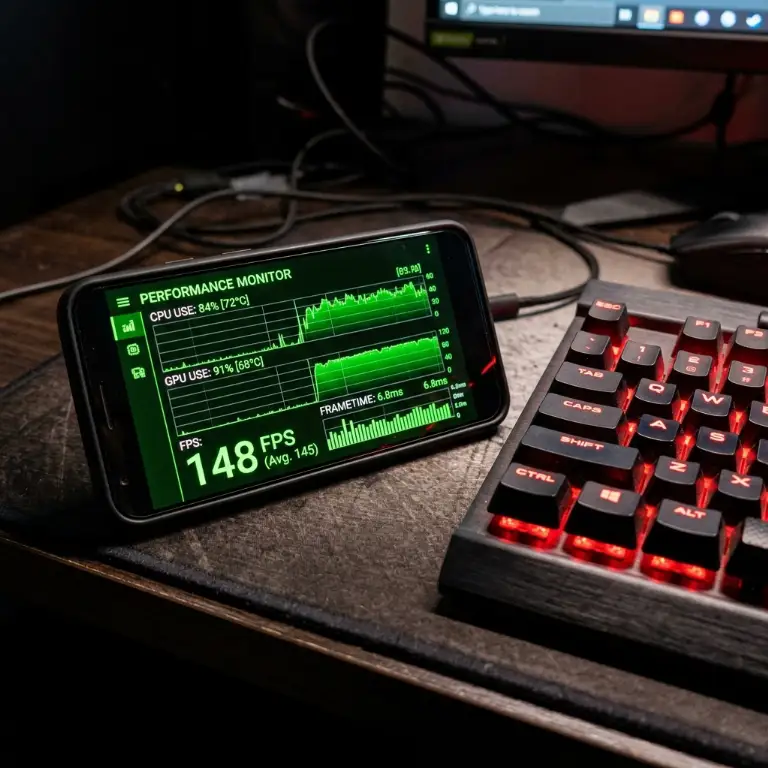
The number one enemy of mobile gaming performance is heat. When internal SoC temperatures pass critical thresholds, the processor automatically slashes clock speeds to safeguard hardware: the dreaded thermal throttling.
This sudden downclocking is the true culprit behind violent FPS drops after a few minutes of play.
Strip the Case and Never Fast-Charge While Playing
During intensive gaming sessions, make it a habit to pop off your protective case. This allows heat to dissipate much faster through the phone's chassis.
Avoid gaming while plugged into high-wattage fast chargers. Rapid charging pumps tremendous heat into the battery, which stacks on top of GPU thermals and forces immediate thermal throttling.
If your device supports bypass charging (like the ASUS ROG Phone or REDMAGIC), switch it on immediately so power bypasses the battery entirely.
Tip 5: Keep Free Storage for Memory Swap
Android leverages a slice of internal flash storage as virtual swap memory (pagefile/virtual RAM expansion).
When storage drives get choked full, this virtual memory mechanism degrades, causing system-wide stuttering.
Maintain at Least 15% Free Storage
Make it a golden rule never to fill your storage past 85%. Purge bulky 4K video clips, uninstall unused apps, and clear cached data from resource hogs like TikTok or Instagram.
Maintaining ample breathing room ensures your UFS storage chip reads and writes assets at top speeds, preventing mid-game hitching whenever heavy textures stream in.
To take your mobile setup further, check out our guide to the best gaming smartphones or browse our top picks for affordable gaming phones.
Summary: Unleash the Beast!
By fine-tuning developer options, locking your screen to its maximum refresh rate, and managing device thermals, you can breathe brand-new life into your Android phone.
These straightforward tweaks deliver precious FPS gains without spending a single dime.
Good Game, and see you on the battlefield,
Grimtag

SEO consultant for over 20 years and digital entrepreneur, Charles 'Grimtag' Ronchain is the founder of Pro-Gamer.gg, Retrocharting.com, and Gamescharting.com. A competitive gamer, streamer, and retro game collector, he has worked in the video game industry for over 15 years, notably as a consultant for leading game price comparison platforms. Passionate about real-time performance data and gaming technology, he analyzes competitive esports, gaming hardware benchmarks, and creator workflows on Pro-Gamer.gg with an authentic player perspective.