GTA 6 Storage Guide on PS5 and Xbox Series: How to Easily Clear 230 GB of Space Without Losing Your Games
With a massive 209.8 GB preload split across 32 PlayGo archives on PlayStation 5 (where the physical retail box mandates at least 230 GB of free space for file decompression) and a 209.86 GB download on Xbox Series X|S that expands to 225.34 GB once installed, Grand Theft Auto VI is pushing internal console drives to their absolute limits ahead of its November 19, 2026 global launch. As GTA 6 preloading rolls out across PS5 and Xbox Series X|S, millions of players are running straight into the dreaded storage full prompt. Before you panic-delete your favorite multiplayer games and condemn yourself to hours of redownloading, here are four built-in system tricks on Sony and Microsoft consoles to reclaim between 50 GB and 180 GB in just a few minutes.
Why Your Console Rejects the Preload Even With 210 GB Free: The Decompression Buffer Trap
This is the number-one technical trap hitting owners of a launch-model PS5 (which only provides 667.2 GB of usable space out of its advertised 825 GB drive) or a 512 GB Xbox Series S (capped at just 364 GB of usable space once the operating system reserve is deducted). When a release as massive as GTA 6 downloads its 32 encrypted 209.8 GB archives, the console requires a temporary staging buffer to unpack the blocks, verify cryptographic checksums, and apply the Day One update.
That staging overhead is the exact reason why the physical PS5 box explicitly lists a 230 GB minimum requirement, and why we strongly advise clearing a 240 GB to 250 GB cushion so your console never stalls during launch night on November 19.
1. PS5, PS5 Slim, and PS5 Pro: Purge Automatic 4K Trophy Videos From Your Media Gallery
This is by far the sneakiest storage thief inside the PlayStation ecosystem. By default, from the very first day you boot up a PS5, the operating system quietly records both a screenshot and a 15-to-30-second video clip (often encoded in high-bitrate 4K HDR) every single time you unlock a Bronze, Silver, Gold, or Platinum Trophy. Over two or three years of regular play, this hidden folder inside the Media Gallery easily swallows between 30 GB and 80 GB of storage space without you ever noticing.
- Step 1 (Wipe accumulated Trophy clips): Open your PS5 Settings (the gear icon in the top-right corner), navigate to Storage > Console Storage > Media Gallery, and switch to the Trophies tab or sort clips by file size. Select all the automated video captures and delete them in bulk.
- Step 2 (Stop automatic video recording permanently): Head to Settings > Captures and Broadcasts > Trophies. Toggle off "Save Trophy Videos" (or restrict it strictly to Platinum Trophies if you still want a clip of your 100% completions).
2. Modular Installations on PS5 and Xbox Series: Strip Out Finished Story Campaigns and Unused Languages
If you regularly jump into evening sessions on Call of Duty, Battlefield, Fortnite, or NBA 2K with your squad, deleting the entire game feels painful when total install sizes routinely exceed 120 GB to 160 GB. Modern console operating systems allow you to dissect those bloated installations into separate modular packages: you can keep your core multiplayer modes intact while stripping out completed single-player campaigns, secondary co-op modes, or unused audio localization packs.
- On PS5 and PS5 Pro: Highlight the game tile on your home screen, press the Options button on your DualSense controller, and select "Manage Game Content". Click the trash can icon next to the Campaign module (which instantly saves 45 GB to 70 GB on major shooters), high-resolution texture packs you do not need, or foreign language audio files.
- On Xbox Series X|S: Highlight the game tile, press the Menu button (the three horizontal lines) on your controller, and open "Manage game and add-ons". Click the main game tile, uncheck the story campaign or side modes you have already finished, and hit "Save changes" on the right.
3. Xbox Series X|S: Use the Hidden "Free Up Space" Utility (Shrinkable Games and Leftover Add-Ons)
The Xbox Series X and Series S dashboard includes a dedicated cleanup utility that most players overlook. Whenever you uninstall a game from your quick library, pre-order bonuses, seasonal expansion packs, or compatibility files often remain stranded on your internal drive.
To clear them out, open My games & apps > Manage > Free up space. Two high-value tabs appear on screen:
- Leftover add-ons: This tab lists every DLC pack and expansion tied to games you have already uninstalled. You can wipe them all in seconds without affecting your Xbox cloud saves.
- Shrinkable games: Especially valuable on the 512 GB Xbox Series S, this tool identifies backward-compatible or cross-gen games holding onto unneeded 4K visual assets and trims them down with a single click.
4. "Cold Storage" Transfers to an External USB 3.0 Drive: 10 Minutes to Copy Instead of 4 Hours to Redownload
A common misconception among console players is that external USB hard drives and SSDs only work with older PS4 or Xbox One titles. While it is true that current-generation streaming architectures prevent you from launching native PS5 or Xbox Series games directly off a USB drive, both Sony and Microsoft fully support Cold Storage archiving on any SuperSpeed USB 3.0 external drive (minimum 250 GB on PS5 and 128 GB on Xbox).
As confirmed in the official PlayStation Support guide on managing PS5 storage, transferring a 100 GB native PS5 or Xbox Series game to an external USB SSD (via Settings > Storage > Console Storage > Games and Apps on PS5, or Move or copy on Xbox) takes just 8 to 12 minutes. When you are ready to jump back into those games after exploring Vice City, copying them back to your internal SSD is just as fast, saving you hours of redownloading and preserving your ISP data cap. Once your drive is ready, make sure to dial in our 5 essential PS5 and PS5 Pro video and audio settings for GTA 6 before launch night.
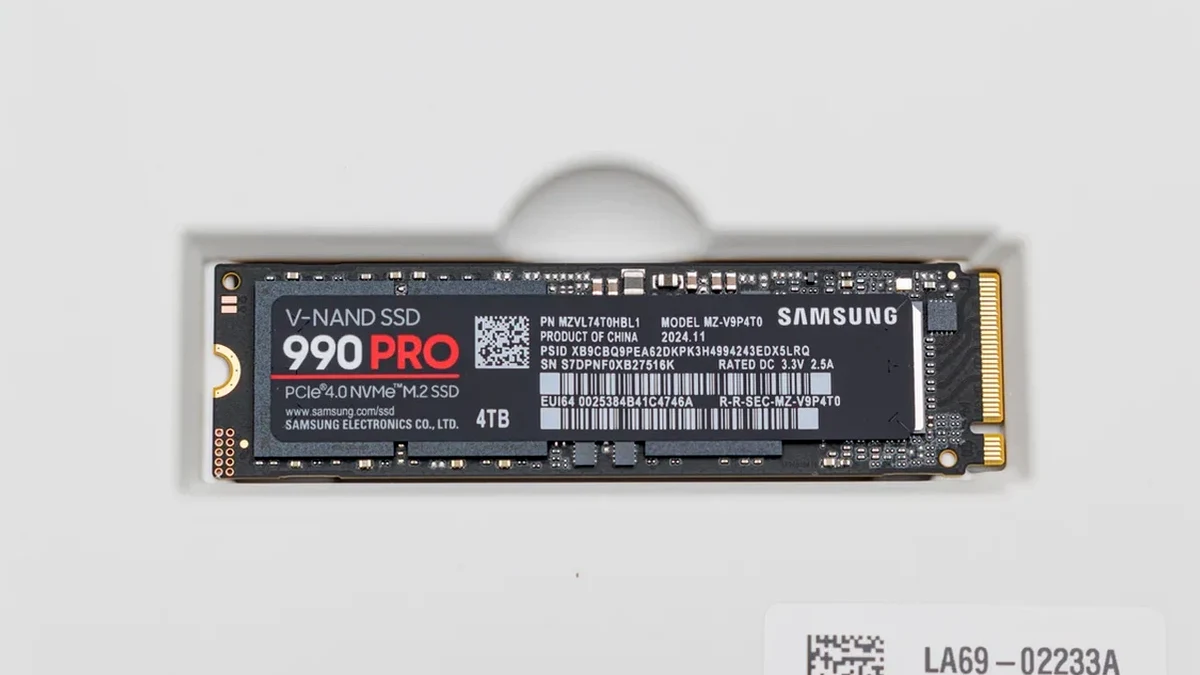
And if you want to permanently end the storage juggling act between massive open-world releases, dropping a PCIe 4.0 M.2 NVMe SSD with an integrated heatsink (rated at 5,500 MB/s or higher) into the PS5 expansion bay or adding a dedicated expansion card on Xbox Series remains the most reliable hardware upgrade:
Summary Table: Usable Console Storage vs. GTA 6 Install Footprint
| Console Model | Advertised Drive | Actual Usable Space | GTA 6 Footprint (Installed / Required) | Share of Usable Drive |
|---|---|---|---|---|
| Xbox Series S (512 GB) | 512 GB | 364 GB | 225.34 GB (209.86 GB download) | 61.9% of usable space |
| PS5 Standard / Digital (Launch) | 825 GB | 667.2 GB | 209.8 GB (230 GB required to install) | 31.4% to 34.5% of usable space |
| Xbox Series X / Series S (1 TB) | 1 TB | 802 GB | 225.34 GB (209.86 GB download) | 28.1% of usable space |
| PS5 Slim (2023 Model) | 1 TB | 848 GB | 209.8 GB (230 GB required to install) | 24.7% to 27.1% of usable space |
| PS5 Pro | 2 TB | 1,890 GB | 209.8 GB (230 GB required to install) | 11.1% to 12.2% of usable space |

The Strategist's Take
While prepping our test consoles for the November 19 rollout, I am still amazed by how many gigabytes quietly rot inside system sub-menus. On my own PS5, simply wiping automated 4K Trophy clips and stripping out two finished FPS story campaigns freed up 94 GB in under three minutes without losing a single multiplayer playlist. As Bastien "Orion" pointed out during our late-night North American server watch, the worst mistake you can make right now is panic-deleting your favorite games instead of parking them on a cheap external USB 3.0 drive: keeping a clean 240 GB to 250 GB buffer on your primary drive guarantees smooth decompression across all 32 PlayGo archives and leaves breathing room for Rockstar Games' Day One patch.

Grand Theft Auto 6 (GTA 6)
Explore official trailers, technical specs and all latest coverage for Grand Theft Auto 6 (GTA 6).

Born and based in Montreal's Mile End district, Maëlle "Kaelen" became close friends with Chaya during their university software engineering years, bonding over late-night coding labs, campus LANs, and World of Warcraft raids alongside Grimtag and Heimdall. A game systems balancing consultant and lifelong theorycrafter, she cut her teeth in the early 2010s writing boss walkthroughs, frame-data breakdowns, and competitive meta guides for specialized French-language MMORPG and esports portals, including Mondes Persistants, as well as North American strategy collections. On Pro-Gamer, she leads in-depth walkthroughs, build optimization, and tactical esports coverage.