PS5 and PS5 Pro Guide: 5 Display and Audio Settings to Change Before GTA 6 Launches
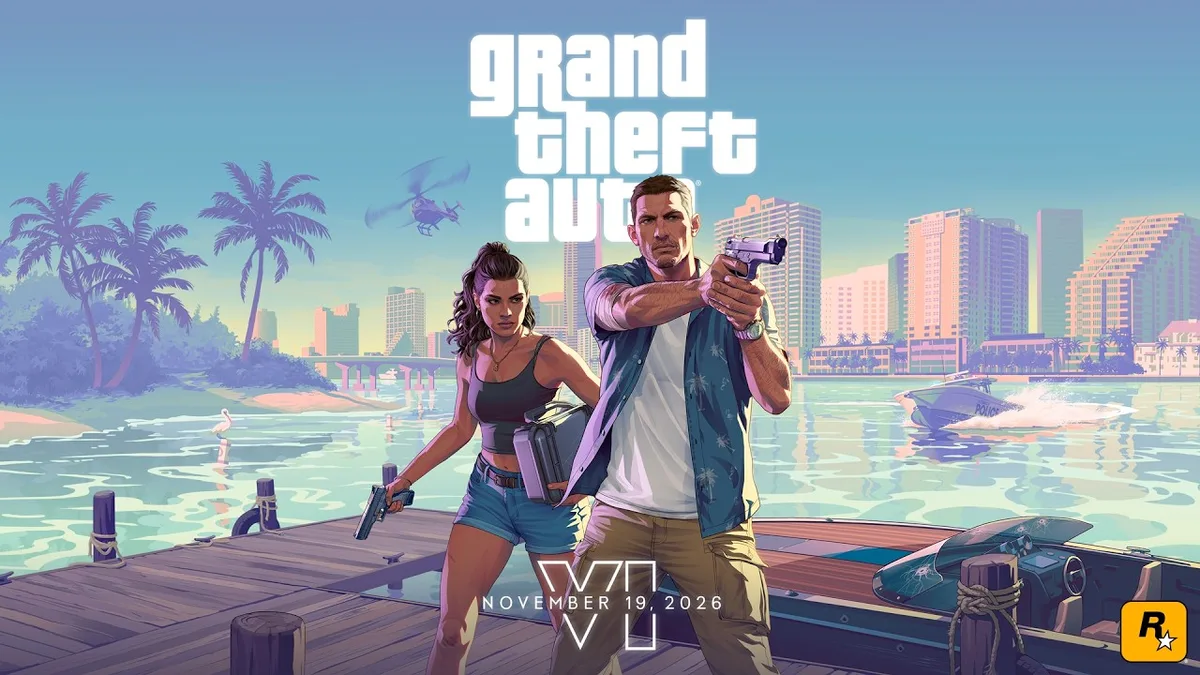
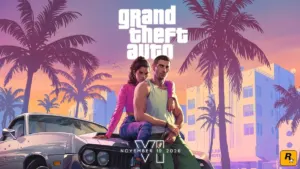
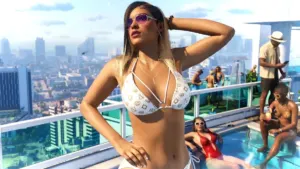
After more than thirteen years of waiting since the fifth installment launched in September 2013, the final countdown has begun: Grand Theft Auto VI arrives on November 19, 2026 for PlayStation 5 and Xbox Series X|S. Much like its predecessor pushed the PlayStation 3 to its absolute hardware limits at the tail end of its lifecycle, the state of Leonida and the neon-lit avenues of Vice City are set to demand every last drop of compute power from your console, even on a PlayStation 5 Pro.
Before jumping into a new criminal life alongside Lucia and Jason, spending five minutes inside your PS5 system menus will eliminate display bottlenecks between your console, your HDMI 2.1 cable, and your television. From Variable Refresh Rate (VRR) stabilization and 120Hz container pacing to HGiG HDR calibration and Tempest 3D Audio profiling, here are the five technical settings you should configure right now.
Quick Summary: 5 PS5 and PS5 Pro Settings to Change Before GTA 6
| System Setting | PS5 Menu Path | Recommended Value | Direct Impact in GTA 6 |
|---|---|---|---|
| VRR & ALLM | Settings > Screen and Video > Video Output > VRR | Automatic + Apply to Unsupported Games ON | Eliminates screen tearing and smooths out frame drops during heavy police chases |
| 120Hz Output | Settings > Screen and Video > Video Output > 120 Hz Output | Automatic (via HDMI 2.1 port) | Locks even 30 FPS frame pacing (4 exact refreshes per frame) and unlocks 40 FPS modes |
| HDR Calibration | Settings > Screen and Video > Video Output > Adjust HDR | On When Supported + TV HGiG Mode (Step 3 at minimum) | Preserves Vice City neon highlights without clipping bright Florida daylight |
| Tempest 3D Audio | Settings > Sound > 3D Audio (Headphones) | Personalized 3D Audio Profile Enabled | Pinpoint 360-degree spatial awareness for sirens, helicopters, footsteps, and V8 engines |
| Presets & Rest Mode | Settings > System > Power Saving | Stay Connected to the Internet + Performance Preset | Seamless background pre-loading and automatic Day One patch installation |
1. Match Your Refresh Rate With VRR and Enable ALLM
In a massive, densely populated open world like GTA 6, frame rates rarely remain completely flat under heavy load. When a high-speed police chase erupts across a crowded Vice City intersection packed with vehicles, pedestrians, and volumetric effects, frame delivery times can fluctuate. On a fixed 60Hz television, those dips immediately show up as screen tearing or noticeable micro-stutter.
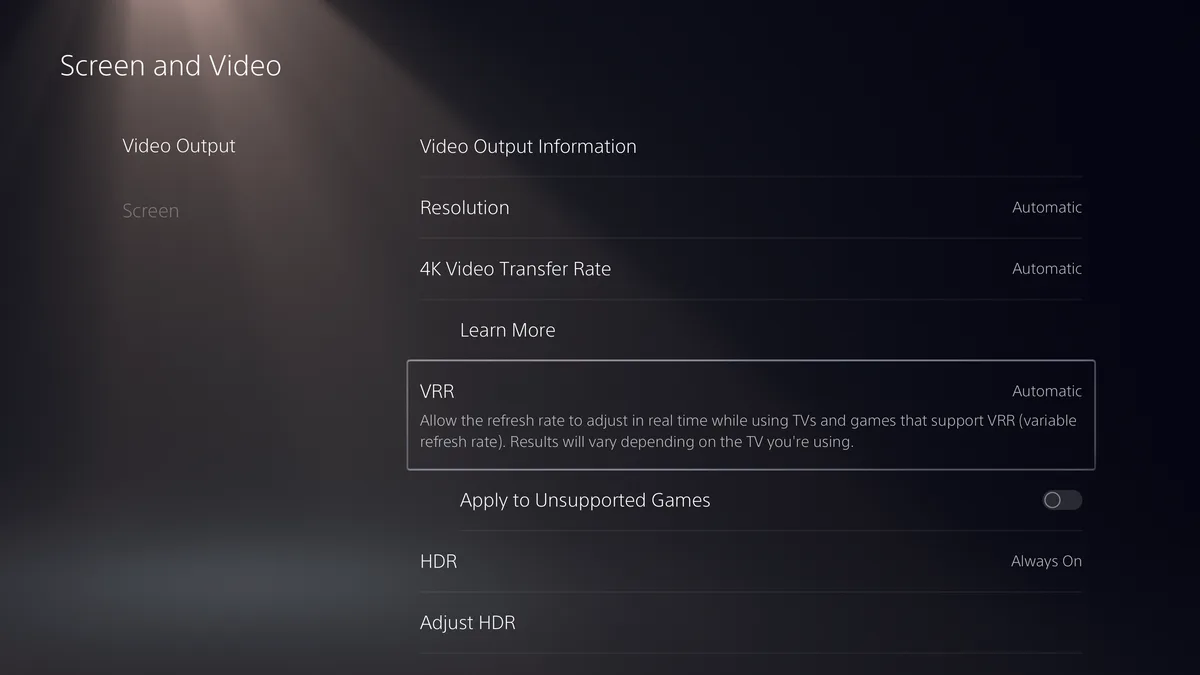
VRR (Variable Refresh Rate) eliminates this mismatch by allowing your HDMI 2.1 television to dynamically adjust its refresh rate on the fly to match the exact frame output of your PS5 GPU. To configure it properly, follow these steps:
- Navigate to Settings > Screen and Video > Video Output > VRR.
- Set VRR to Automatic.
- Toggle on Apply to Unsupported Games: as Sony Interactive Entertainment notes in its system documentation, this setting forces VRR frame-rate stabilization even in titles that do not feature native VRR metadata (and you can easily toggle it back off if a specific game or panel exhibits flicker).
- In the same menu, confirm that ALLM (Auto Low-Latency Mode) is set to Automatic so your television automatically switches into its dedicated low-latency Game Mode, bypassing post-processing filters that add input lag.
2. Turn On 120Hz Output: Why It Matters Even at 30 or 40 FPS
A common misconception among console players is that 120Hz Output only benefits competitive shooters running at 120 frames per second. In practice, this setting controls the video signal container sent from the PS5 over HDMI 2.1 (48 Gbps) to your television, and it plays a major role in frame pacing even when a game runs at 30 FPS or 40 FPS.
From a timing standpoint, 30 FPS divides into a 120Hz container evenly: every single frame is held on screen for exactly four refresh cycles (4 x 8.33 ms = 33.33 ms), keeping frame pacing rock-solid. Furthermore, if Rockstar Games leverages the PS5 Pro architecture and Sony's 2 ms PSSR 2 upscaler on the 300 TOPS GPU to offer a balanced 40 FPS Fidelity mode, having 120Hz Output enabled at the system level is mandatory for that in-game option to appear (since 40 FPS divides 120Hz by three, delivering a 25 ms frame time right at the midpoint between 30 FPS and 60 FPS).
Go to Settings > Screen and Video > Video Output > 120 Hz Output and select Automatic. Make sure your Ultra High Speed HDMI 2.1 cable is plugged into a full-bandwidth HDMI 2.1 input on your TV, as on many Sony Bravia and Mini-LED sets, only HDMI 3 and HDMI 4 support 4K at 120Hz.
Check Availability PlayStation 5 Pro on Amazon→
3. Calibrate HDR Properly With HGiG Mode for Leonida's Lighting
GTA 6 will take you from dark, neon-drenched nightclubs in Vice City to blazing midday Florida sunshine, often within the exact same mission. If your HDR signal is poorly calibrated, bright tropical skies will clip into flat white patches while shadowy back alleys look either crushed or washed out.
First, verify that HDR is enabled on your television for the HDMI port connected to your PS5, and switch your TV's tone mapping setting to HGiG (HDR Gaming Interest Group) rather than Dynamic Tone Mapping. This prevents your TV from applying a second layer of tone mapping on top of the console's internal output. Next, open Settings > Screen and Video > Video Output > Adjust HDR in the actual room lighting you normally play in:
- Screen 1 (Peak Brightness): adjust the directional pad until the sun symbol inside the white box is barely visible.
- Screen 2 (Specular Highlight Clipping): repeat the adjustment until the sun icon just disappears against the background.
- Screen 3 (Deep Black Level): push the slider all the way down to the absolute minimum. This locks in a true 0-nit black floor on OLED and Mini-LED panels so nighttime scenes in Leonida retain maximum contrast.
4. Build a Personalized Tempest 3D Audio Profile for Headphones
Rockstar's open worlds are famous for layered acoustic detail: distant police sirens echoing across blocks, helicopter rotors overhead, street-corner conversations, and wildlife rustling through the Grassrivers wetlands. The PS5's dedicated Tempest 3D AudioTech engine places hundreds of sound sources around you in a 360-degree sphere, especially when calibrated to your specific ear shape rather than left on the default preset.
Plug any wired headset into the 3.5mm jack on your DualSense controller (or connect a compatible USB / PlayStation Link wireless headset such as the Pulse 3D or Pulse Elite, since the PS5 does not support standard Bluetooth audio without a USB adapter), then head to Settings > Sound > 3D Audio (Headphones). Select Create Personalized 3D Audio Profile and follow the two-minute audio questionnaire to generate a custom HRTF curve, then toggle on Enable 3D Audio for Headphones. While you are configuring peripherals, check Settings > Accessories > Controllers to confirm your DualSense firmware is updated and that vibration and adaptive trigger effects are set to Strong.
Check Availability Sony Pulse Elite Headset on Amazon→
5. Configure Game Presets, Rest Mode, and M.2 NVMe SSD Storage
Finally, three system-level quality-of-life checks will save you from wasting time on launch night. First, visit Settings > Saved Data and Game/App Settings > Game Presets to set your global preference to Performance Mode or Resolution Mode so supported games boot straight into your preferred visual target.
Second, open Settings > System > Power Saving > Features Available in Rest Mode and make sure both Stay Connected to the Internet and Enable Turning On PS5 from Network are checked. This ensures massive pre-loads and Day One patches download automatically while your console rests. Third, check your available drive space under Settings > Storage: as players weigh what GTA 6 really costs to play on November 19 across editions and consoles, the 667 GB of usable storage on a launch PS5 (or 848 GB on a PS5 Slim) fills up fast. Clearing at least 200 GB ahead of time or installing a PCIe Gen4 M.2 NVMe SSD rated at 5,500 MB/s or higher with a heatsink guarantees your console is ready on day one.
Check Availability PS5 NVMe SSD on Amazon→
My Perspective
I always check these exact menus first whenever I hook a PlayStation 5 up to a new OLED or Mini-LED television, and I am still surprised by how much performance Sony leaves turned off out of the box. In my experience, dropping the third screen of the HDR calibration wizard down to absolute zero and toggling on VRR for unsupported games immediately transforms motion clarity and night-scene contrast. After waiting more than a decade to step into Vice City alongside Lucia and Jason, I would rather spend five minutes tuning my setup today than let a misconfigured HDMI port or a full SSD spoil launch night in Leonida.

Based on the outskirts of New York City, Chaya 'Chayane' spent five years studying software engineering in Montreal before returning to her home state. A Full-Stack developer and Deep Learning AI architecture researcher, she explores neural networks and algorithmic optimization while engineering data pipelines for Retrocharting and Gamescharting alongside Grimtag. A gamer for over 20 years and an avid collector of Nintendo history and The Legend of Zelda, she explored World of Warcraft's Azeroth before bringing her deep technical background to video game analysis.