NVIDIA Profile Inspector Creator Releases G-SYNC Tweaks to Stop 60 FPS Stutter and OLED VRR Flicker
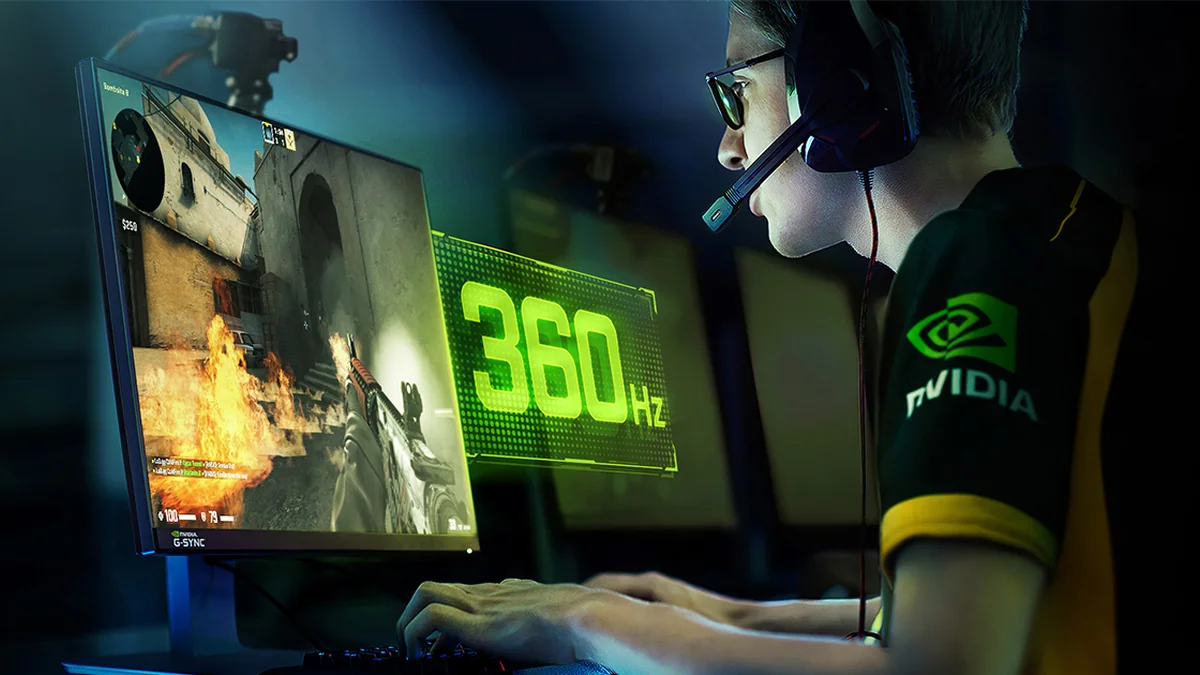
On a 240Hz or 360Hz G-SYNC OLED gaming monitor, running a game near 60 FPS often triggers distracting brightness flicker, while fast LCD panels can suffer from persistent micro-stutter. To tackle this GeForce driver quirk without manual Windows Registry edits, Orbmu2k, the developer behind NVIDIA Profile Inspector, has released a free, open-source utility called NVIDIA G-SYNC Tweaks.
Why the NVIDIA Driver Bounces Between 60Hz and 120Hz
In theory, Variable Refresh Rate (VRR) should track frame rates all the way down to a display's native hardware VRR floor, typically around 48Hz, before Low Framerate Compensation (LFC, or frame doubling) engages. In practice, on high-refresh-rate screens, NVIDIA's display driver triggers LFC much earlier, around 58 to 65 FPS.
The culprit is an undocumented driver registry parameter named vrrFrameSplitBehavior (default value 0x80000055), first uncovered by Reddit user u/PykeFeed and reverse-engineered by Orbmu2k on NVIDIA driver 621.12. Instead of picking the lowest refresh multiplier (1x, 2x, 3x) that fits inside the monitor's VRR window, the driver selects the multiplier closest to the midpoint of the display's refresh range, with a 15% stickiness bias.
As a monitor's maximum refresh rate climbs, that midpoint pushes the 1x to 2x switch higher. According to the mathematical model published on Orbmu2k's official GitHub repository, LFC engage and release points sit at 50.0 to 52.8 FPS on a 120Hz panel, 52.5 to 55.5 FPS at 144Hz, 58.4 to 61.6 FPS at 240Hz, and reach 61.8 to 65.2 FPS on a 360Hz display.
Any title capped or hovering around 60 FPS therefore flips repeatedly between 60Hz (1x) and 120Hz (2x). On WOLED and QD-OLED panels, where gamma and brightness shift slightly with refresh rate, those rapid transitions show up as visible VRR flicker in dark scenes. On 240Hz or 360Hz LCD monitors, the same toggling creates noticeable 60 FPS stutter that frame-rate caps cannot fix, leaving users with the frustrating choice of putting up with it or artificially dropping their screen down to 120Hz.
What NVIDIA G-SYNC Tweaks v1.0.1 Unlocks
Distributed as a portable ZIP archive on the official GitHub Releases page (v1.0.1), NVIDIA G-SYNC Tweaks features a clean Windows 11-style interface. It automatically locates the installed GeForce GPU and its exact display adapter registry path through NVAPI, removing the guesswork of editing Windows Registry keys by hand.
Fixing the premature 60 FPS frame doubling takes three steps. On the LFC / frame doubling page, users switch from NVIDIA's default to Lowest multiplier (recommended), which sets bit 16 (0x80010055) so the driver always chooses the lowest valid multiplier that fits the monitor's VRR window. Clicking Apply & restart driver writes the value with administrator elevation and restarts the graphics driver in a few seconds without rebooting Windows. To verify the fix, Orbmu2k notes that capping a game at 55 FPS should keep the monitor's built-in refresh counter steady around 55Hz rather than jumping to 110Hz.
Beyond LFC control, the app organizes hidden GeForce VRR parameters across dedicated pages:
- LFC / frame doubling: Switch between NVIDIA default, lowest multiplier, or custom stickiness, complete with a live monitor refresh preview, frame-time estimate reaction speed, and frame-generation pacing controls (
enableVrrFlipMetering). - Smoothing & flicker: Exposes hidden flip-delay smoothing controls (
enableVrrFrameSmoothing,vrrDeflickerMaxUs,vrrMonAdj,vrrDeflickerMaxPulsarfor G-SYNC Pulsar displays, andvrrDecayCoefficient) used to even out erratic frame times. - VRR behaviour and Cursor & idle: Options to keep VRR active, tune DisplayPort or HDMI detection, adjust refresh limits, and control mouse cursor refresh timers when a game pauses frame delivery.
- Smart detection and Backups: Experimental jitter and slideshow detectors alongside automatic plain
.regrestore points saved before every change, with one-click reset badges for every tweaked value.
For PC players running OLED monitors on Windows, it pairs neatly with focused community utilities like OLED Engine for automated burn-in protection across multi-monitor setups.
Compatibility, Limits, and Precautions
NVIDIA G-SYNC Tweaks requires 64-bit Windows 10 or Windows 11, an NVIDIA GeForce GPU paired with a G-SYNC or VRR-compatible monitor, and Microsoft's Windows App Runtime 2.x. Community reports confirm the tweak works across cards ranging from the GTX 16 lineup up to the RTX 50 series. It has no effect on AMD Radeon or Intel Arc graphics cards.
Unlike NVIDIA Profile Inspector's per-game profiles, these registry tweaks apply globally across every monitor connected to that GPU. Because restarting the display driver briefly blanks all screens and can crash active GPU applications, games and video players should be closed before hitting Apply.
Users should also keep realistic expectations. The LFC transition threshold does not vanish; it simply drops down to the panel's true VRR minimum (usually around 48 FPS), meaning a game hovering right around 48 FPS can still show flicker or minor hitches on late frames. Inherent OLED VRR flicker caused by heavy frame-time spikes remains a panel trait, so the utility specifically eliminates the unnecessary 60Hz / 120Hz jumping.
Finally, this remains an unofficial third-party tool modifying undocumented driver keys. NVIDIA can alter or drop these values in any future driver branch. Standard driver updates normally preserve the settings, whereas a clean installation of a new release such as the recent GeForce Game Ready 621.40 WHQL driver will wipe them back to default.
My Field Notes
This is exactly why PC gaming communities keep relying on open-source tools like Orbmu2k's work when official driver panels leave obvious pain points buried under the hood. Paying premium money for a 240Hz or 360Hz OLED display only to choose between 60 FPS flicker or capping the panel to 120Hz never made sense. Automatic registry backups and live LFC threshold previews make this remarkably safe to try, though sticking strictly to the Lowest multiplier preset and leaving the experimental tabs untouched is the smart move for daily gaming.

Originally from Lyon, France, gaming journalist Bastien "Orion" relocated nearly a decade ago to Quebec City's Saint-Roch district, right in the heart of eastern Canada's development studio hub. Before crossing the Atlantic, he honed his versatile reporting style across classic French gaming web portals and specialist television outlets in the 2000s and 2010s, notably with JeuxVideo.fr and JeuxNews. Equally passionate about AAA blockbusters, North American studio culture, retro preservation, and community modding projects, he anchors Pro-Gamer's transatlantic desk and real-time coverage of US and Japanese industry announcements.