Up to Five Displays Protected for Free on Windows: How OLED Engine Automates Burn-In Prevention
On a multi-monitor PC setup, Windows still feels surprisingly rigid when it comes to protecting an OLED panel. A secondary display parked on Discord, a permanently visible taskbar, or a paused video can keep organic subpixels lit statically for hours. Released for free on the official OLED Engine GitHub repository, this portable Windows utility aims to close that exact gap by delivering independent burn-in protection for up to five monitors.
Per-Monitor Burn-In Protection Built for Multi-Display Rigs
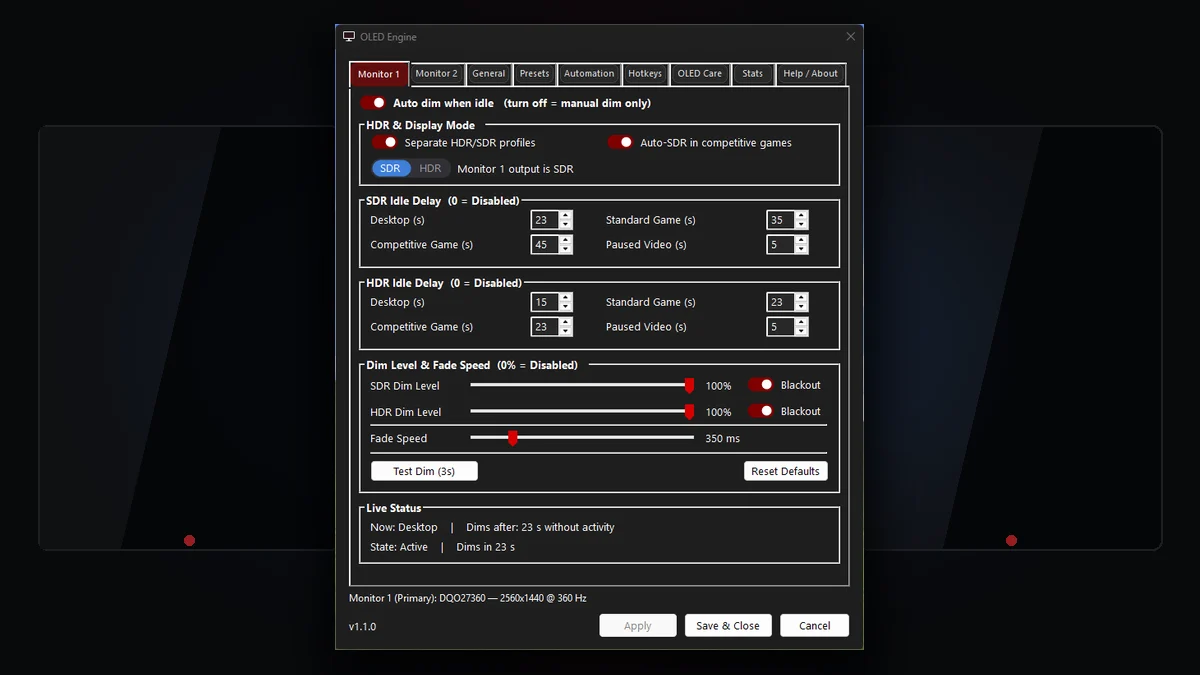
Unlike Windows' built-in screen timeout, which applies one global timer across the entire system, OLED Engine handles every display individually. Built in AutoHotkey v2 by developer dxrksin, the app lets you customize dimming strength (from 0% to 100%) and fade transition speed (350 ms by default) for up to five separate monitors. At 100%, it applies a pure #000000 blackout overlay, effectively turning off individual pixels on OLED and QD-OLED panels. Moving the mouse or clicking wakes only the display you interact with, keeping idle side screens dark.
The utility also targets static desktop elements that accelerate uneven panel wear, a persistent concern highlighted by long-term OLED longevity testing after 18,000 hours. OLED Engine includes native Windows taskbar auto-hide (cleanly restoring your original taskbar setting on exit), automatic cursor hiding and smooth desktop icon fading after a configurable idle delay, and optional DDC/CI display power-off during extended away periods.
Separate HDR and SDR Profiles, Video Awareness, and OLED Care
What makes OLED Engine genuinely useful for PC gaming is how granular its context rules are. The interface splits idle timers into separate SDR and HDR profiles, then breaks each down into four distinct states: Desktop, Standard Game, Competitive Game, and Paused Video. You can have a secondary screen fade to black after 5 seconds while gaming or pausing a clip, while keeping a more relaxed timeout on your primary monitor during desktop work. Built-in detection for common media players and browsers (including VLC, mpv, MPC-HC, and Stremio) prevents unwanted dimming while video playback is active.
For competitive players, a toggle automatically switches the primary display to SDR whenever a listed competitive title launches. NVIDIA GPU owners can also link the Automation tab with a separate copy of NVIDIA Profile Inspector and custom .nip profiles for automatic G-Sync switching, provided OLED Engine runs with administrator privileges. Meanwhile, the OLED Care and Stats tabs log cumulative screen time and schedule customizable pixel refresh reminders, a handy companion whether you own an older OLED panel or a newer 360 Hz flagship QD-OLED like the MSI MEG X.
Portable, Open Source, and Already Updated to v1.1.0
Just one day after its initial v1.0.0 release on November 25, 2026, the developer pushed OLED Engine v1.1.0 on the official GitHub Releases page. The update adds instant preset switching directly from the system tray menu, a one-shortcut diagnostic report copied to the clipboard via Ctrl+Alt+H, and mouse-wake support for manually dimmed or blacked-out displays. It also fixes cursor flickering and stubborn desktop icons during blackouts while cutting background overhead by reducing HDR driver polling from 5 seconds to 30 seconds and writing OLED Care stats to disk every 5 minutes instead of every 30 seconds.
Setup stays completely portable: extract the ~730 KB OLED.Engine.zip archive into a user-owned folder such as Documents or C:Tools (outside Program Files) and run OLED-Engine.exe. Because the compiled executable is unsigned, Windows SmartScreen or antivirus tools may trigger a warning on first launch. To offset that, every release includes a SHA256 checksum you can verify with Get-FileHash in PowerShell, and the full .ahk source code is open for inspection or local compilation via AutoHotkey v2.
My Test Bench
I have not yet put OLED Engine through a multi-week stress test on a multi-monitor bench, so long-term edge cases across every Windows display driver remain to be seen. Still, on paper it tackles a real blind spot in Microsoft's desktop experience. Monitor firmware already does solid work with pixel shift and refresh cycles, yet it cannot know when your side screen has been frozen on a chat window for an hour. Combining per-display #000000 blackout, HDR/SDR context profiles, and fully readable open-source code makes OLED Engine a sharp, lightweight utility worth keeping an eye on, provided you take ten seconds to verify the SHA256 hash or compile from source.
PC hardware enthusiast and competitive gamer, Arthur 'Heimdall' splits his time between France and the UK working in enterprise B2B software solutions. A business school graduate passionate about component benchmarking, he has been building, modding, and tuning PCs since childhood, optimizing every thermal degree and millisecond of display latency. An avid gamer across Assassin's Creed and sandbox titles, he forged his alliance with Grimtag and Chaya during late-night World of Warcraft raids before joining Pro-Gamer.