How to Stream on TikTok From a Gaming Console (PS5, Xbox, Switch): The Complete Guide
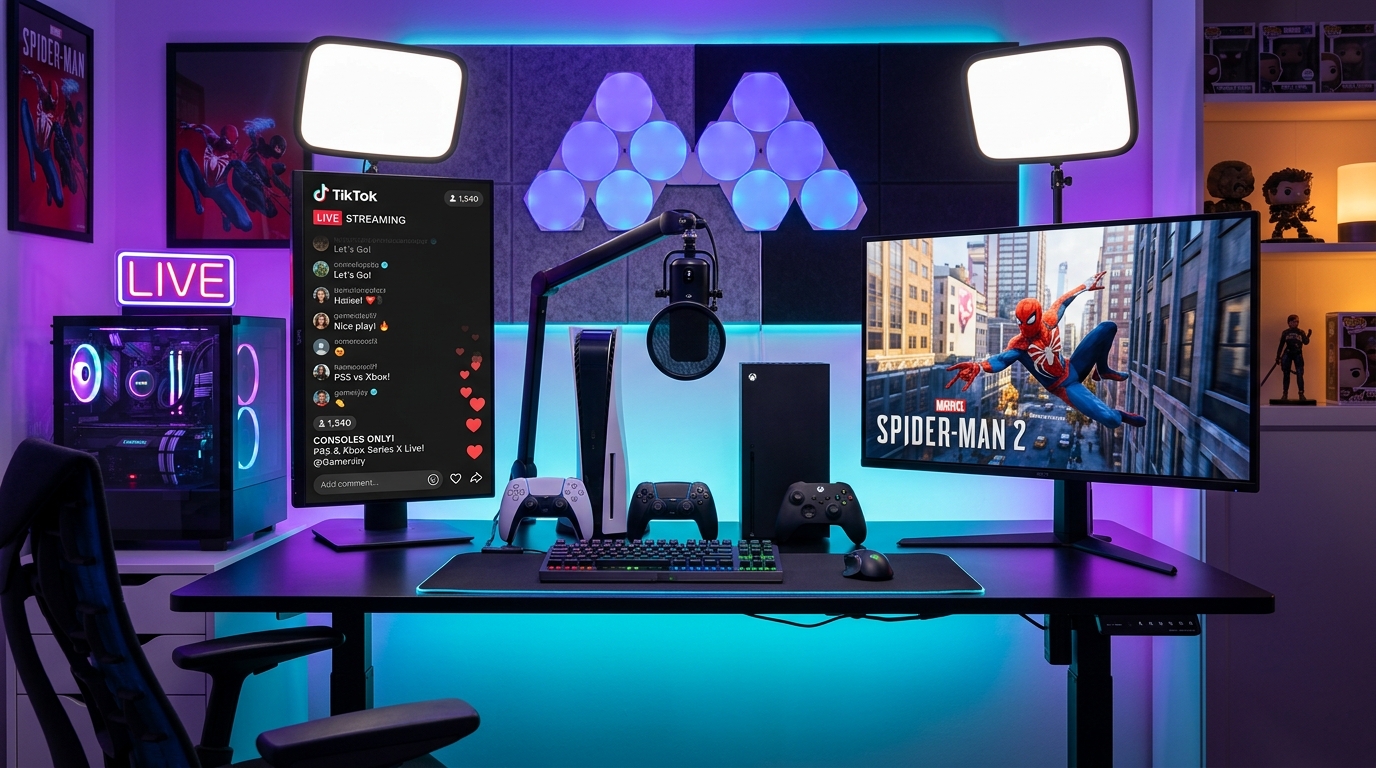
You boot up your PS5, Xbox Series X, or Nintendo Switch, excited to share your gaming session live on TikTok, only to hit an immediate roadblock. While Twitch and YouTube are natively baked into console operating systems, TikTok offers zero official console applications. There is no simple Share button shortcut to broadcast directly to the vertical feed.
Yet gaming content on TikTok is booming, offering organic discovery and viewer acquisition that traditional streaming platforms simply cannot match for newcomers in 2026. Fortunately, reliable workarounds let you bypass this limitation. Whether you have zero budget or want a broadcast-grade setup, here are the 3 complete methods to stream console games on TikTok.
Essential Prerequisites Before Going Live
Before diving into the technical setup, two key criteria dictate your eligibility to broadcast live on the platform:
- The 1,000 follower threshold: Standard mobile app rules typically require at least 1,000 followers to unlock the LIVE broadcasting feature.
- Access to TikTok LIVE Studio: If you stream via PC, TikTok provides its official desktop software. Depending on your region and account health, access is granted either automatically at 1,000 followers or via creator beta programs.
- A rock-solid internet connection: Streaming console gameplay requires a minimum upload speed of 10 to 15 Mbps. Always connect your console and PC via wired RJ45 Ethernet cables rather than standard Wi-Fi.
Method 1: Remote Play + TikTok LIVE Studio (100% Free, No Capture Card)
This is the most cost-effective method to kick off your streaming journey without spending a single dollar on extra hardware. It relies on official remote play software from Sony and Microsoft running on your desktop or laptop computer.
Step 1: Enable Remote Play on Your Console
- On PlayStation 5: Go to Settings > System > Remote Play and toggle on Enable Remote Play.
- On Xbox Series X|S or Xbox One: Navigate to Settings > Devices & connections > Remote features and check Enable remote features.
- On Nintendo Switch: Nintendo consoles lack native remote streaming capabilities. Method 1 does not work on Switch (jump directly to Method 2).
Step 2: Launch the Console Stream on PC
Download the official PS Remote Play client or launch the native Xbox App on Windows 11. Plug your controller into your PC via USB, log into your profile, and start the remote session. Your console game will now display smoothly on your computer monitor.
Step 3: Set Up TikTok LIVE Studio
Install TikTok LIVE Studio on your PC:
- Create or select a scene in portrait mode (9:16 vertical ratio).
- Click Add Source and select Window Capture.
- Select the PS Remote Play or Xbox window.
- Position and crop your gameplay in the center of the vertical canvas, leaving top space for your facecam and bottom space for the live TikTok chat and stream alerts.
Method 2: HDMI Capture Card (Professional 60 FPS Low Latency Setup)
For crystal-clear visual fidelity, zero input lag, and full compatibility across Nintendo Switch, PlayStation 5, and Xbox, a dedicated capture card remains the gold standard for serious creators.
Required Gear
- An external USB-C capture card (such as the Elgato HD60 X or a reliable equivalent).
- Two high-speed HDMI 2.0 or 2.1 cables.
- A desktop PC or laptop equipped with a dedicated graphics card.
Wiring Diagram
- Connect the HDMI cable from your console to the HDMI IN port of the capture card.
- Connect an HDMI cable from the HDMI OUT (Passthrough) port to your TV or gaming monitor to play in real time with zero latency.
- Plug the capture card via USB into your PC.
Configuring in TikTok LIVE Studio or OBS
In your streaming software, add a Video Capture Device source and choose your capture card. You now receive an uncompressed 1080p 60 FPS video feed directly into your broadcast workspace.
If you prefer using OBS Studio, install the free Aitum Vertical plugin to simultaneously manage a 9:16 canvas alongside standard widescreen layouts, then push your stream via RTMP server credentials found in your TikTok Live Center.
To ensure your audio matches your clean video feed, invest in quality gear by reading our breakdown of the best microphones for streaming and gaming, and elevate your facecam presence with our guide to the best streaming webcams.
Method 3: 100% Mobile (Stream from Smartphone Without a PC)
If you do not own a PC, your iOS or Android smartphone can serve as a direct bridge between your console and your TikTok viewers.
- Install the official PS Remote Play or Xbox app on your mobile device.
- Connect to your console over a fast 5 GHz home Wi-Fi network.
- Confirm that your game runs smoothly on your phone screen.
- Open the TikTok app, tap the + button, and swipe across to the LIVE tab.
- Choose the Mobile Gaming option. TikTok will prompt you to begin screen recording your device.
- Switch straight to your remote play app: your console game is now live to all viewers!
Important privacy warning: Always turn on Do Not Disturb mode on your phone before starting the broadcast to avoid displaying sensitive notifications or personal text messages live on stream.
Fixing Audio Echo: The Crucial Headset Rule
The most frequent beginner mistake involves plugging a headset mic into the console controller while capturing audio on PC. This setup routinely creates infinite feedback loops or mutes your voice entirely.
Follow this clean routing principle:
- Game audio is captured purely through the software or capture card.
- Your vocal microphone must be connected directly to your broadcasting device (PC or smartphone).
- If you chat with friends in party voice chat, route voice chat output to headphones while your streaming software captures the unified desktop audio mix.
Editorial Verdict: Streaming Console on TikTok Is the Ultimate Growth Hack
The lack of native TikTok support on PS5 and Xbox Series consoles may feel frustrating at first, but it is precisely what makes this route so lucrative. Because setting up a broadcast takes ten minutes of initial effort, 90% of console gamers give up and default to launching Twitch streams to empty rooms.
By taking the time to configure remote play or an HDMI capture card inside a polished vertical canvas, you tap into an algorithmic recommendation engine with unparalleled reach. TikTok delivers your real-time gameplay straight to the For You feed of dedicated gaming fans, giving you the fastest runway to build an audience in 2026.

SEO consultant for over 20 years and digital entrepreneur, Charles "Grimtag" is the founder of Pro-Gamer.gg, Retrocharting.com, and Gamescharting.com. A competitive gamer, streamer, and retro game collector, he has worked in the video game industry for over 15 years, notably as a consultant for leading game price comparison platforms. Passionate about real-time performance data and gaming technology, he analyzes competitive esports, gaming hardware benchmarks, and creator workflows on Pro-Gamer.gg with an authentic player perspective.