Rapid Trigger & Rappy Snappy: The Ultimate Counter-Strafe Guide for Valorant and CS2
If you compete in Valorant or Counter-Strike 2 at a high rank, you know counter-strafing is the single most critical mechanical skill. Stopping dead on a dime to unleash pin-point first-bullet accuracy usually takes hundreds of hours of grinding. Or, an elite keyboard. In 2026, the Hall Effect magnetic switch revolution completely transformed the movement meta, rendering traditional mechanical switches obsolete for competitive esports.
Powered by innovations like Wooting's Rapid Trigger and Rappy Snappy (or Razer's Snap Tap / SOCD), counter-strafing is no longer just about raw human timing: it is hardware-accelerated. But you still need to dial in the right settings so you do not sabotage your own crosshair placement.
Hall Effect: How Magnetic Sensors Revolutionized Keyboards
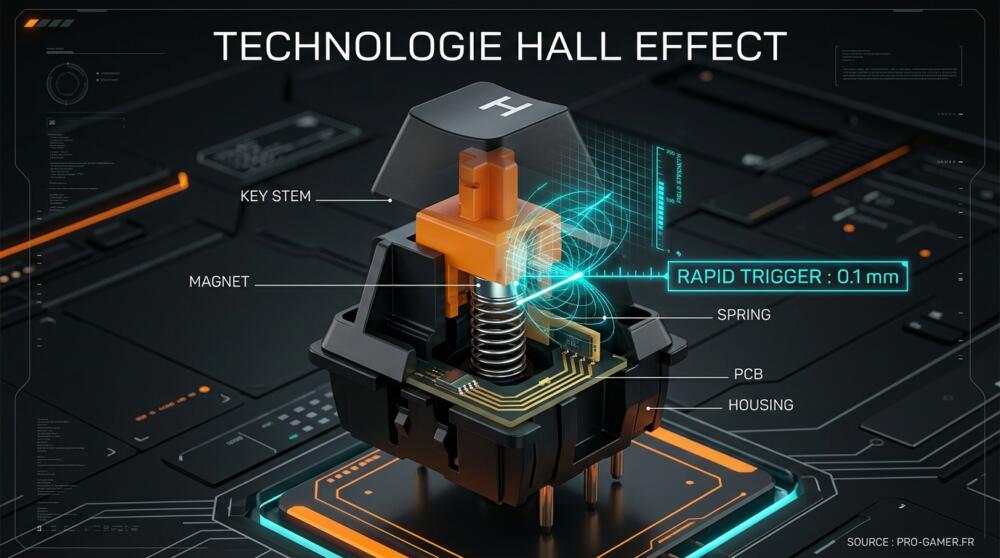
Unlike traditional mechanical switches that rely on physical metal leaf contacts, a Hall Effect switch utilizes a permanent magnet. The keyboard constantly measures the magnetic flux density to track the key's exact travel depth down to a tenth of a millimeter. That continuous analog measurement allows you to adjust actuation points dynamically and unlock Rapid Trigger.
For your movement keys (W, A, S, D), set your actuation point to 0.4 mm. This is the sweet spot favored by top pros across the VCT and EWC circuits. Setting your initial actuation below 0.2 mm often causes accidental misinputs from the slightest finger brush, which can compromise a crucial crosshair hold.
Step-by-Step: Configuring Rapid Trigger by Brand
Rapid Trigger cuts key input the millisecond it detects the switch moving upward, even by just 0.1 mm, and immediately re-engages the moment you press back down. Here is how to configure it across major brands:
1. For Wooting Users (Wooting 60HE, 80HE...)
- Launch your browser and navigate to Wootility Web (Wooting's official web configurator, which requires zero background bloatware and is perfect for LAN tournaments).
- Select your active competitive profile and click on the Performance tab.
- Enable Rapid Trigger across your WASD cluster.
- Set the release sensitivity (up-stroke) to 0.15 mm and press sensitivity (down-stroke) to 0.15 mm.
2. For Razer Huntsman V3 Pro Users (or Compatible Analog Razer Boards)
- Open Razer Synapse on your PC.
- Select your Huntsman keyboard from the dashboard and switch to the Actuation tab.
- Highlight your movement keys (WASD).
- Toggle Rapid Trigger on and set the sensitivity slider (press/release) to 0.15 mm.
3. For SteelSeries Users (Apex Pro Series)
- Launch SteelSeries GG and head into the Engine tab.
- Select your Apex Pro keyboard and open the key binding settings.
- Turn on Rapid Trigger on your movement cluster and set the dynamic sensitivity to 0.2 mm (SteelSeries sensors are slightly more prone to desk vibrations, and 0.2 mm helps eliminate key chatter).
Rappy Snappy, Snap Tap, and SOCD: The Unfair Mechanical Edge
The latest competitive leap is Wooting's Rappy Snappy and Razer's Snap Tap (Simultaneous Opposing Cardinal Directions resolution). This feature compares the travel depth of opposing directional keys in real time (such as A and D). If you press D while A is still partially held down, the board prioritizes whichever key is pressed deeper and instantly kills input to the other. The result? Your agent stops on a single frame, cutting out the transitional drift zone where you would normally glide.
- On Wootility: Enable Rappy Snappy and assign your opposing strafe key pairs (A + D).
- On Razer Synapse: Flip the Snap Tap toggle under your keyboard's primary settings menu.
"Rappy Snappy practically eliminates human error in counter-strafe timings. It is like having active traction control on a Formula 1 car." - Competitive FPS Esports Coach
What About Esports Mice? The Rise of Driverless Hardware
For esports mice, optimizing click latency and sensor response follows the same logic, but with different software demands. Flagships like the Razer Viper V4 Pro rely on Razer Synapse to unlock hyper-polling up to 8000Hz. For Logitech powerhouses like the PRO X2 SUPERSTRIKE, everything is calibrated through Logitech G HUB to tune switch debounce and sensor performance.
However, if you compete on pro staples like Zowie (BenQ) or Vaxee, these peripherals are intentionally built completely driverless. All critical adjustments (DPI stages, polling rate, lift-off distance) are calibrated on-board via physical switches and LED indicators on the base. For esports competitors traveling to LAN arenas, plugging into tournament rigs without downloading a 300MB software suite is a massive competitive advantage.
The Practice Range Drill to Validate Your Settings
Once your profile is saved to onboard keyboard memory, jump straight into the practice range. Do not jump into competitive ranked queues immediately. Set up dynamic movement drills: strafe back and forth quickly, firing a single clean bullet at the apex of every direction change. If shots pull off-target, your counter-strafe timing is sluggish or your Rapid Trigger release threshold needs slight adjustment. For those still competing on a traditional competitive mechanical keyboard, migrating to analog switches will radically transform your consistency.
Give your muscle memory a few days to adjust to the hyper-sensitive physical response. You will notice the difference in long-range rifle duels within your first three rounds. Are you making the leap to analog Hall Effect or sticking with classic mechanical switches? Drop your battle station setups in the comments below!
Valorant
Explore official trailers, technical specs and all latest coverage for Valorant.

SEO consultant for over 20 years and digital entrepreneur, Charles 'Grimtag' Ronchain is the founder of Pro-Gamer.gg, Retrocharting.com, and Gamescharting.com. A competitive gamer, streamer, and retro game collector, he has worked in the video game industry for over 15 years, notably as a consultant for leading game price comparison platforms. Passionate about real-time performance data and gaming technology, he analyzes competitive esports, gaming hardware benchmarks, and creator workflows on Pro-Gamer.gg with an authentic player perspective.