How to Play GTA 6 on PlayStation Portal on November 19: Remote Play Setup Guide, PS Plus Cloud Limits, and Wi-Fi Settings
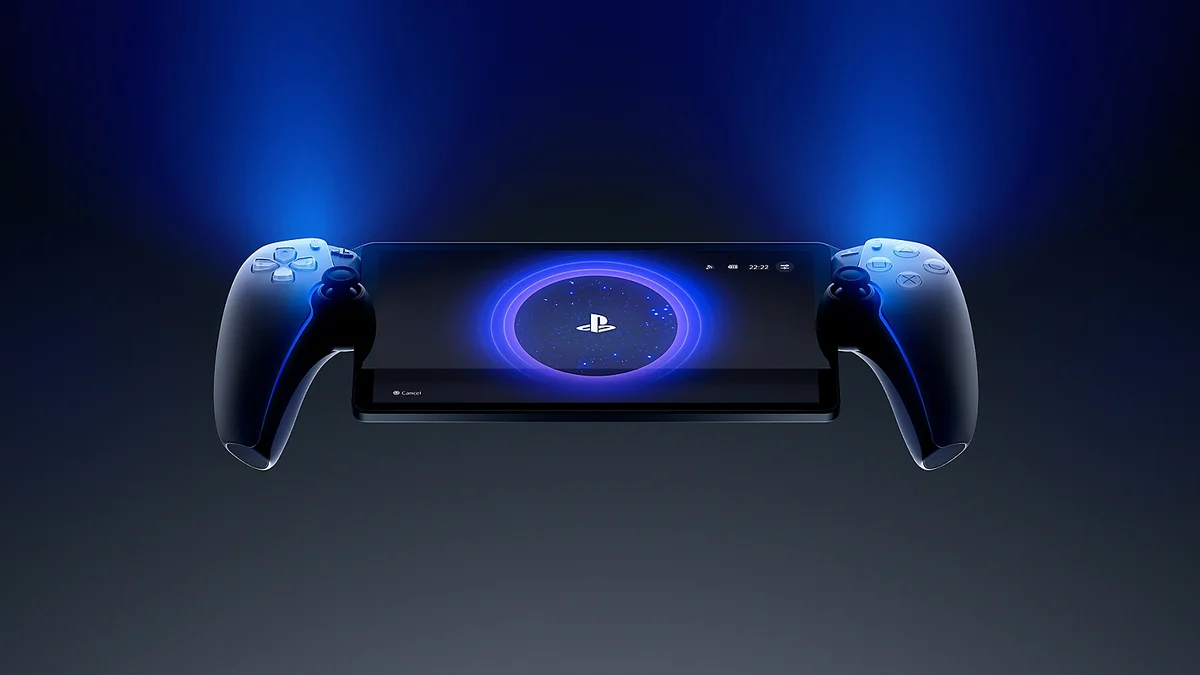
With the global launch of Grand Theft Auto VI arriving on November 19, 2026, many players are preparing to explore Vice City and the state of Leonida on the 8-inch 1080p LCD screen of the PlayStation Portal. Between the cloud streaming feature available to PlayStation Plus Premium subscribers and standard console Remote Play, several technical requirements set by Sony Interactive Entertainment and Rockstar Games must be configured ahead of time to avoid connection drops, wake-on-LAN failures, or compression artifacts on day one.
Can You Stream GTA 6 on PlayStation Portal Without a PS5 via PS Plus Premium?
At launch, the answer is no. While the PlayStation Portal supports direct cloud streaming from Sony's servers without needing a console powered on via a PlayStation Plus Premium subscription, that feature only applies to titles included in the PlayStation Plus Game Catalog or games explicitly enabled for standalone cloud streaming.
Because Grand Theft Auto VI is not part of the PlayStation Plus catalog on November 19, you must own a PS5 or PS5 Pro console with the game installed locally and stream it to your handheld using Remote Play. That means clearing roughly 210 GB of storage space on your console's internal NVMe SSD or M.2 expansion drive before initiating a portable session.
| Technical Parameter | GTA 6 PlayStation Portal Requirement |
|---|---|
| Streaming Method | Console Remote Play from a host PS5 or PS5 Pro (No PS Plus Cloud streaming at launch) |
| PS5 Storage Required | Approximately 210 GB on internal or M.2 NVMe SSD |
| PlayStation Portal Firmware | System software 7.3.2 or newer (Tempest 3D Audio and 1080p stream stability) |
| PS5 Network Connection | Hardwired Gigabit RJ45 Ethernet cable connected directly to router |
| Portal Wireless Band | Dedicated 5 GHz Wi-Fi channel (5 Mbps minimum, 15 Mbps or higher recommended) |
| Recommended PS5 Video Output | 1080p or 4K with 120 Hz Output, VRR, and ALLM turned off during Remote Play |
Step-by-Step PS5 and PlayStation Portal Configuration
To ensure your PlayStation Portal can wake your console from another room or while traveling away from home, four system steps must be completed on your PS5 prior to launch:
- Enable Remote Play on PS5: Navigate to Settings > System > Remote Play on your console and toggle on Enable Remote Play to link your PlayStation Network profile.
- Configure Rest Mode Network Wake: Open Settings > System > Power Saving > Features Available in Rest Mode. Turn on both Stay Connected to the Internet and Enable Turning On PS5 from Network. Without both toggles enabled, the handheld cannot wake a sleeping console.
- Update the PlayStation Portal Firmware: Check your handheld system settings and install PlayStation Portal system update 7.3.2. This firmware improves 1080p stream pacing on the 8-inch display and unlocks in-game Tempest 3D Audio over PlayStation Link devices such as the Pulse Explore earbuds and Pulse Elite headset.
- Keep the PS5 in Rest Mode: Once the 210 GB preload of GTA 6 is complete, always place your PS5 into Rest Mode (amber light) rather than powering it off completely when stepping away from your television.
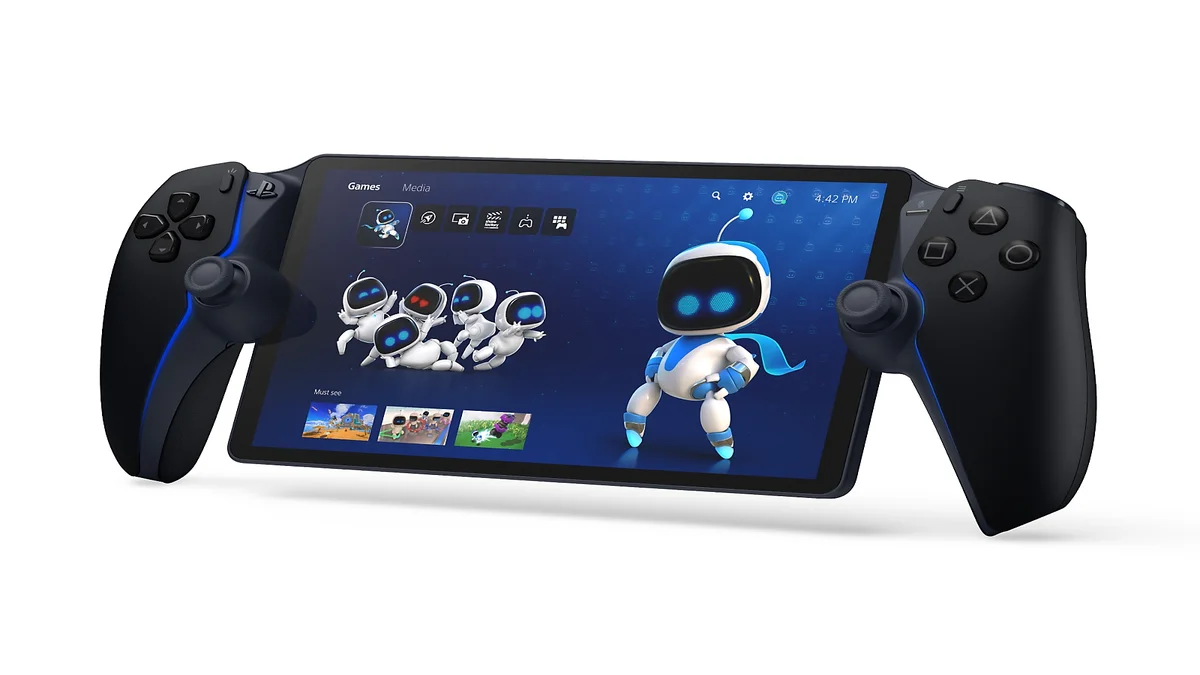
Check Availability for PlayStation Portal on Amazon→

Best Wi-Fi and Video Settings to Eliminate Lag and Compression Blur in Vice City
Streaming an open world as dense as GTA 6 puts heavy demand on the PS5 hardware encoder during high-speed driving across Vice City and the Grassrivers wetlands. Even though Rockstar Games confirmed a 30 FPS target for GTA 6 on PS5 and PS5 Pro with ray-traced lighting and shadows, any local packet loss will immediately cause macroblocking or steering input delay.
To keep the 1080p feed crisp while preserving full DualSense haptic feedback and adaptive triggers on your PlayStation Portal:
- Hardwire Your PS5 via RJ45 Ethernet: Never keep the host console on Wi-Fi when streaming via Remote Play. Wiring the PS5 directly to your router removes half of the local wireless airtime contention and stabilizes upload bitrates.
- Lock the PlayStation Portal to a 5 GHz Wi-Fi Band: Split your router's 2.4 GHz and 5 GHz SSIDs and connect the Portal strictly to an uncongested 5 GHz channel (such as channels 36 to 48). While Sony lists 5 Mbps as the baseline requirement, maintaining at least 15 Mbps with sub-5ms local ping prevents bitrate drops.
- Disable 120 Hz, VRR, and ALLM in PS5 Video Settings: Go to Settings > Screen and Video > Video Output on your PS5 and set 120 Hz Output, VRR, and ALLM to Off during Portal sessions. Preventing the console from negotiating variable refresh rates with your TV eliminates micro-stutter on the Remote Play encoder.
Advanced Troubleshooting: HDMI Handshake Stutter, Port Forwarding, and Away-From-Home Play
If you still notice periodic micro-stuttering every ten to fifteen seconds on the PlayStation Portal while your television is turned off, the culprit is almost always periodic HDCP and HDMI polling between the PS5 and the powered-down display. You can eliminate this behavior either by turning off Enable HDMI Device Link (HDMI-CEC) under the PS5 System menu, or by unplugging the HDMI cable from the back of the console during extended handheld sessions.
For players who want to stream GTA 6 outside their home network over hotel Wi-Fi or a 5G mobile hotspot, verify that your PS5 network test reports NAT Type 2. If the PlayStation Portal fails to wake or connect to your console remotely over the internet, enable UPnP on your home router or manually forward UDP ports 987 (console wake), 8572, and 9295 through 9308 to the static local IP address assigned to your PlayStation 5.
My Test Bench
Having benchmarked the PS5 Remote Play encoder across foliage-heavy open-world games, I have found that stutters on the PlayStation Portal almost never come from raw internet speed, but rather from local Wi-Fi airtime congestion and HDMI handshake polling. If you plan to play GTA 6 in bed or away from your TV on November 19, wiring your PS5 over Gigabit Ethernet and disabling VRR and 120 Hz Output in the console's video menu makes a night-and-day difference. The 8-inch 1080p panel naturally masks the 30 FPS cap while delivering the exact same DualSense trigger resistance and haptics as a local controller.

PC hardware enthusiast and competitive gamer, Arthur 'Heimdall' splits his time between France and the UK working in enterprise B2B software solutions. A business school graduate passionate about component benchmarking, he has been building, modding, and tuning PCs since childhood, optimizing every thermal degree and millisecond of display latency. An avid gamer across Assassin's Creed and sandbox titles, he forged his alliance with Grimtag and Chaya during late-night World of Warcraft raids before joining Pro-Gamer.