Nintendo Switch 2 Battery Guide (5,220 mAh): 90% Charge Limit, 120Hz, and HDR Settings to Maximize Handheld Runtime and Lifespan
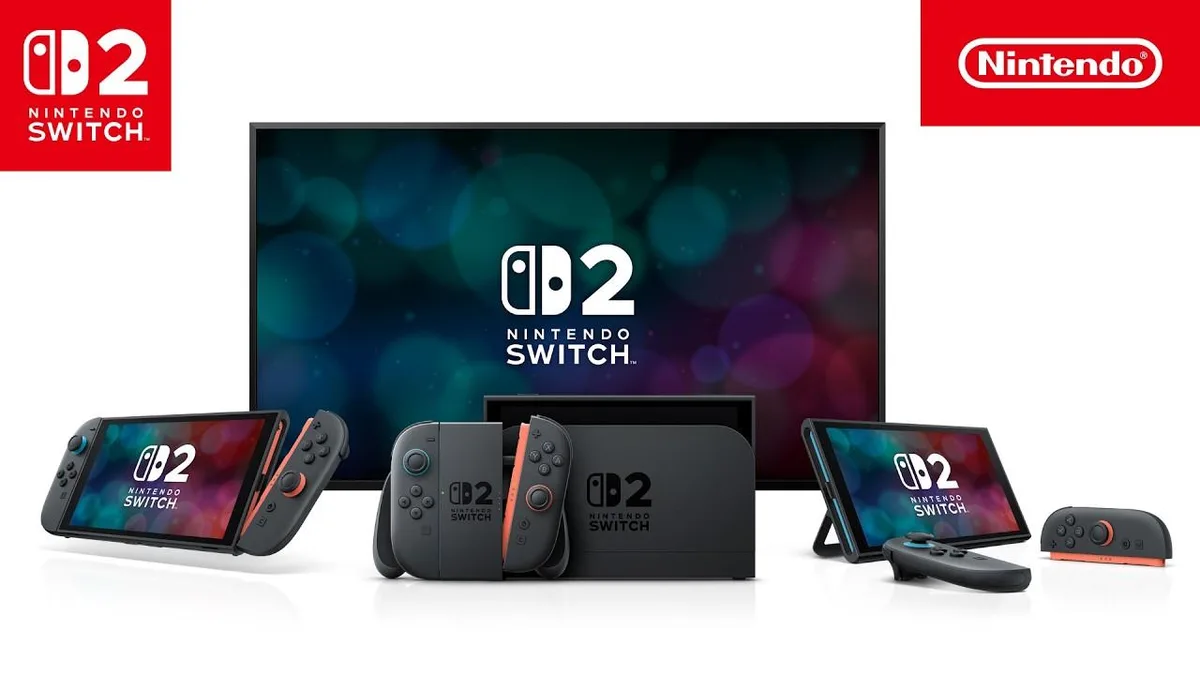
With its spacious 7.9-inch 1080p LCD screen supporting variable refresh rates up to 120Hz and native HDR10 output, the Nintendo Switch 2 places far heavier demands on its internal power supply than its 2017 predecessor. Although Nintendo upgraded the internal lithium-ion battery capacity to 5,220 mAh (up from 4,310 mAh on the Switch OLED Model), official hardware specifications rate handheld battery life between approximately 2 and 6.5 hours depending on the software being played, with a full recharge taking roughly 3 hours while the console is in Sleep Mode.

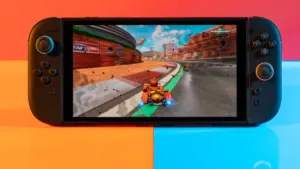
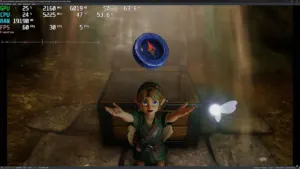
In graphics-intensive titles such as Mario Kart World, Metroid Prime 4, or the Switch 2 edition of The Legend of Zelda: Ocarina of Time, pushing the custom NVIDIA processor at full tilt can drain a full charge in just over two hours away from a wall outlet. Fortunately, Nintendo's operating system includes dedicated battery health and display controls that can both stretch your portable play sessions and prevent premature chemical degradation over years of use.
Enable "Stop Charging Around 90%" to Protect Long-Term Battery Health
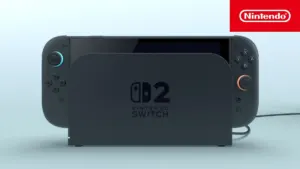
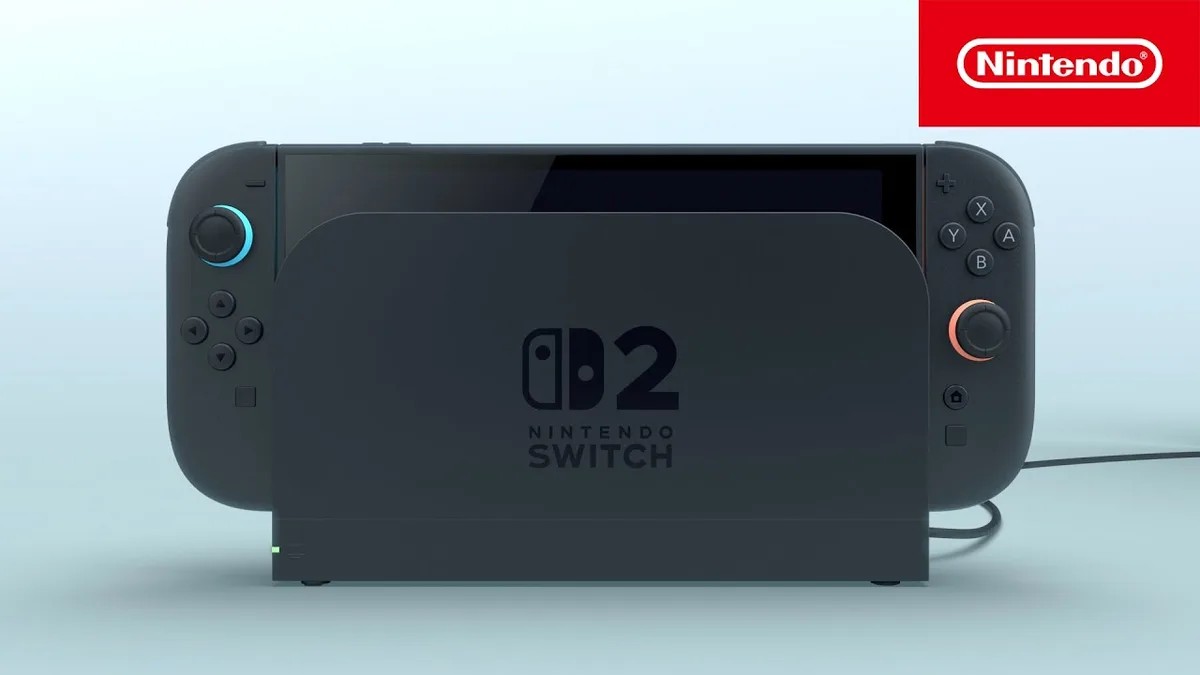
The single most valuable addition to the Nintendo Switch 2 power management menu is its built-in charge limiter. When a lithium-ion battery sits continuously at a 100% state of charge under trickle power (which happens whenever your console stays parked inside its TV Dock for days or weeks at a time), elevated cell voltage accelerates permanent capacity loss.
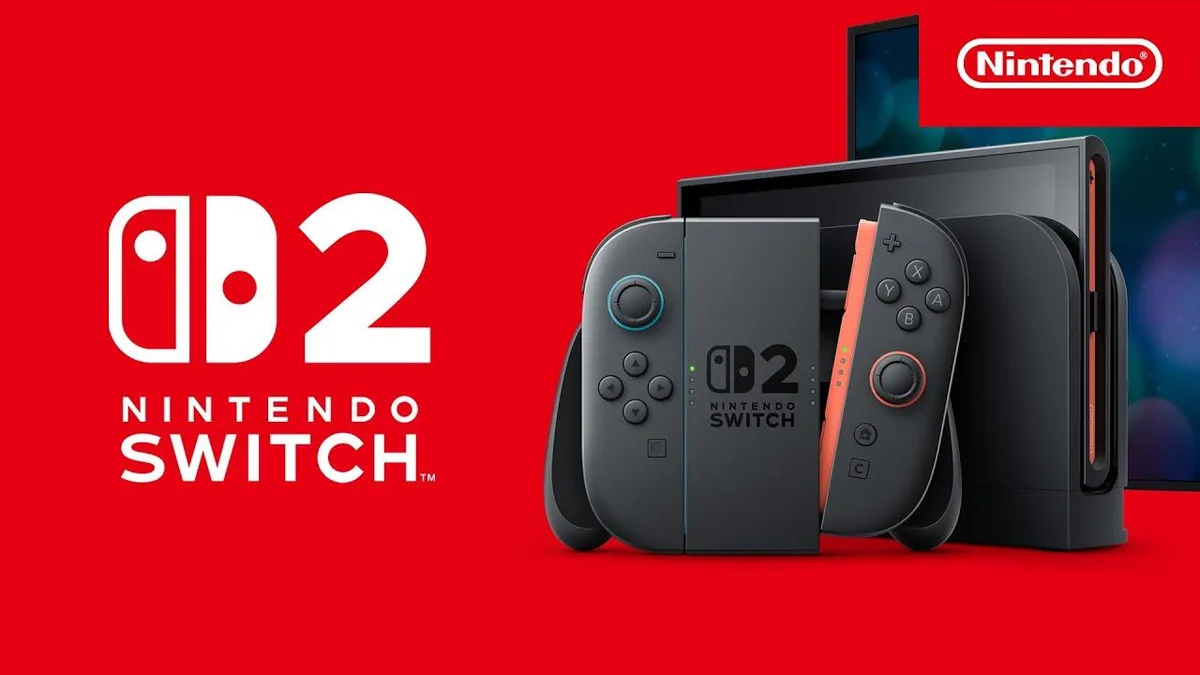
You can activate this hardware safeguard in under ten seconds:
- Open System Settings from the HOME Menu.
- Scroll down the left-hand column and select System.
- Locate the Stop Charging Around 90% toggle and switch it to On.
As documented on the official Nintendo Support portal, your console may still occasionally charge all the way to 100% even while this setting is enabled. Nintendo notes that this periodic full cycle is intentional, allowing the battery management controller to recalibrate and maintain accurate battery percentage readouts on screen. Whenever you are preparing for a long flight or road trip and want every last drop of portable runtime, simply toggle the feature off the night before you leave.
Brightness, 120Hz Output, and HDR: Taming the 7.9-Inch Display's Power Draw
In handheld or tabletop mode, the 7.9-inch 1080p LCD panel is the biggest power consumer alongside the main SoC. Adjusting three display settings can noticeably extend your play time between charges:
- Lower screen brightness via Quick Settings: hold down the HOME Button on the right Joy-Con 2 for one second to bring up the Quick Settings overlay. Turn off Auto-Brightness (which frequently pushes the backlight higher than necessary in bright rooms) and manually slide the brightness bar down to the 40% to 50% range.
- Disable 120Hz Output on the go: navigate to System Settings > Display and turn off 120Hz Output while playing away from an outlet. Capping the panel at 60Hz immediately reduces both GPU frame-pacing load and display controller power draw in high-frame-rate games.
- Turn off HDR on the console screen: in the same Display menu, disabling handheld HDR Output stops the LCD backlight from running at peak luminance during bright scenes, which is especially practical given that Nintendo Switch 2 HDR calibration already requires careful tuning in titles like Zelda: Ocarina of Time to avoid washed-out blacks.

Nintendo Switch 2 Battery Optimization & Health Settings Summary
| System Setting | Switch 2 Menu Path | Impact on the 5,220 mAh Battery |
|---|---|---|
| Stop Charging Around 90% | System Settings > System | Prevents high-voltage lithium-ion wear when parked in the TV Dock |
| Manual Brightness (40% to 50%) | Hold HOME Button (Quick Settings) | Stops Auto-Brightness from pushing backlight draw too high |
| Disable 120Hz Output | System Settings > Display | Caps handheld refresh rate at 60Hz (+30 to +45 mins in 3D titles) |
| Disable Console Screen HDR | System Settings > Display | Prevents peak LCD backlight luminance drain on battery power |
| Airplane Mode & Sleep Wi-Fi Off | Quick Settings / System Settings > Sleep Mode | Cuts Wi-Fi 6, Bluetooth, NFC, and background polling inside a case |
Airplane Mode, Sleep Mode Wi-Fi, and Magnetic Joy-Con 2 Charging
Background wireless radios (Wi-Fi 6, Bluetooth, and NFC polling) draw steady power even when you are deep into a single-player campaign. Holding the HOME Button to toggle Airplane Mode shuts down all wireless antennas at once; if you are playing in tabletop mode with detached controllers or using wireless Bluetooth headphones, you can selectively re-enable the Bluetooth toggle while keeping Wi-Fi turned off.
It is also worth checking System Settings > Sleep Mode and disabling Maintain Internet Connection in Sleep Mode when traveling. Leaving this active allows the console to poll for network updates inside your carrying case, slowly draining the battery while stowed away. Additionally, remember that the snap-on magnetic Joy-Con 2 controllers draw power from the console's 5,220 mAh battery whenever their own charge runs low, so making sure both controllers are topped up on the Dock before heading out prevents them from siphoning handheld play time.
Six-Month Maintenance Rules, Dual USB-C Ports, and Replaceable-Battery Revisions
For long-term hardware care, Nintendo specifies two mandatory physical guidelines for lithium-ion longevity: always charge the console in ambient temperatures between 5°C and 35°C (41°F to 95°F), and charge the internal battery at least once every six months even if the system is stored away unused. Allowing a lithium-ion cell to sit completely depleted for months can trigger a deep-discharge state where it will no longer hold a charge at all.
When you do need extra juice on the road, the Switch 2's top USB-C port makes it effortless to plug in a 65W USB-C Power Delivery power bank while resting the console on its wide kickstand. And when the original cell eventually wears down after years of heavy cycles, Nintendo has already laid the groundwork for easier servicing with its glue-free 9-screw removable battery tray design in Europe alongside the newly certified -01 replaceable-battery hardware revisions.
The Strategist's Take
While logging dozens of handheld hours for our Nintendo Switch 2 guides, I quickly realized that leaving 120Hz and portable HDR enabled on battery power is the fastest way to cut an evening session short. As Arthur "Heimdall" pointed out when we looked at the power draw of the 7.9-inch LCD backlight, simply dropping the panel back to 60Hz and turning off handheld HDR adds roughly 45 to 60 minutes of extra play time in demanding 3D titles with barely any visual trade-off on a portable screen. Flip on the 90% charge limit today if your Switch 2 lives in its TV Dock most of the week, and make the HOME Button quick menu your first stop before boarding a train or flight.

Born and based in Montreal's Mile End district, Maëlle "Kaelen" became close friends with Chaya during their university software engineering years, bonding over late-night coding labs, campus LANs, and World of Warcraft raids alongside Grimtag and Heimdall. A game systems balancing consultant and lifelong theorycrafter, she cut her teeth in the early 2010s writing boss walkthroughs, frame-data breakdowns, and competitive meta guides for specialized French-language MMORPG and esports portals, including Mondes Persistants, as well as North American strategy collections. On Pro-Gamer, she leads in-depth walkthroughs, build optimization, and tactical esports coverage.