How to Sprint and Move the Camera in Ocarina of Time: The System Settings Trick to Remap the A Button
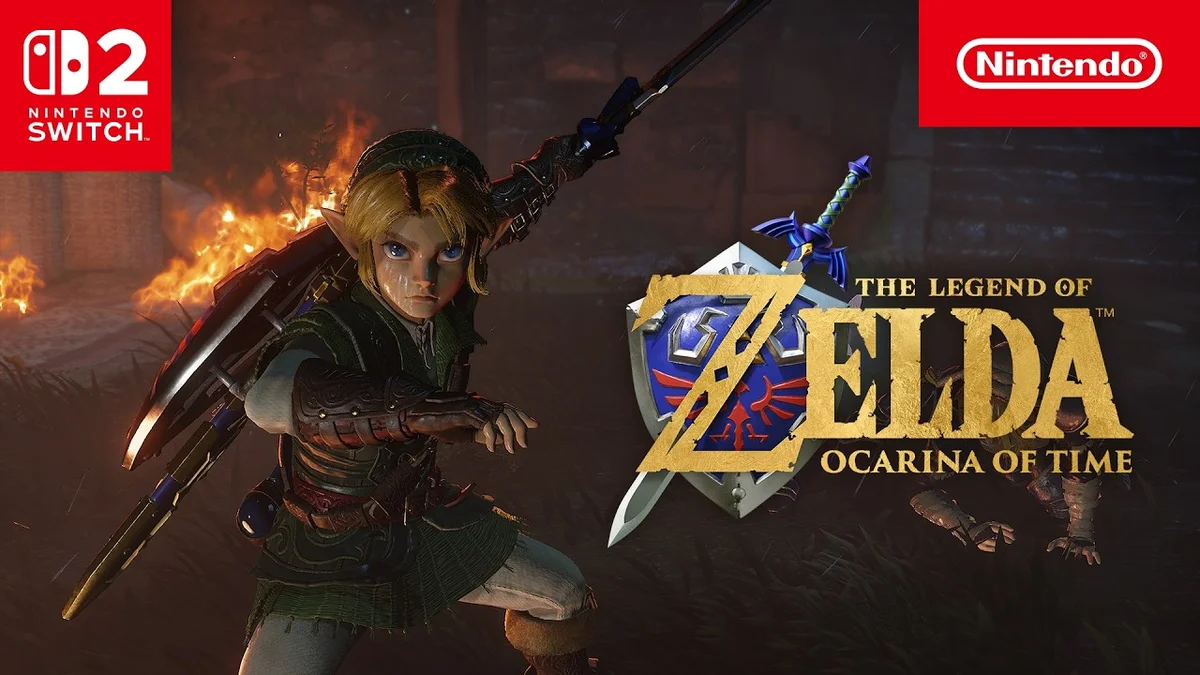
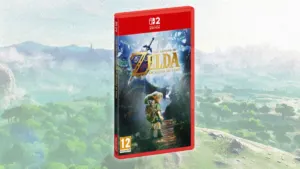
Despite the sweeping visual and mechanical overhaul delivered by Kyoto's teams in the 2026 remake of The Legend of Zelda: Ocarina of Time, one baffling ergonomic choice has been frustrating players from their very first steps in Kokiri Forest. While Nintendo carefully smoothed out the most notorious friction points of the 1998 classic, such as the streamlined Water Temple and one-button Iron Boots, the new sprint command suffers from an awkward default button placement on the Nintendo Switch 2 controller.
Why Mapping Sprint to the A Button Hurts Camera Control
To speed up traversal across Hyrule even before unlocking Epona at Lon Lon Ranch, the 2026 remake lets Link sprint continuously by holding down the A button. The ergonomic flaw becomes obvious within minutes: both the A button and the right analog stick require your right thumb.
In practice, it is nearly impossible to sprint while freely rotating the camera around Link unless you curl your right index finger over the face buttons in an uncomfortable claw grip. Worse yet, the game's internal options menu offers no native button remapping settings.
Best Button Remapping Options for Sprinting on Switch 2
| Target Button | Supported Controllers | How to Enable | In-Game Benefit |
|---|---|---|---|
| GL / GR Back Buttons | Switch 2 Pro Controller & Joy-Con 2 Charging Grip | Hold the Home button during gameplay | Zero conflict with ocarina notes and full right-stick camera freedom. |
| L Shoulder Button | Joy-Con 2 & Switch 2 Pro Controller | System Settings > Accessibility | Left index finger handles sprinting (L is only used for a single ocarina note). |
| Left Stick Click (L3) | Joy-Con 2 & Switch 2 Pro Controller | System Settings > Accessibility | Matches modern action-adventure muscle memory on the movement stick. |
Step-by-Step: How to Remap Sprint to the L Button or Left Stick
Even without an in-game control menu in Ocarina of Time, the Nintendo Switch 2 operating system provides a built-in workaround that takes less than thirty seconds to set up:
- Return to the Home Screen on your Nintendo Switch 2 without closing the game, then open System Settings.
- Scroll down to the Accessibility tab and select Button Mapping.
- Select your active controller (Joy-Con 2 or Switch 2 Pro Controller) and choose Change.
- Assign the A button input to a left-hand trigger or stick button:
- The L Shoulder Button (Recommended): in Ocarina of Time, the L button is only used to play one of the ocarina notes. Mapping A to L lets your left index finger hold sprint while your right thumb steers the camera effortlessly.
- Left Stick Press (L3): ideal if you prefer the standard modern control scheme where clicking the movement stick triggers a sprint.
- Select Save as a Preset so you can name this profile and toggle it on or off in two clicks whenever you switch to another game.
Good to Know: Your Original A Button and GL / GR Paddles Stay Active
Assigning the A button to the L shoulder button or left stick click does not disable the physical A button on the right side of your controller: you can still advance dialogue, open chests, and interact with characters in Hyrule as usual while keeping a dedicated sprint trigger under your left hand.
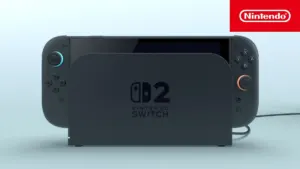
Better yet, if you play with the Nintendo Switch 2 Pro Controller or the Joy-Con 2 Charging Grip equipped with the GL and GR rear paddles, you do not even need to open System Settings: simply hold the Home button during gameplay to open the quick settings overlay and bind the A button directly to either back paddle.
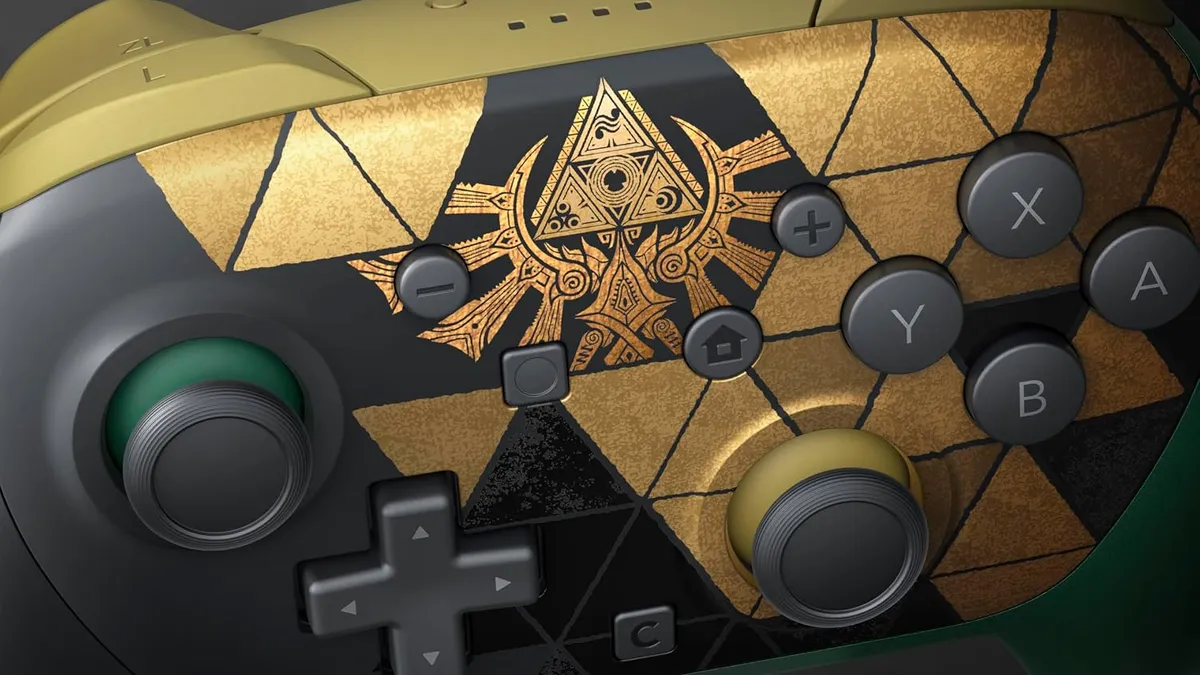
Nintendo Switch 2 Pro Controller (GL/GR Back Grips)
- Dual programmable GL and GR rear grip buttons configurable on the fly via Quick Settings
- Hold GR with your ring finger to sprint in Zelda: Ocarina of Time while steering the camera with the right stick
- 3.5mm audio jack, C button for GameChat, HD Rumble 2, and lightweight 228g chassis
My Perspective
Shipping a remake of Ocarina of Time this gorgeous in 2026 without a basic in-game button remapping menu is peak Nintendo stubbornness. Locking the new sprint mechanic to the A button while your right thumb is already busy steering a free 3D camera forces you to choose between running blind or cramping your fingers in a claw grip before you even leave Kokiri Forest. Thankfully, binding sprint to the GL back paddle on the Switch 2 Pro Controller or the L shoulder button fixes the issue in seconds: set it up before you hit Hyrule Field and your right thumb will thank you for the rest of the adventure.

Based on the outskirts of New York City, Chaya 'Chayane' spent five years studying software engineering in Montreal before returning to her home state. A Full-Stack developer and Deep Learning AI architecture researcher, she explores neural networks and algorithmic optimization while engineering data pipelines for Retrocharting and Gamescharting alongside Grimtag. A gamer for over 20 years and an avid collector of Nintendo history and The Legend of Zelda, she explored World of Warcraft's Azeroth before bringing her deep technical background to video game analysis.