How to Link Marvel Rivals Accounts Across Platforms: Cross-Progression Guide and 180-Day Cooldown Rules
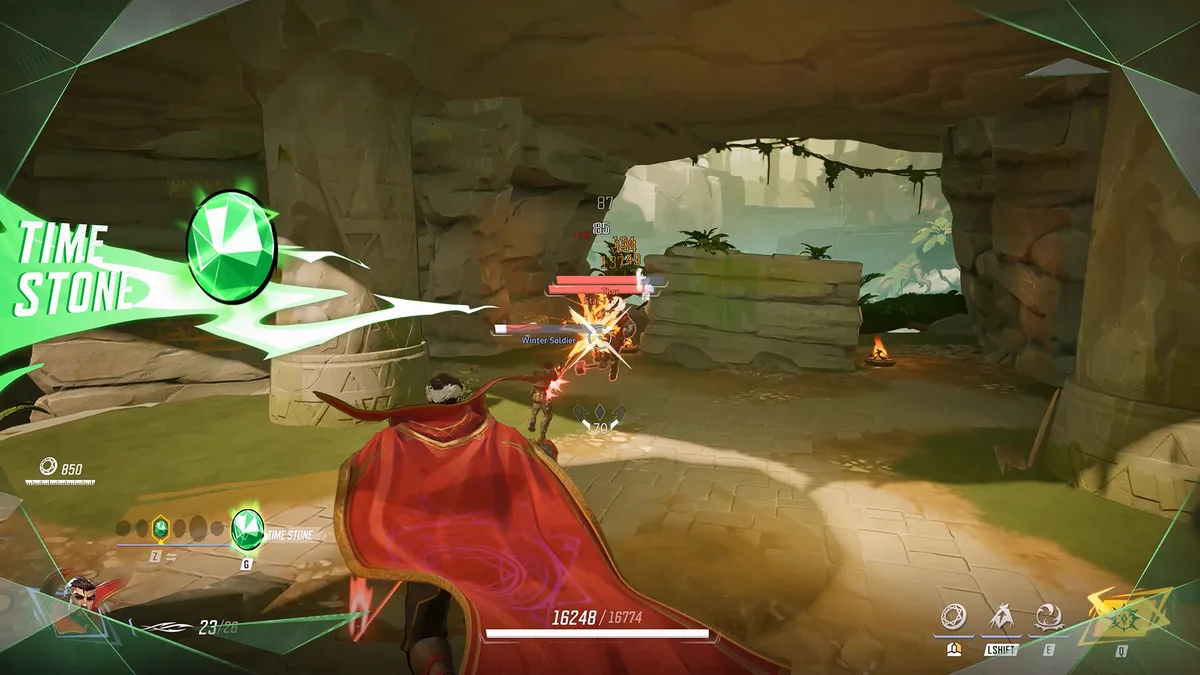
Switching between your gaming PC and your living room PlayStation 5 or Xbox Series X|S without losing your unlocked skins, Battle Pass pages, or hero proficiency in Marvel Rivals is fully supported through NetEase Games' official cross-progression system. However, before you rush into the menus to connect your profiles, you need to understand how the game handles save files: Marvel Rivals uses an Account Binding and Primary Character model rather than account merging, backed by strict security timers that can lock a platform for six months if you make a mistake.
Account Binding vs. Data Merging: How Cross-Progression Works in Marvel Rivals
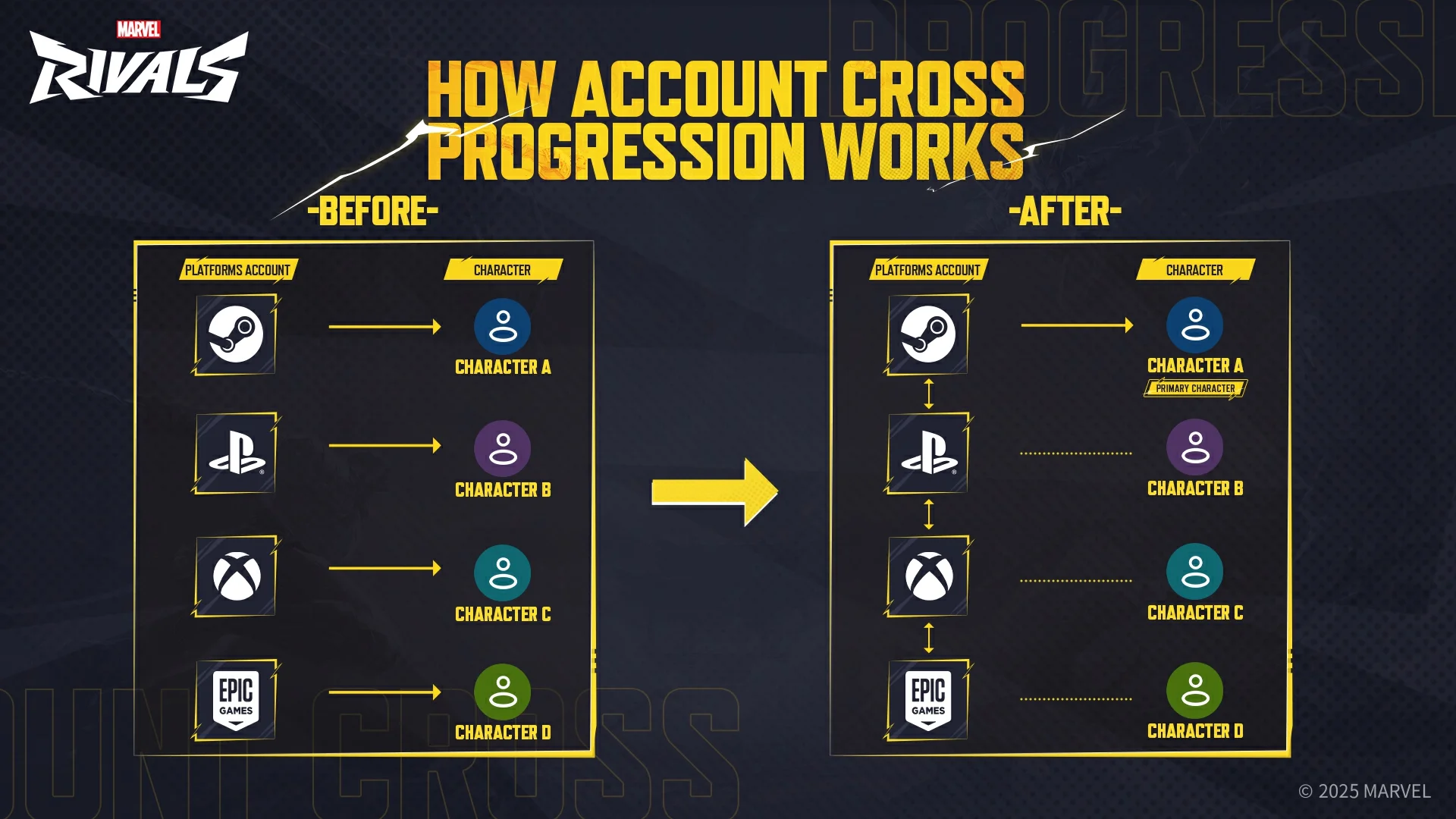
To avoid losing access to your favorite cosmetics, it is crucial to distinguish between an Account (your login credentials on Steam, Epic Games Store, Loading Bay, PlayStation Network, or Xbox) and a Character (the actual save file holding your skins, currencies, and career progression). By default, each platform account has a one-to-one binding with its own character.
When you link multiple platforms together, Marvel Rivals does not merge data, currencies, or cosmetics from separate accounts into one combined profile. If you have an existing character on Steam and another on PS5, their Units, Lattice, and unlocked costumes will never combine. Instead, the system asks you to designate a single Primary Character that you will use whenever you log in from any of your connected devices.
Fortunately, your unselected characters on secondary platforms are never deleted. They are safely stored in the background and can be restored at any time if you decide to switch your Primary Character in the settings menu, subject to a 30-minute Character Cooldown between swaps.
Step-by-Step Guide: How to Link Your PC, PS5, and Xbox Accounts In-Game
All account linking is handled directly inside the Marvel Rivals client. Follow these exact steps to connect your platforms safely:
- Launch Marvel Rivals on your main platform, where the character save file you want to carry forward is located.
- Open the Settings menu via the gear icon in the top-right corner of the main screen.
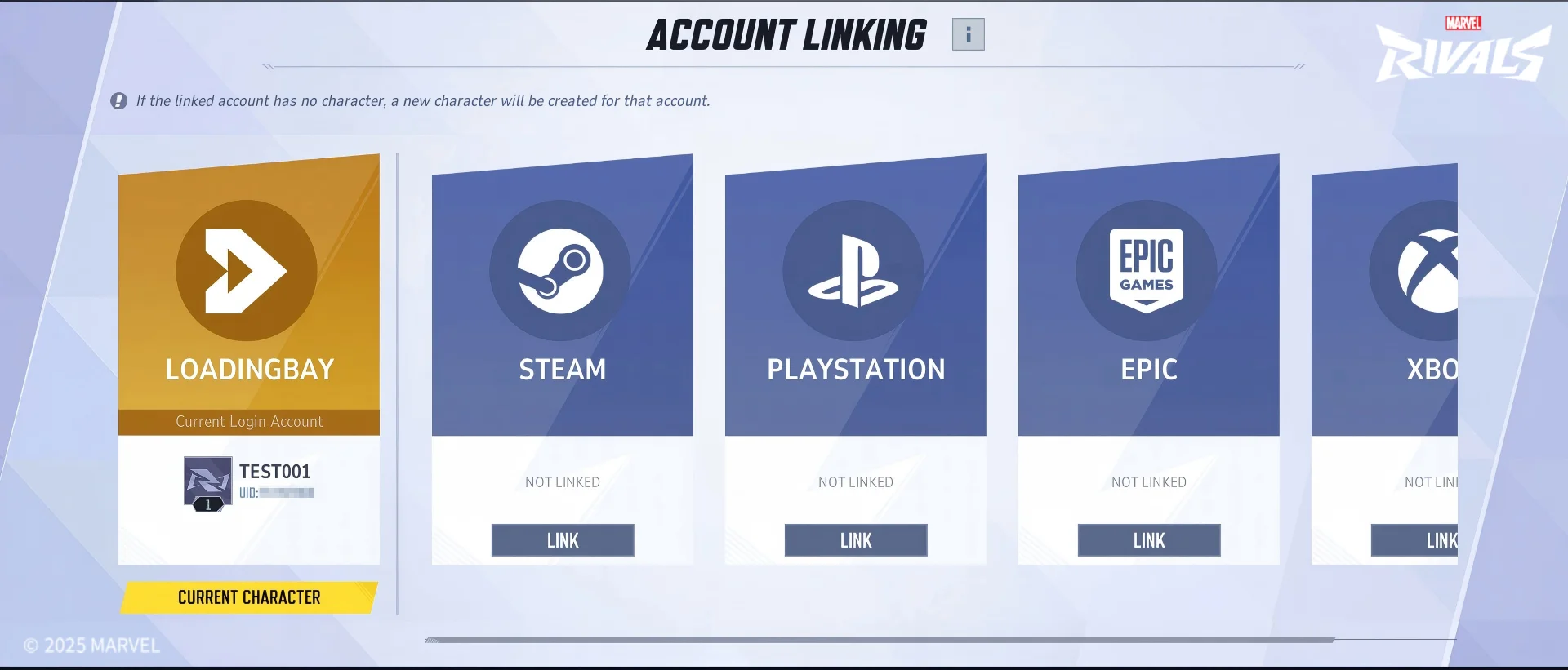
- Navigate to the Other tab, locate the Account section, and select Account Binding (also labeled Account Linking).
- Select the external platform you wish to connect (Steam, Epic Games, Loading Bay, PlayStation, or Xbox). You must pick a platform other than the one you are currently logged into.
- Complete the account verification prompt in the browser window by signing into the external platform account.
- Once the binding is complete, choose your Primary Character so that save profile becomes active across all linked machines.
As you set up your unified profile across PC and console voice lobbies, make sure you are also familiar with NetEase's stricter voice and text chat moderation penalties in Marvel Rivals to keep your primary account in good standing across every device.
The PlayStation Browser Trap and the 180-Day Cooldown: Critical Warnings
To prevent account trading and security exploits, NetEase enforces strict restrictions when unlinking accounts or connecting a PlayStation profile. Watch out for these three pitfalls before confirming any link:
- The 180-Day Unlink Penalty (Platform Cooldown): If you link the wrong account and decide to disconnect it via Settings → Other → Account Linking → Unlink, the original character on that platform will be restored, but both the unlinked account and that platform slot enter a strict 180-day (6-month) cooldown. During those six months, you cannot bind another account from that platform.
- Permanent PlayStation Network (PSN) Pairing Rule: Due to Sony's virtual asset transfer policy, once you bind a PSN account to your profile, you can never bind a different PSN account in the future. Even if you unlink it, you will only ever be allowed to relink that exact same original PSN account.
- PlayStation Website Auto-Login Issue: Before initiating a PlayStation link, open your web browser and make sure you are either logged out of the official PlayStation website or signed into the exact PSN account you intend to bind. Otherwise, the authorization window will automatically grab whichever PSN account is currently active in your browser session without prompting you to switch.
Skins, Battle Pass, Currencies, and Competitive Ranks: What Transfers vs. What Stays Separate
While your cosmetics and paid progression follow your Primary Character seamlessly, competitive integrity rules keep ranked matchmaking strictly divided by hardware ecosystem.
| Account Feature | Cross-Progression Status | Specific Rules & Notes |
|---|---|---|
| Standard Skins, Emotes & Collections | Shared Everywhere | Tied to your active Primary Character across all linked platforms. |
| Battle Pass, Chrono Tokens, Lattice & Units | Shared Everywhere | All Battle Pass unlocks and currency balances sync with your Primary Character. |
| Platform-Exclusive Costumes (PS5 / Xbox) | Locked to Native Hardware | Can only be used on their designated console; reverts to default skin on other platforms. |
| Competitive Ranks & Leaderboards | Tracked Separately by Device | Independent PC, PlayStation, and Xbox ranks in Career. End-of-season rewards count highest valid rank. |
| Factions & Tournament Participation | Device-Restricted | You must log in on the matching hardware to join or compete in a device-specific Faction. |
| Twitch Drops & Discord Bindings | Manual Re-Binding Needed | Does not auto-update when switching Primary Characters; verify external web bindings manually. |
Because Marvel Rivals separates competitive matchmaking pools between PC and consoles, your battle stats, competitive rank, and leaderboard standings remain independent on PC, PlayStation, and Xbox under your Career tab. However, when seasonal ranks are settled, your end-of-season rank rewards are granted based on the highest valid rank you achieved across any of your linked devices. Simply logging into the game during the new season processes rank settlement across all bound platforms.
Two final details are worth keeping in mind: first, if you already bought a store bundle on a PlayStation or Xbox account before binding, platform store policies block you from repurchasing that exact bundle on the same console (you will need to buy it via another linked platform if needed). Second, linking accounts in-game does not automatically update third-party web connections like Twitch Drops or Discord, so remember to verify your web bindings on the official Marvel Rivals Twitch Drops portal whenever you hunt for seasonal bonuses or limited-time Marvel Rivals event rewards.
My Take: A Frustrating Stream Experiment, and Why Nothing Beats Mouse and Keyboard
I will be completely honest with you: linking my account on PS4 and PS5 was far from effortless a few months ago. While playing Marvel Rivals regularly on stream, I decided to give the console version a shot, even though I am primarily a die-hard PC player who rarely touches a console. My first attempt at linking accounts flat-out failed because I ran out of time and patience dealing with the verification hoops mid-stream. It took a second dedicated attempt, sitting down and carefully going through the menus step by step, to finally bind my historical PC account and load up my progression on console.
Truth be told, the actual console experience with a controller in hand turned out just as negative as I expected, simply because I am hopelessly addicted to the sensual feel of my keyboard and mouse in a fast-paced hero shooter! Still, NetEase's reserve save system ensures you never accidentally wipe out a profile, and if simplifying and breaking down this process saves you the headache I went through, everyone wins.

SEO consultant for over 20 years and digital entrepreneur, Charles "Grimtag" is the founder of Pro-Gamer.gg, Retrocharting.com, and Gamescharting.com. A competitive gamer, streamer, and retro game collector, he has worked in the video game industry for over 15 years, notably as a consultant for leading game price comparison platforms. Passionate about real-time performance data and gaming technology, he analyzes competitive esports, gaming hardware benchmarks, and creator workflows on Pro-Gamer.gg with an authentic player perspective.