Gaming PC Power Consumption: Calculate the True Electric Cost of Your Setup
When you build a monster gaming rig, you spend hours devouring benchmarks. You obsess over cooling solutions, split hairs on RAM frequencies, and chase 4K framerates at all costs. But let us be honest: who actually checks the electricity bill at the end of the year? With rising energy costs, the real-world draw of modern battle stations is far from negligible. So, how much is your gaming habit actually costing you in kilowatts and cash? Let us separate myth from reality.
Why Do Search Engines Mention "PocketPCParadise" for PC Power Consumption?
If you have ever done a quick Google search to estimate your rig's power draw, you might have stumbled upon strange auto-complete queries like gaming pc power consumption pocketpcparadise or pc wattage calculator pocketpcparadise.com. It is one of the weirder quirks in the SEO ecosystem.
Originally, pocketpcparadise.com was an early-2000s tech portal covering Pocket PCs (the pre-smartphone PDA era). The expired domain was eventually scooped up by automated content farms deploying AI spam to hijack search traffic for gaming wattage queries. The catch? Those robotic articles hallucinate wildly: mixing up obsolete handheld battery specs with modern desktop power draw, rambling about mobile battery life while simultaneously claiming a desktop draws 1,200W non-stop, and teasing a "calculator tool" that does not even exist.
At Pro-Gamer, we value raw transparency and real hardware bench-testing. Instead of serving AI-generated clickbait to scrape search traffic, we did the heavy lifting and built a real calculator. Our interactive tool is backed by hands-on physical wattage measurements pulled directly from real-world testing (budget rigs, mid-tier sweet spots, enthusiast setups, and living room consoles). No inflated numbers, no fake promises, just the cold hard truth about your power bill.
How to Calculate the Real Power Draw of a Gaming Setup
First, let us kill a persistent myth: never confuse your power supply's rated wattage with what your PC actually pulls from the wall.
When assembling a build and using a PC power supply calculator, you usually run through online sizing tools from vendors like Corsair, Seasonic, MSI, or be quiet!. Those calculators often suggest a 750W, 850W, or even 1,000W power supply unit (PSU) to safely absorb transient power spikes from modern GPUs. But running an 850W PSU does not mean your PC draws 850W 24/7. That figure represents peak capacity headroom, not sustained draw.
The mathematical formula to calculate actual electricity consumption is straightforward:
Energy Consumption (in kWh) = (Actual Wall Draw in Watts x Daily Usage Hours x 365) / 1000
If you want accurate readings for your exact rig, grab an inexpensive plug-in watt meter (like a Kill A Watt). It is the only foolproof benchmark. In real-world testing, a typical mid-range gaming rig (e.g., an AMD Ryzen 5 paired with an NVIDIA RTX 4060) pulls between 250W and 300W under heavy gaming load, nowhere near the PSU label rating.
Energy agency benchmark studies show that while an everyday office desktop consumes roughly 120 to 150 kWh per year, an intensively used gaming PC easily clocks in at 1,000 kWh annually. For halo-tier systems running prolonged daily sessions, power usage can soar to 3,000 kWh per year, translating to $200 to $700+ annually just to feed the tower, depending on regional utility rates!
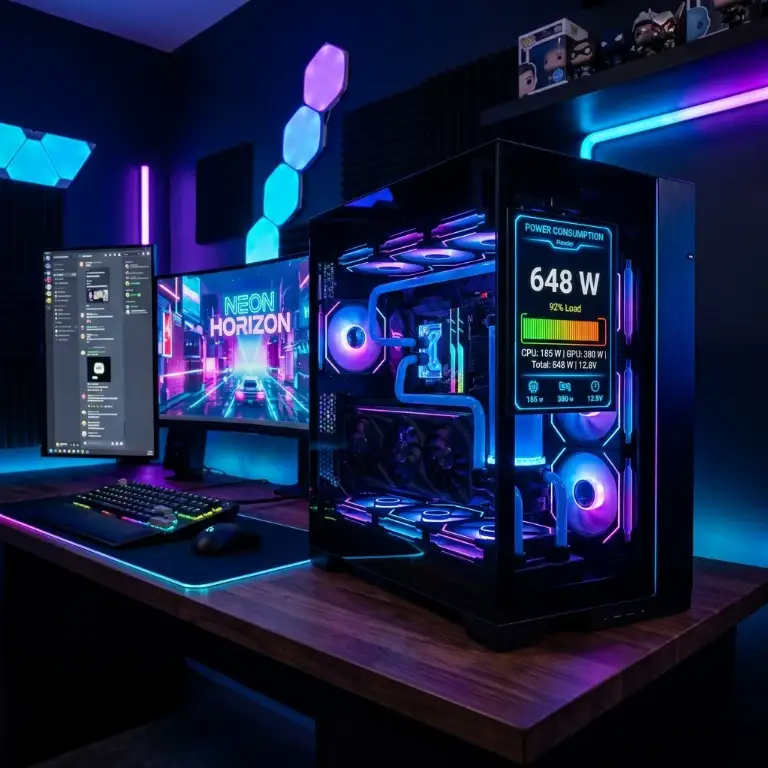
Case Study: Enthusiast Rig with an RTX 4090 and Core i9-14900K
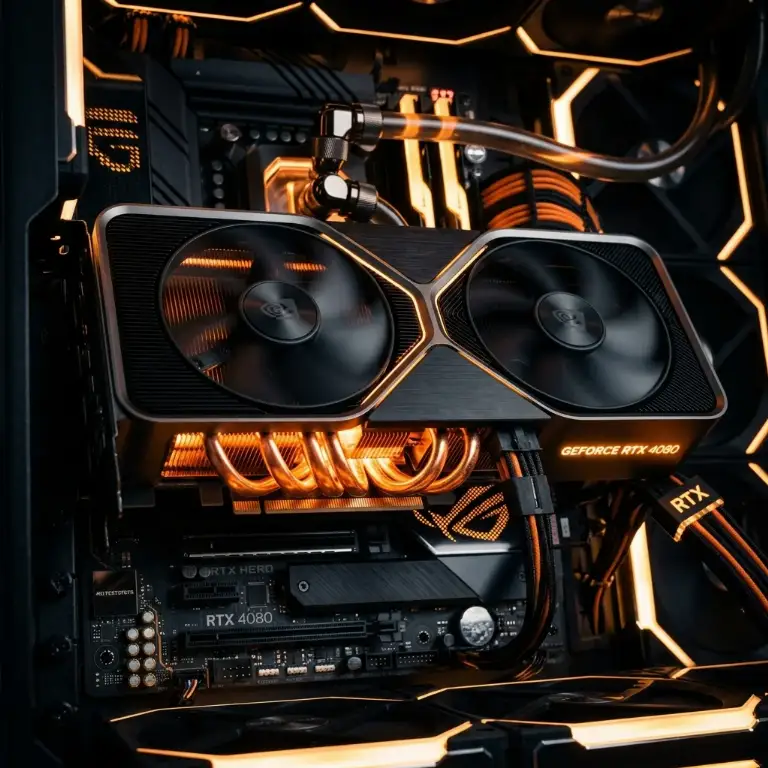
Consider an enthusiast benchmark build: an NVIDIA GeForce RTX 4090 (24GB), an Intel Core i9-14900K, and a full custom watercooling loop covering both the CPU and GPU. Powering this beast reliably requires a 1,000W or 1,200W PSU to shrug off transient load spikes and keep the D5 pump spinning. Yet under actual 4K gameplay in Cyberpunk 2077, real-world wall draw hovers between 550W and 650W. The 1,200W PSU is not maxed out; rather, it operates in its sweet-spot efficiency curve (roughly 50% load), slashing waste heat and keeping fan noise dead silent.
Why 3 Usage Modes (Desktop, Gaming, Streaming) Change Everything
Your PC's power consumption is not static; it fluctuates wildly depending on the workload on screen. That is why our calculator divides daily runtime into three distinct profiles to prevent inaccurate guesswork:
- Web Browsing and Productivity (60W to 90W): When reading articles, watching YouTube, or editing documents, your discrete GPU idles down. Only a fraction of the CPU and foundational board components draw current, keeping overall power minimal.
- Heavy Gaming (250W to 500W+): When modern game engines fire up, GPU utilization hits 100%, the CPU spikes, and the power supply works in earnest.
- Gaming + Streaming (Add 20W to 50W): If you broadcast to Twitch or Kick, hardware video encoding (via CPU threads or dedicated NVENC silicon) demands extra wattage. Factor in peripheral draw as well: USB webcams, key lights, and audio interfaces (check our guide on the best streaming microphones in 2026 for optimal gear).
Do not forget phantom sleep mode power consumption. Leaving your PC in sleep overnight because you dislike waiting for a boot cycle is an expensive habit. A desktop in standard sleep mode consumes 2W to 10W to keep RAM refreshed and listen for network wake signals. Over an entire year, that is money wasted on ghost power.
The Hidden Impact of Your Monitor or TV on the Electric Bill
This is the blind spot of almost every PC wattage guide. Gamers obsess over their tower and ignore the most power-hungry peripheral on their desk: the display.
A standard 24-inch or 27-inch gaming monitor draws between 25W and 45W. For deep-dive display tech and efficiency benchmarks, check out our full comparison of the best gaming monitors in 2026. If you rock a dual or triple-monitor setup, that number jumps quickly. Worse yet: driving two or three high-refresh displays often prevents modern graphics cards from downclocking to their lowest idle power states. That keeps your GPU pulling an extra 20W to 30W continuously, even while sitting idle on the Windows desktop.
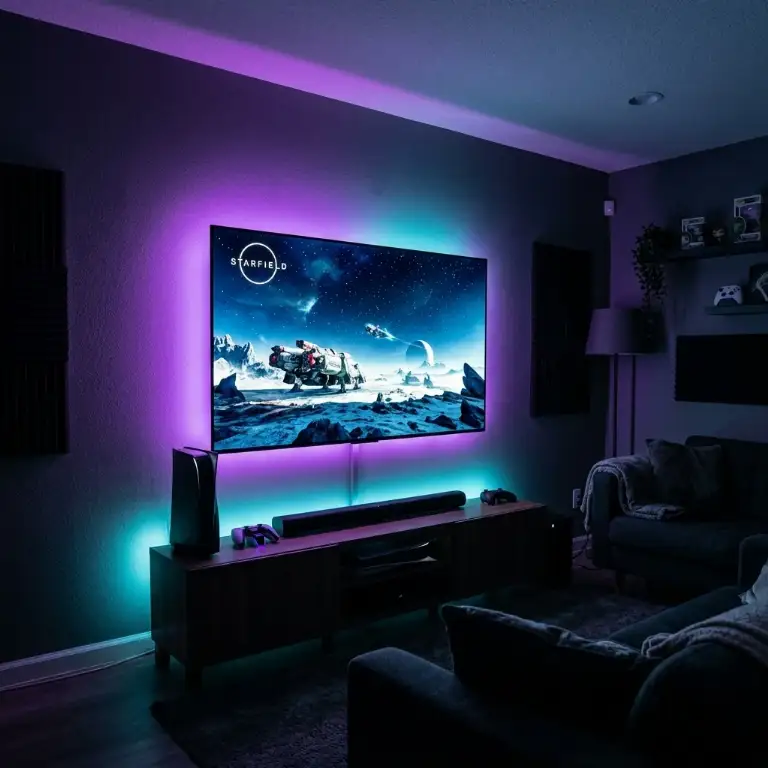
What about consoles? The contrast is even starker. Plugging a console into a 55-inch or 65-inch 4K QLED or OLED living room TV can add 100W to 250W in Game Mode (which cranks brightness, HDR tone mapping, and contrast). Considering a PS5 or Xbox Series X pulls roughly 180W to 200W in game, your television frequently consumes more power than the console itself. Make sure to account for it in your math.
Try Our Interactive Gaming Power Consumption Calculator
To save you from tedious spreadsheets and algebra, we built a dedicated calculation engine. No hallucinated AI fluff: our tool is fueled by direct bench measurements and current average kWh utility rates.
Simply input your estimated daily hours (desktop productivity, pure gaming, or live streaming), add your monitors or living room TV, and get an instant, accurate estimate of your monthly and annual electricity costs.
Calculate Your Setup's Annual Cost in 3 Clicks
Launch our free interactive tool to calculate exact wattage for your PC or console and discover how to optimize your electric bill.
Actionable Tips to Lower PC Power Draw Without Losing FPS
The good news: you can lower your power bill and preserve your hardware without throttling frame rates or dropping to 720p. Here are three simple, battle-tested optimizations:
- Undervolting (The Free Performance Hack): Undervolting lowers the voltage supplied to your GPU or CPU while preserving target clock speeds. Chipmakers historically apply overly conservative factory voltages to guarantee stability across every piece of silicon. By fine-tuning your voltage curve (using MSI Afterburner for GPUs), you can slice power consumption by 15% to 20%, drop core thermals by 10°C, and maintain 100% of your framerates. It is pure efficiency.
- Cap Your Framerate to Your Monitor's Refresh Rate: If you game on a 144Hz panel, running your GPU pegged at 100% to push 250 FPS in single-player titles makes zero sense. Your panel cannot physically display those surplus frames. Simply cap your frame rate in in-game menus or GPU driver control panels to 144 FPS. Your graphics card will run cooler, quieter, and consume significantly less electricity.
- Automate Sleep and Cut Phantom Draw: Set Windows sleep timers to kick in after 10 or 15 minutes of inactivity so you avoid burning power while away for food or breaks. To go further, plug your entire setup into a switched power strip to kill phantom standby draw at night.
Verdict: Optimizing Your Setup Is Just Smart Gaming
Tracking your gaming setup's power draw is not about pinching pennies; it is about building a smarter, cooler, and quieter rig. By tuning a few sensible hardware settings, you can save significant money every year while extending the lifespan of your expensive components.
Give our calculator tool a spin and share your numbers in the comments below. We are curious to see how much juice your battlestation pulls every year!
Good game, and catch you in the next guide,
Grimtag

SEO consultant for over 20 years and digital entrepreneur, Charles 'Grimtag' Ronchain is the founder of Pro-Gamer.gg, Retrocharting.com, and Gamescharting.com. A competitive gamer, streamer, and retro game collector, he has worked in the video game industry for over 15 years, notably as a consultant for leading game price comparison platforms. Passionate about real-time performance data and gaming technology, he analyzes competitive esports, gaming hardware benchmarks, and creator workflows on Pro-Gamer.gg with an authentic player perspective.