GTA 6 Weather Still Stuck After Patch 01.002.002 on PS5: The Cache Workaround That Finally Triggers Rain and Thunderstorms
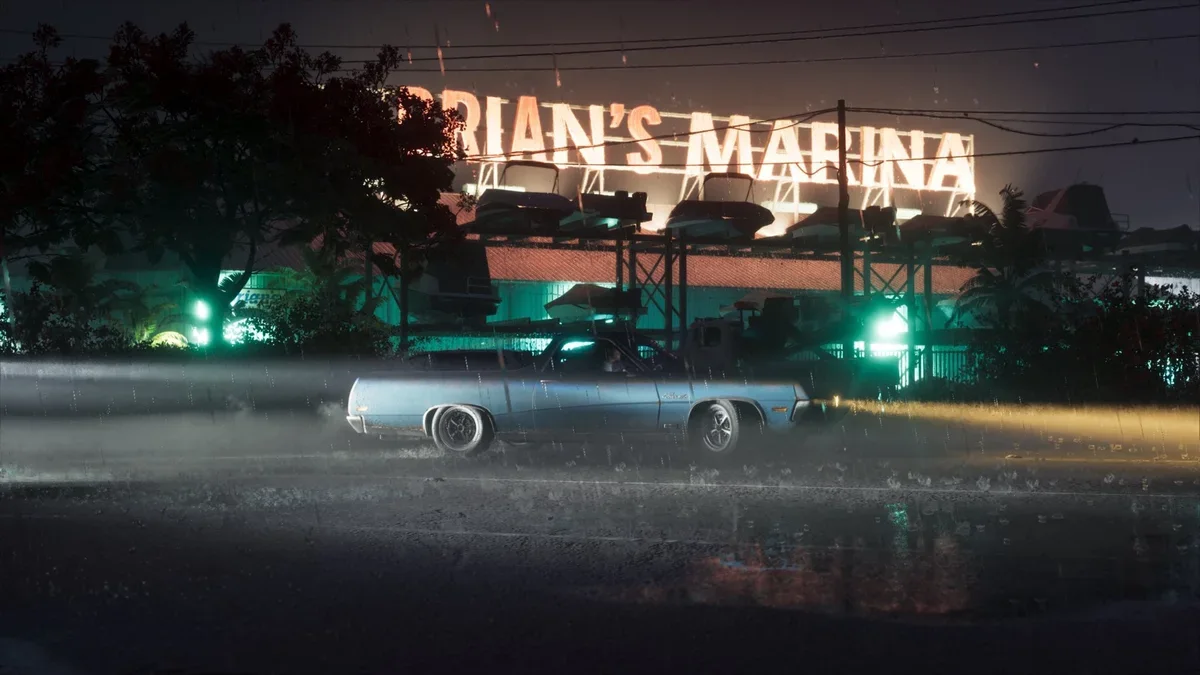
Have you already put dozens of hours into Grand Theft Auto VI only to realize Leonida has been locked in endless blue skies? You are far from alone. Even after downloading GTA 6 patch 01.002.002, which Rockstar Games deployed on November 23 specifically to address weather failing to change for extended periods, many PS5 and PS5 Pro players are still reporting a dry, unchanging sky with zero rain or thunderstorms.
Fortunately, the PlayStation community on Reddit has pinpointed a fast console-level workaround that finally nudges the dynamic weather engine back to life. Best of all, it takes about two minutes and does not delete your saves, screenshots, or game installation.
Why the GTA 6 Weather Bug Persists on PS5 After Update 01.002.002
On paper, update 01.002.002 was supposed to resolve the exact glitch keeping Leonida stuck on sunshine. In practice, the PS5 relies heavily on temporary system software cache files to speed up booting and resuming massive open-world games.
When a major post-launch patch lands, stale runtime and configuration files lingering in that cache can keep the game from refreshing its environmental triggers cleanly when your save loads. Because of that carryover state, players who constantly rely on Rest Mode stay trapped in the pre-patch weather loop and miss out on heavy downpours, coastal fog, and rolling tropical lightning storms.
Step-by-Step PS5 Workaround to Trigger Rain and Thunderstorms
The fix requires clearing the PS5 system software cache through Safe Mode. Before you begin, save your current GTA 6 progress manually and fully close the game from the PlayStation home screen. Neither your save data nor your installed games will be affected.
- Power off your PS5 or PS5 Pro completely: open the power menu and choose "Turn Off PS5." Do not enter Rest Mode, and wait until the console's power light stops blinking and goes completely dark.
- Boot into Safe Mode: press and hold the physical power button on the front of the console. You will hear an initial beep right away, followed by a second beep roughly seven seconds later. Release the button as soon as you hear that second beep.
- Connect your DualSense with a USB cable: plug your controller directly into the console and press the PS button to navigate the Safe Mode screen.
- Open the cache maintenance menu: scroll down and select Option 6: Clear Cache and Rebuild Database.
- Clear the temporary files: choose Option 1: Clear System Software Cache, then highlight OK to confirm.
- Let the console reboot: the process only takes a few seconds, after which your PS5 will automatically restart to the standard home screen.
- Relaunch GTA 6 and load your save: give the dynamic cycle a few in-game minutes to refresh, or sleep at a safehouse bed to roll a fresh weather forecast immediately.
If your skies still stay stubbornly clear after two full in-game day-night cycles, boot back into Safe Mode Option 6 and run Rebuild Database as a secondary step. That maintenance pass is also completely safe for your progress, and players who were stuck for dozens of hours report storms rolling in shortly afterward.
What Else Affects Rain and Storms Across Leonida
Keep in mind that clearing your cache removes a technical roadblock rather than acting like a cheat code that spawns a hurricane on demand. As covered in our breakdown of GTA 6's localized weather and microclimates, Rockstar Games built two intentional rules into the atmosphere system.
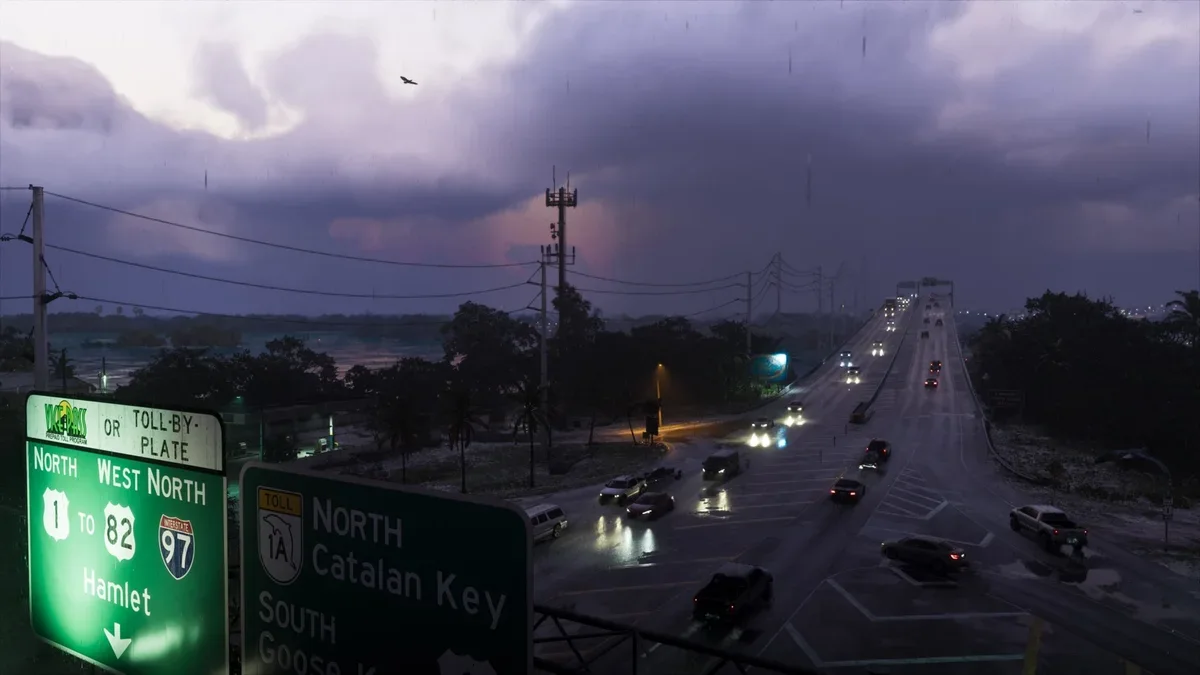
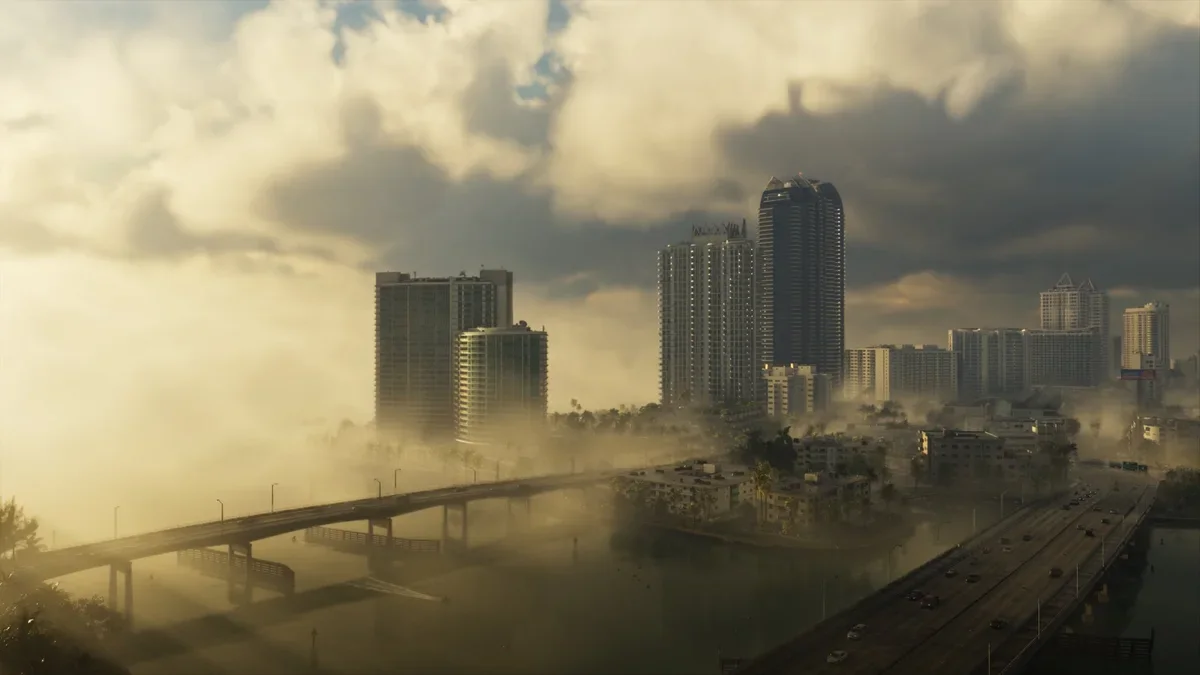
First, storm frequency scales with your story progression. Early chapters lean toward brighter, calmer skies, while intense downpours and tropical thunderstorms appear far more often in later chapters and post-story free roam. Second, weather across Leonida is genuinely localized. If Vice City looks bright and dry, driving toward the Keys, wetlands, or dark cloud banks visible on the distant horizon will often pull you straight into an active storm front.
Quick Summary of the PS5 Weather Fix
| Troubleshooting Detail | Verified PS5 and PS5 Pro Information |
|---|---|
| Symptom | Perpetual sunshine and zero storms even with patch 01.002.002 installed |
| Primary workaround | Safe Mode, Option 6, then Option 1 (Clear System Software Cache) |
| Backup option | Safe Mode, Option 6, then Rebuild Database |
| Save file risk | None, saves, captures, and installed games remain untouched |
| Recommended in-game check | Sleep at a safehouse and drive toward the Keys or distant storm clouds |
My Hardware Take: Worth Doing After Every Major Open-World Patch
Between Rest Mode and massive streaming assets, the PS5 cache can quietly hold onto outdated runtime states after big title updates. Clearing the system software cache takes less than two minutes and solves one of the most frustrating launch-week quirks in GTA 6 without forcing a huge reinstall. Once the dynamic engine wakes back up, seeing Vice City's neon reflections ripple across rain-soaked asphalt under a tropical lightning storm immediately proves why this workaround is worth the quick reboot.

Grand Theft Auto 6 (GTA 6)
Explore official trailers, technical specs and all latest coverage for Grand Theft Auto 6 (GTA 6).

PC hardware enthusiast and competitive gamer, Arthur 'Heimdall' splits his time between France and the UK working in enterprise B2B software solutions. A business school graduate passionate about component benchmarking, he has been building, modding, and tuning PCs since childhood, optimizing every thermal degree and millisecond of display latency. An avid gamer across Assassin's Creed and sandbox titles, he forged his alliance with Grimtag and Chaya during late-night World of Warcraft raids before joining Pro-Gamer.