How to Auto-Drive in GTA 6: Cinematic Camera Controls, Speed Settings, and Partner Driving Guide (PS5 & Xbox)
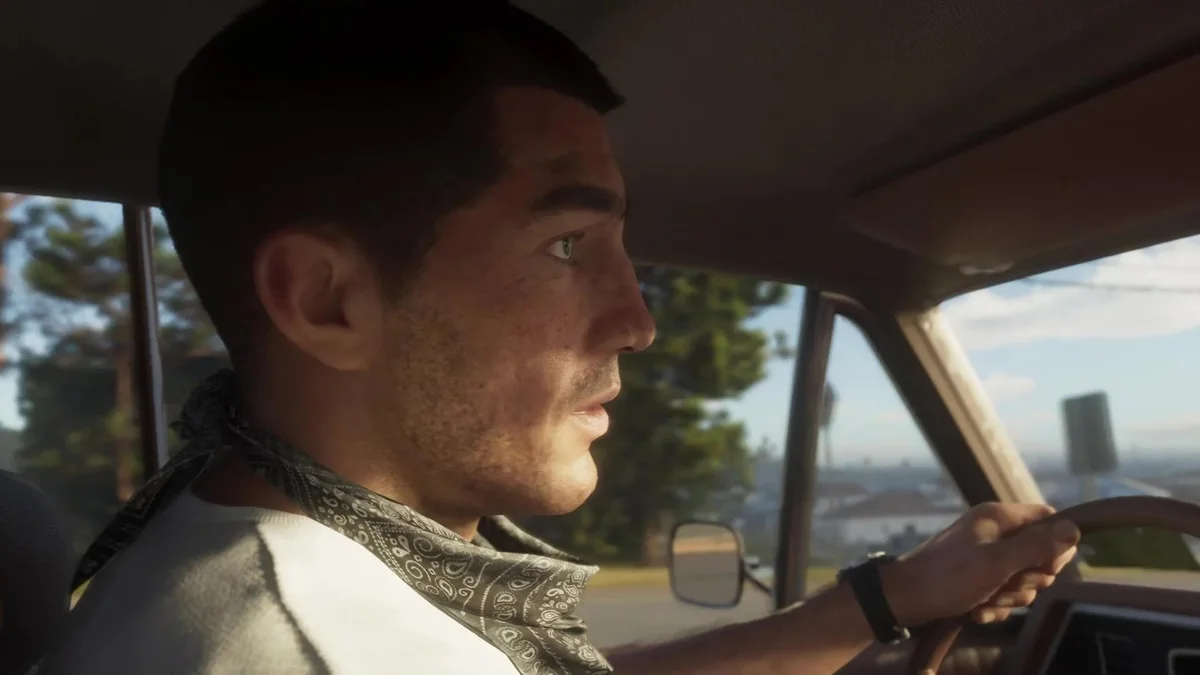
Cruising across the massive state of Leonida from the muddy channels of the Grassrivers to the neon boulevards of Vice City and the docks of Key Lento means logging dozens of miles behind the wheel in Grand Theft Auto VI. While manual driving and deep vehicle customization remain central to the experience, Rockstar Games tucked away a full Auto-Drive system modeled after the beloved cinematic horse autopilot from Red Dead Redemption 2. Because the game never walks you through this mechanic with an explicit tutorial prompt, here is the complete step-by-step guide to activating Auto-Drive on PS5 and Xbox Series X|S, unlocking off-road navigation, and letting Jason Duval or Lucia Caminos take the wheel while you ride shotgun.
1. Unlock Off-Road Auto-Drive in Settings (Unrestricted Mode)
Before you even hop into a car or boat, there is a crucial setting buried in the pause menu that dramatically improves how the AI handles your route. By default, Auto-Drive in GTA 6 sticks strictly to paved main roads and refuses to engage on dirt trails, beaches, or tight shortcuts.
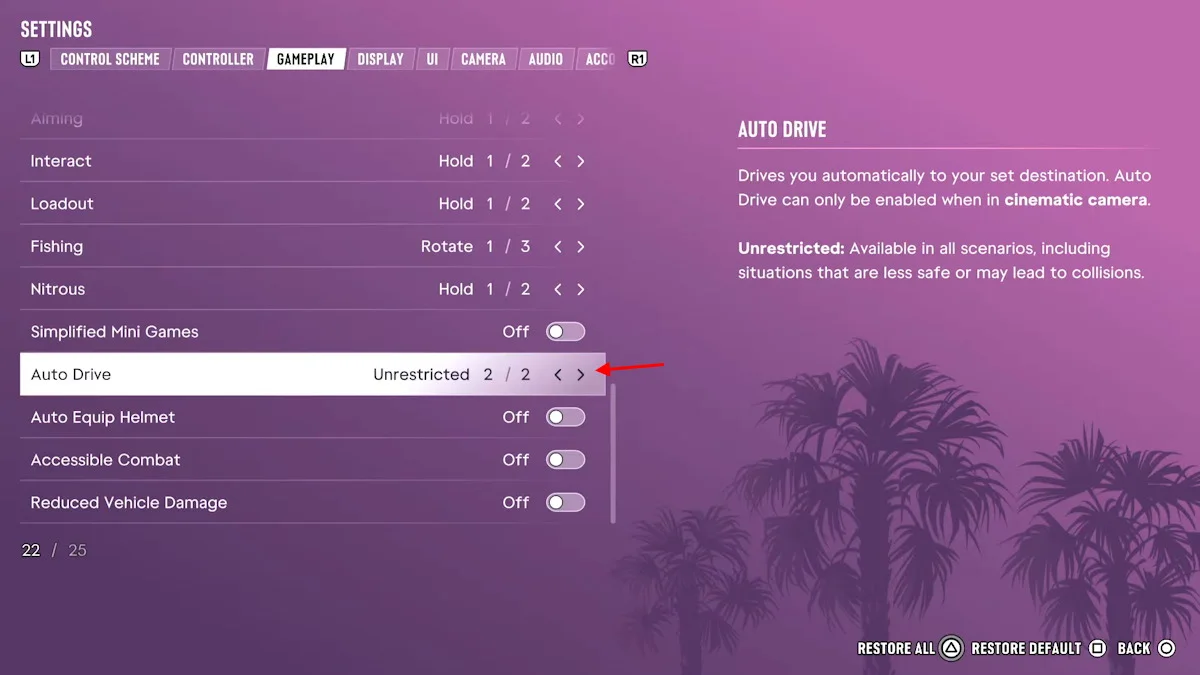
To remove that restriction so your character can auto-navigate across any drivable path:
- Open the pause menu and navigate to Settings > Gameplay (located between the Controller and Display tabs).
- Scroll down to line 22, Auto Drive (positioned right between Simplified Mini Games and Auto Equip Helmet).
- Switch the toggle to 2/2: Unrestricted. As the official in-game description notes, this makes Auto-Drive available in all scenarios, including situations that are less safe or may lead to collisions.
2. How to Enable Solo Auto-Drive on PS5 and Xbox Series X|S
When travelling solo, Auto-Drive works across both land vehicles (cars, trucks, motorcycles) and watercraft (motorboats and airboats along navigable waterways), though it cannot pilot planes or helicopters. Follow these exact steps to engage the autopilot:
- Set a Map Waypoint First: Open your Leonida map (Touchpad on PS5 or View button on Xbox Series X|S) and place a custom destination pin (X on PS5 / A on Xbox) on any road or waterway. Note: You must mark a destination before entering Cinematic Mode, or the Auto-Drive prompt will never appear.
- Enter a Vehicle and Start Moving: Hop into the driver's seat with Triangle (PS5) or Y (Xbox) and pull onto the road.
- Switch to Cinematic Camera: Press and hold Down on the D-pad to bring up the quick camera overlay in the bottom-right corner of the screen. While still holding D-pad Down, press the Options button (PS5) or Menu button (Xbox Series X|S) to select Cinematic view.
- Engage Auto-Drive: Once the camera shifts to cinematic angles, lightly press the accelerator (R2 on PS5 / RT on Xbox) until the Enable Auto Drive prompt pops up in the bottom-right corner, then press and hold Circle (PS5) or B (Xbox Series X|S). You can now release the controller and let the AI steer you to your waypoint.
3. Adjusting the 3 Speed Tiers (L2/R2 and LT/RT) and Exiting Auto-Drive
While Auto-Drive is active, Jason or Lucia will obey traffic laws, stay in proper lanes, and stop at red lights. However, you are not stuck at a single crawling speed: you can cycle between three distinct cruising presets displayed in the bottom-right HUD (SPEED 1/2/3).
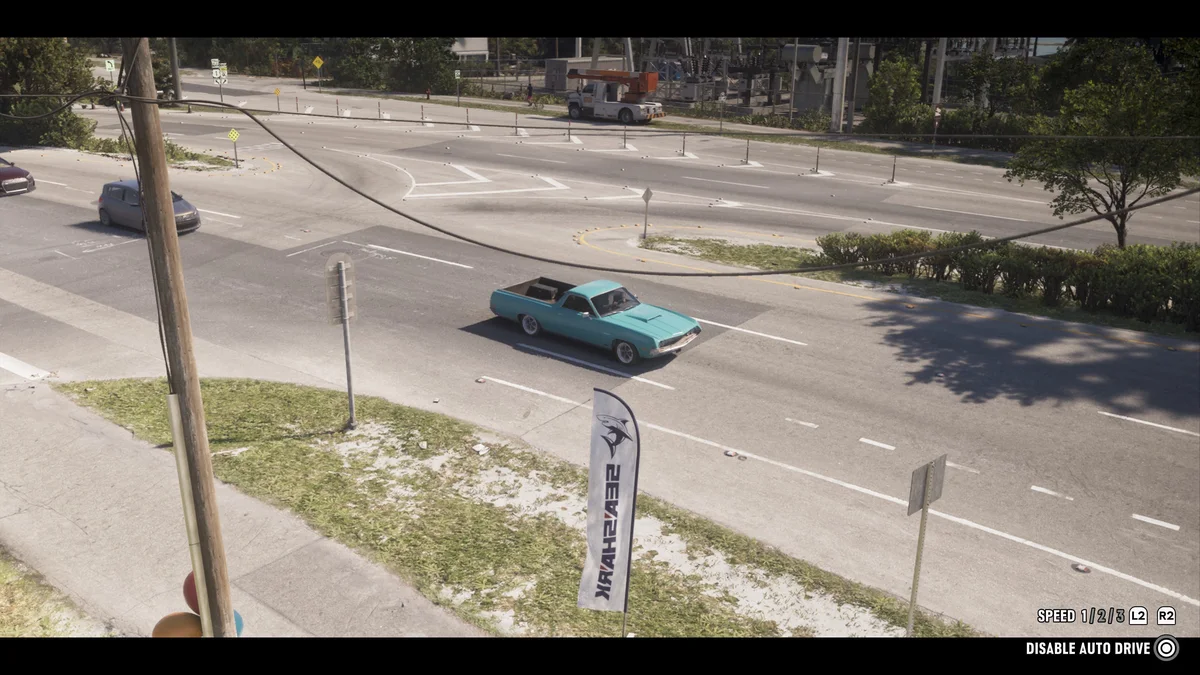
| In-Game Action | PlayStation 5 Control | Xbox Series X|S Control |
|---|---|---|
| Enter Cinematic Camera Mode | Hold D-pad Down + Options | Hold D-pad Down + Menu |
| Enable / Disable Auto-Drive | Hold Circle (O) | Hold B |
| Increase Cruising Speed (Tiers 1 to 3) | Tap R2 | Tap RT |
| Decrease Cruising Speed (Tiers 3 to 1) | Tap L2 | Tap LT |
| Return to Manual Driving & Standard Camera | Hold D-pad Down | Hold D-pad Down |
4. The Duo Trick: Ride Shotgun to Let Jason or Lucia Drive (and Use Your Phone)
Solo Auto-Drive comes with two built-in limitations: you are completely locked into the cinematic camera angles (you cannot rotate the camera manually), and whichever character is behind the wheel must stay focused on the road. That means you cannot pull out your smartphone to browse the in-game internet while solo auto-driving, even though texting while manually driving is normally one of the only ways to trigger an interior first-person perspective.
When Jason and Lucia are travelling together in the same vehicle, you can bypass both restrictions with a much better alternative:
- Hand Over the Wheel to Your Partner: Hold Right on the D-pad and press R1 (PS5) or RB (Xbox Series X|S). You will immediately switch characters on the fly, sliding into the passenger seat while your partner takes over driving duties toward your waypoint.
- Tell Your Partner to Speed Up: While sitting in the passenger seat, hold Right on the D-pad and press Square (PS5) or X (Xbox Series X|S) to tell Jason or Lucia to pick up the pace.
Riding shotgun gives you full access to your smartphone while your car keeps moving across the map, making it the perfect time to manage your cash transfers after unlocking your Fleeca Bank account and the BuckMe app during the Buck Me mission.
5. Auto-Drive Limitations and Instant Fast Travel via the RydeMe App ($100)
While Auto-Drive is fantastic for admiring your customized ride and soaking in Leonida's wetlands and coastal highways, keep three key boundaries in mind:
- Traffic Jams and NPC Pileups: Because the AI obeys traffic signals and prefers scenic highway routes, your vehicle can still get caught in dense Vice City congestion or stuck behind multi-car accidents.
- Land-to-Water Cutoffs: Auto-Drive will never transition a boat onto dry land or drive a car into open water. As soon as your vehicle reaches the edge of its valid terrain, the autopilot automatically shuts off.
- Police Pursuits and the 6-Star Heat System: Never engage Auto-Drive while carrying an active wanted level. Because police track your vehicle description, license plate, and clothing under the 6-star Heat system, an AI driver stopping politely at red lights will get you boxed in almost immediately.
Finally, if you want to skip the commute altogether rather than watching the drive in real time, pull up your smartphone and hail a ride through the RydeMe app. Once inside the cab, pay the $100 skip fee to fast-travel straight to your destination, a massive time-saver when you are sweeping the state while tracking down all 31 Landmarks and 35 Curiosities in our GTA 6 WAiNK locations guide.

My Perspective
Bringing over Red Dead Redemption 2's cinematic autopilot was a smart quality-of-life decision for a map as sprawling as Leonida, but the ability to swap seats with D-pad Right + R1 so Lucia or Jason drives for you is the real standout detail here. Being able to ride shotgun, tell your partner to floor it, and handle your in-game phone apps while the Florida scenery rolls past makes long cross-map drives feel genuinely alive rather than a chore.
Grand Theft Auto 6 (GTA 6)
Explore official trailers, technical specs and all latest coverage for Grand Theft Auto 6 (GTA 6).

Based on the outskirts of New York City, Chaya 'Chayane' spent five years studying software engineering in Montreal before returning to her home state. A Full-Stack developer and Deep Learning AI architecture researcher, she explores neural networks and algorithmic optimization while engineering data pipelines for Retrocharting and Gamescharting alongside Grimtag. A gamer for over 20 years and an avid collector of Nintendo history and The Legend of Zelda, she explored World of Warcraft's Azeroth before bringing her deep technical background to video game analysis.