Streaming Zelda: Ocarina of Time on Switch 2 to Twitch and TikTok: Best Video Capture Cards by Budget
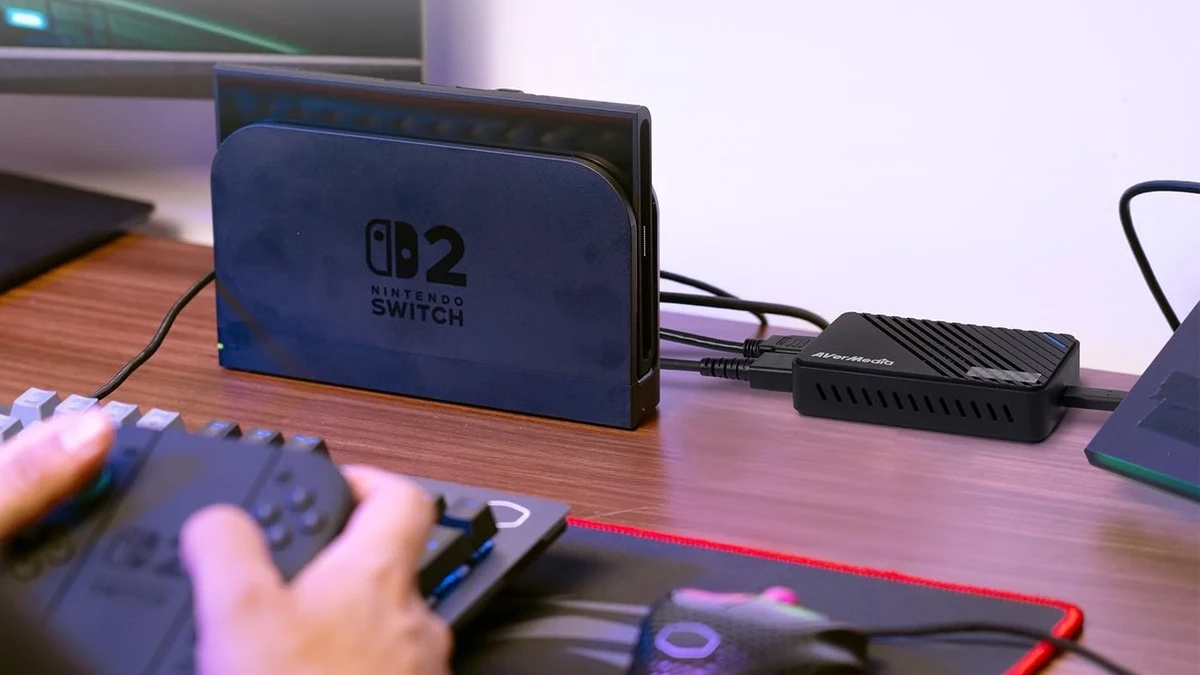
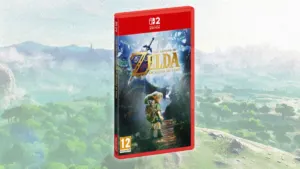
Want to stream The Legend of Zelda: Ocarina of Time from your Nintendo Switch 2 to Twitch, TikTok Live, or YouTube, but cannot find a broadcast button anywhere in the console menu? Unlike the PS5 or Xbox Series X, the Nintendo Switch 2 operating system blocks direct public streaming to external platforms. Even the new Joy-Con 2 C-button built for GameChat is strictly limited to low-bitrate private screen sharing with friends inside Nintendo Switch Online.
To broadcast your journey across Hyrule Field at 60fps on Twitch, run a vertical 9:16 stream on TikTok Live, or record full boss fights beyond the system’s 30-second clip limit, connecting an external HDMI video capture card to the Switch 2 Dock is mandatory. Before setting up your hardware and OBS Studio scenes, make sure to check the global eShop unlock times and 24.54 GB preload size for Zelda: Ocarina of Time on Switch 2 so the game is installed on your microSD Express card before going live.
Nintendo Switch 2 HDMI Capture Cards Compared by Budget
Whether you play on a laptop screen in a bedroom setup or on a 4K OLED television in the living room, your connectivity needs will differ. Here is how our top three tested capture cards compare across every price tier:
| Model | Budget Tier | TV Passthrough | Max OBS / TikTok Capture | PC / Mac Interface | Price & Amazon Link |
|---|---|---|---|---|---|
| UGREEN HDMI 4K to USB-C / USB-A | Budget Pick | No (laptop/iPad preview) | 1080p at 60fps (MJPEG / YUY2) | Hybrid USB-C & USB-A 3.0 | $22.99 Check on Amazon → |
| Elgato 4K S External | Best Mid-Range Value | 4K60 HDR10 zero-lag | 4K60 or 1080p60 HDR10 | USB-C 3.0 + 3.5mm Audio | $159.99 Check on Amazon → |
| Elgato 4K X HDMI 2.1 | Premium Flagship | 4K144 / 4K60 HDR10 + VRR | Up to 4K144 / 4K60 HDR10 | USB-C 3.2 Gen 2 (10 Gbps) | $229.99 Check on Amazon → |
How to Connect the Nintendo Switch 2 to a Capture Card and PC (Step-by-Step Wiring)
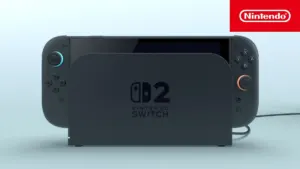
The Nintendo Switch 2 cannot output video to a capture card while held in handheld mode: it must be seated inside its official Nintendo Switch 2 Dock powered by the original AC adapter. Once docked, the console switches to its docked performance profile and sends video and audio out of its rear HDMI port at up to 4K (3840x2160) at 60fps with HDR10.
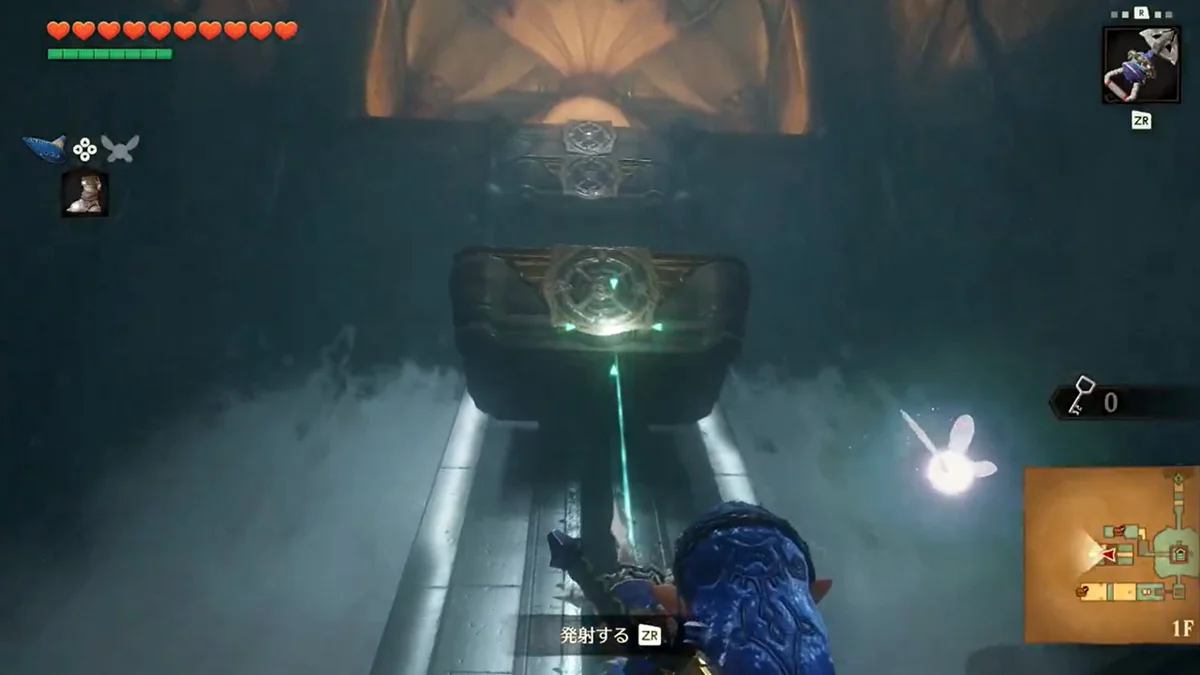
Follow these four steps to wire your Switch 2 to a Windows PC or Mac in under two minutes:
- Switch 2 Dock to Capture Card: plug the high-speed HDMI cable included with your Switch 2 into the rear HDMI OUT port of the Dock, and connect the other end into the HDMI IN (Input) port of your capture card.
- Capture Card to 4K TV or Gaming Monitor (on Passthrough models): plug a second HDMI cable into the HDMI OUT (Passthrough) port of your capture box and connect it to your TV or monitor. This hardware loop sends the uncompressed Ocarina of Time image straight to your screen with zero milliseconds of input lag.
- Capture Card to PC or Mac: connect the USB-C data cable from the capture card to a USB 3.0 / 3.1 / 3.2 (blue or red) or USB-C port on your computer. Never plug a capture card into an older black USB 2.0 port, or bandwidth bottlenecks will cause frame drops in Hyrule Field.
- Mandatory Switch 2 Audio Setting: open System Settings > TV Output > TV Sound on your Switch 2 and set it to Stereo (Linear PCM) instead of 5.1 Surround. Leaving 5.1 Surround active while streaming in stereo on Twitch or TikTok drops the center channel, which mutes Link’s sword slashes and Ocarina melodies!
Zero-latency TV passthrough is especially important when fighting Dark Link or navigating Eiji Aonuma’s overhauled Water Temple mechanics with D-pad Iron Boots hotkeys. Below is our full breakdown of the best capture card for every budget.
1. Best Budget Pick: UGREEN 4K HDMI to USB-C / USB-A Capture Card ($22.99)
For players who want to launch their first Twitch or TikTok Live streams on Zelda: Ocarina of Time for under $25, the UGREEN HDMI to USB-C & USB-A capture dongle is by far the most reliable entry-level unit available. Where generic $10 plastic sticks overheat after twenty minutes and cause audio drift between the Ocarina notes and the video feed, UGREEN uses a machined aluminum alloy shell that keeps temperatures stable across long dungeon runs.
In practice, this compact dongle accepts a full 4K 60Hz signal from the Switch 2 Dock and encodes a clean 1080p 60fps video feed into OBS Studio or TikTok Live Studio-matching the exact maximum broadcast resolution supported by Twitch and TikTok Live.
- Who is it built for? First-time Twitch and TikTok streamers, students, and single-screen laptop, MacBook, or USB-C iPad setups.
- Built-in hybrid USB-A & USB-C plug: connects directly to desktop PCs via USB-A or modern MacBooks and USB-C iPads (using free apps like Orion or CamX to turn an iPad into a portable Switch 2 screen).
- Key trade-off to know before buying: because it is a single-port thumb dongle without an HDMI loop-out port, you cannot pass the signal to a television at the same time. You play directly inside the OBS preview window on your laptop screen (around 35 to 45ms of preview latency, or 0ms if paired with an inexpensive external HDMI splitter).
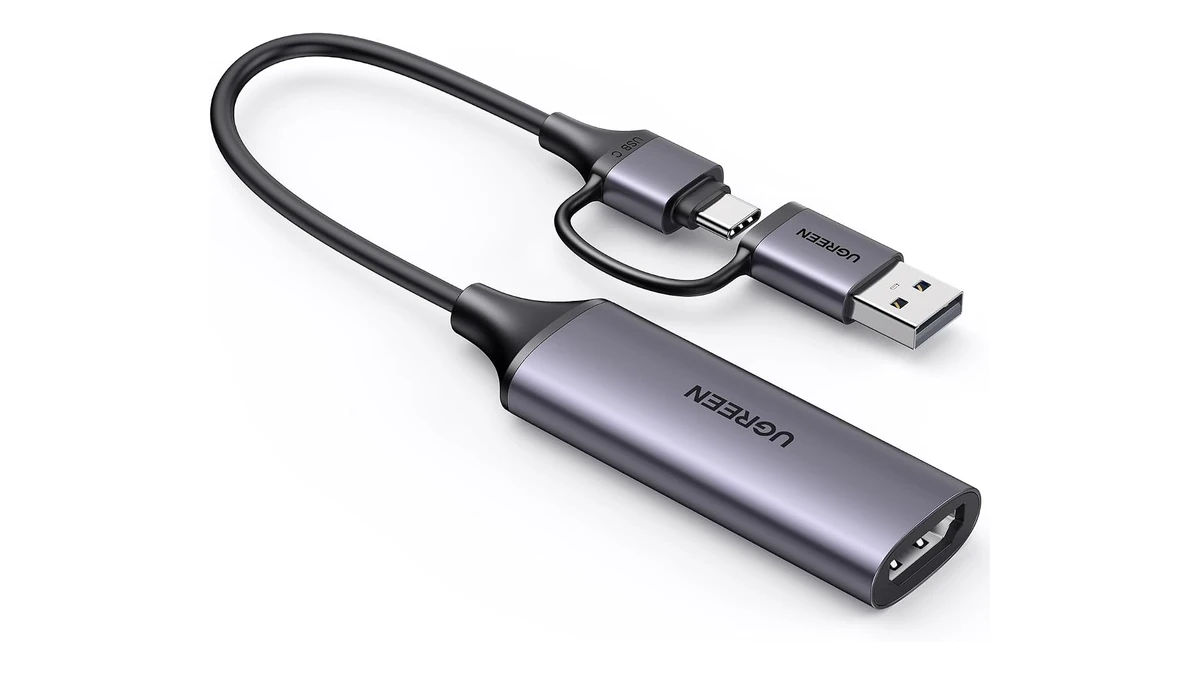
UGREEN HDMI Video Capture Card 4K Input to 1080p 60FPS USB-C and USB-A
- Accepts 4K60 HDMI input from Switch 2 Dock
- Smooth 1080p 60fps capture in OBS and TikTok
- Hybrid USB-C and USB-A 3.0 aluminum connector
2. Best Value Mid-Range Pick: Elgato 4K S External Capture Card ($159.99)
If you want to play The Legend of Zelda: Ocarina of Time on a 4K TV or gaming monitor with zero input latency while sending a broadcast-grade feed to Twitch, TikTok, and YouTube, the Elgato 4K S is our top overall recommendation. Engineered by Corsair/Elgato specifically for the Nintendo Switch 2 generation, it combines a zero-lag HDMI passthrough loop with a hardware encoder capable of recording native 4K at 60fps.
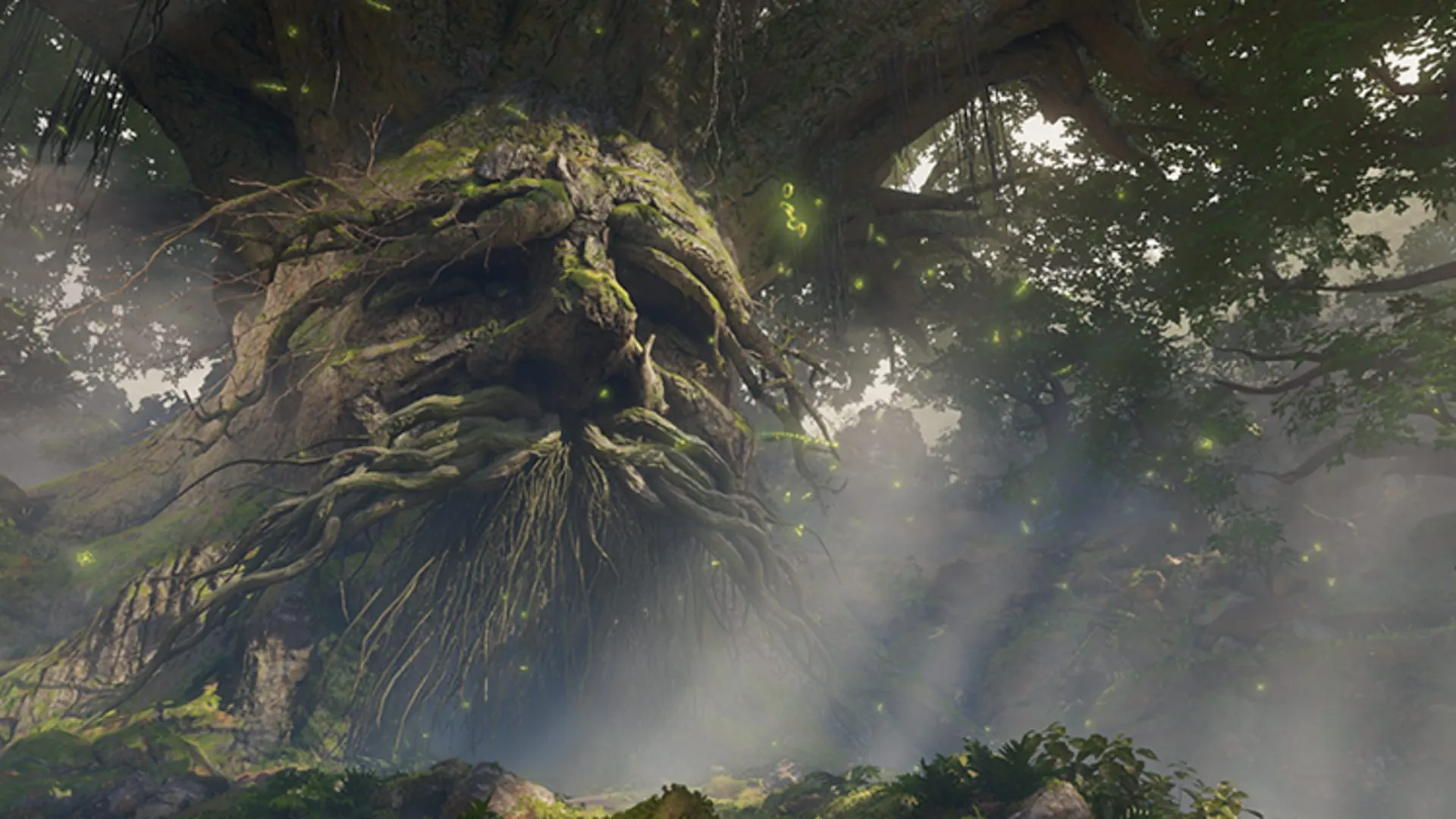
When testing in Kokiri Forest in front of the Great Deku Tree, the visual jump over budget dongles is immediate: the Elgato 4K S features dedicated hardware HDR10-to-SDR tone mapping. That means you enjoy vibrant 4K HDR10 colors on your television while your Twitch and TikTok viewers (watching in standard SDR) see rich greens and balanced highlights without the washed-out gray look common on cheaper capture cards.
- Zero-lag 4K60 HDR10 TV passthrough: the HDMI OUT port forwards the raw Switch 2 signal instantaneously to your main display.
- Native 4K60 recording for YouTube VODs: alongside your 1080p60 Twitch and TikTok live streams, you can archive boss fights against Volvagia or Ganondorf in true 4K60 on your hard drive.
- Front 3.5mm analog audio jack: captures wired headset audio or external aux feeds effortlessly.
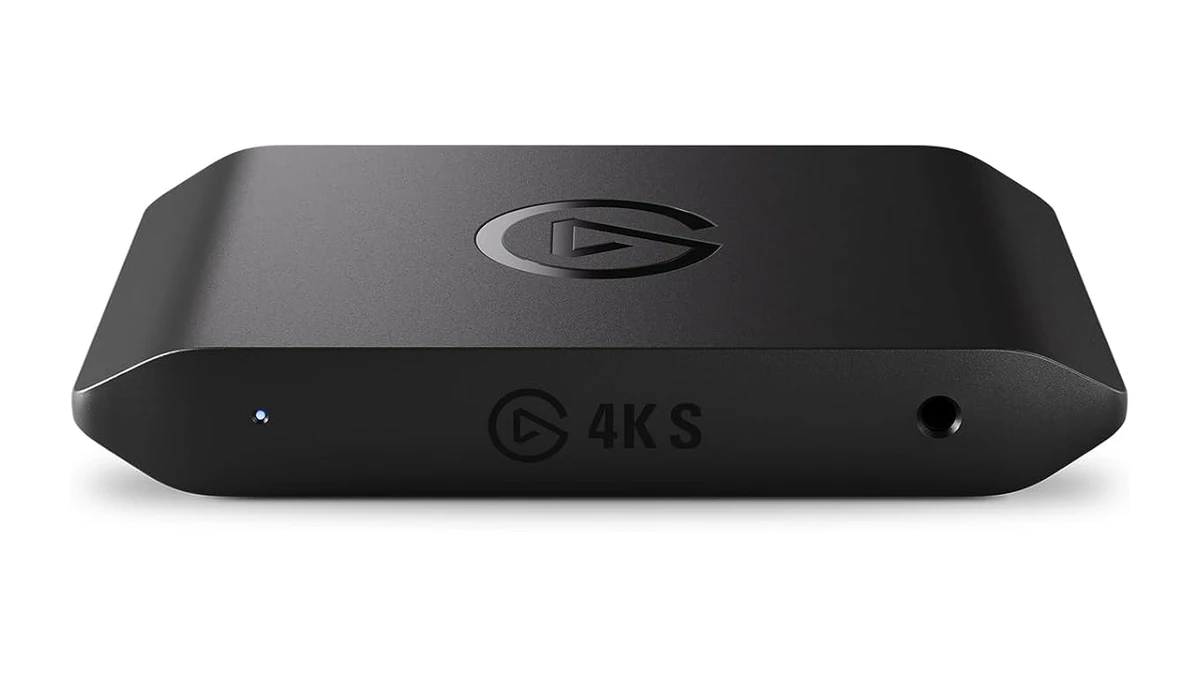
Elgato 4K S - External 4K60 HDR10 Capture Card for Nintendo Switch 2
- Zero-lag 4K60 HDR10 TV passthrough
- Native 4K60 and 1080p60 USB-C recording
- Built-in front 3.5mm analog audio input
3. Best Premium Pick: Elgato 4K X HDMI 2.1 Capture Card ($229.99)
For dedicated variety streamers, YouTube creators producing Ultra HD walkthroughs, and multi-console players who own a Nintendo Switch 2 alongside a PS5 Pro or Xbox Series X, the Elgato 4K X sits at the pinnacle of external USB capture hardware. While the 4K S uses HDMI 2.0, the 4K X upgrades to dual full-bandwidth HDMI 2.1 ports paired with a 10 Gbps USB-C 3.2 Gen 2 interface.
Inside the darkest dungeons of Ocarina of Time, such as the Bottom of the Well and the Shadow Temple, its sensor supports true 10-bit HDR10 recording for YouTube alongside Variable Refresh Rate (VRR) and frame rates up to 4K at 144Hz (or 1080p/1440p at 120Hz for Switch 2 titles supporting 120Hz output).
- Full HDMI 2.1 + USB 3.2 Gen 2 pipeline: doubles USB bandwidth over older USB 3.0 cards, preserving razor-sharp HUD text and foliage detail.
- Sub-25ms Instant Gameview latency: responsive enough to play directly inside the preview window on a PC monitor or M2/M4 iPad Pro while traveling.
- One capture box for every console: handles both Switch 2 4K60 HDR and 120Hz VRR modes on PS5 Pro and Xbox Series X.
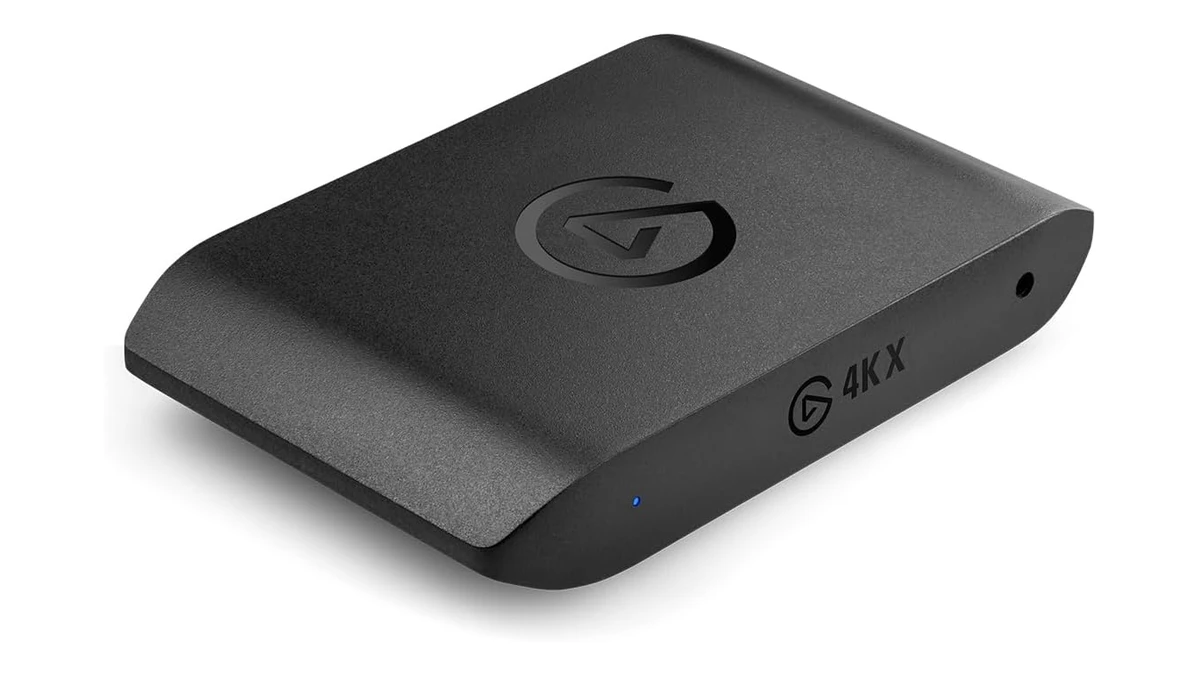
Elgato 4K X - HDMI 2.1 External Capture Card (4K144 / 4K60 HDR10 VRR)
- Full HDMI 2.1 ports with up to 4K144 capture
- Hardware HDR10 tone mapping and VRR passthrough
- Ultra-low latency USB 3.2 Gen 2 interface
OBS Studio Setup Guide: How to Configure Switch 2 Video & Audio for Twitch and YouTube
Once your capture card is plugged into your PC or Mac via USB, two common mistakes in OBS Studio can cap your frame rate at 30fps or leave your headset completely silent. Follow these exact steps:
- Add the Video Capture Source: inside the OBS Sources dock, click + and select Video Capture Device. Name it “Switch 2 Zelda” and select your hardware (USB Video for UGREEN, Elgato 4K S, or Elgato 4K X).
- Lock in 1080p60 or 4K60: switch Resolution/FPS Type to Custom. Select 1920x1080 (for Twitch/TikTok) or 3840x2160 (for 4K recording on Elgato), set FPS to 60, Video Format to NV12, and Color Space to Rec. 709 (Partial).
- Fix Muted Switch 2 Audio in Your PC Headset: scroll to the bottom of the source properties, set Audio Output Mode to Capture audio only, check Use custom audio device, and select your capture card. Click OK, then click the gear icon next to your Switch 2 source in the OBS Audio Mixer > Advanced Audio Properties, and change Audio Monitoring to Monitor and Output. You will now hear Ocarina of Time in your PC headphones while broadcasting it cleanly to Twitch!
- Recommended Twitch Bitrate: under Settings > Output, select your hardware GPU encoder (NVIDIA NVENC H.264 or AMD HW H.264), set Rate Control to CBR at 6000 Kbps (or 7500 Kbps for Affiliates/Partners), and Keyframe Interval to 2s.
How to Stream Zelda: Ocarina of Time on TikTok Live (Vertical 9:16 & Twitch Multistreaming)
Nintendo and Zelda broadcasts perform exceptionally well on TikTok Live, where viewers scrolling the For You feed immediately stop when hearing the Zora’s Domain or Gerudo Valley themes. You can broadcast your Switch 2 to TikTok in two ways:
- Method 1 - TikTok Live Studio (Simplest for TikTok-only streams): open TikTok Live Studio on PC, select the Portrait (9:16 - 1080x1920) canvas, click Add Source > Capture Card (Camera), and choose your UGREEN or Elgato device. Center the 16:9 Ocarina of Time gameplay frame in the middle of the vertical canvas, place your facecam underneath, and add a cropped top layer showing Link’s heart containers so mobile viewers can follow the action clearly.
- Method 2 - Simultaneous Twitch (16:9) & TikTok Live (9:16) Multistreaming in OBS: install the free Aitum Vertical plugin for OBS Studio. It adds a dedicated 9:16 vertical canvas right next to your standard 16:9 OBS preview, letting your single Switch 2 capture card feed both your widescreen 1080p60 Twitch broadcast and your vertical TikTok Live stream simultaneously without doubling GPU load.
My Perspective
After testing all three capture setups across both widescreen Twitch streams and vertical TikTok Live broadcasts, my advice comes down to your display arrangement. If you play at a desk on a single laptop screen and want to stay under $25, the UGREEN HDMI to USB-C/A stick handles 1080p60 Ocarina of Time streams reliably without overheating. However, the moment you play on a 4K TV or dedicated monitor, never skip HDMI passthrough: the Elgato 4K S at $159.99 is the smartest investment for 90% of Switch 2 players thanks to its hardware HDR-to-SDR tone mapping, while the Elgato 4K X is the ultimate pick if you want full HDMI 2.1 across multiple consoles.
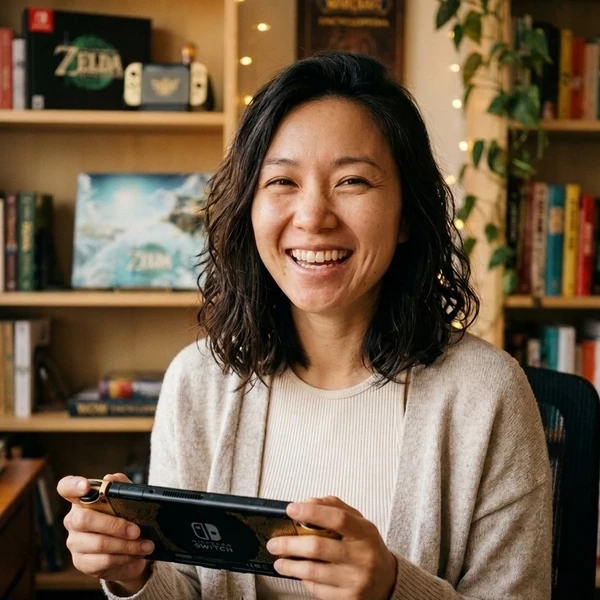
Based on the outskirts of New York City, Chaya 'Chayane' spent five years studying software engineering in Montreal before returning to her home state. A Full-Stack developer and Deep Learning AI architecture researcher, she explores neural networks and algorithmic optimization while engineering data pipelines for Retrocharting and Gamescharting alongside Grimtag. A gamer for over 20 years and an avid collector of Nintendo history and The Legend of Zelda, she explored World of Warcraft's Azeroth before bringing her deep technical background to video game analysis.