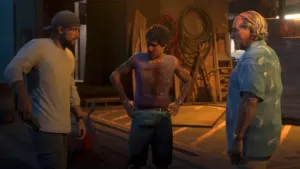
Xbox 2-Day Suspensions Over GTA 6 Clips: Why Auto-Uploads Trigger Account Bans and How to Turn Them Off
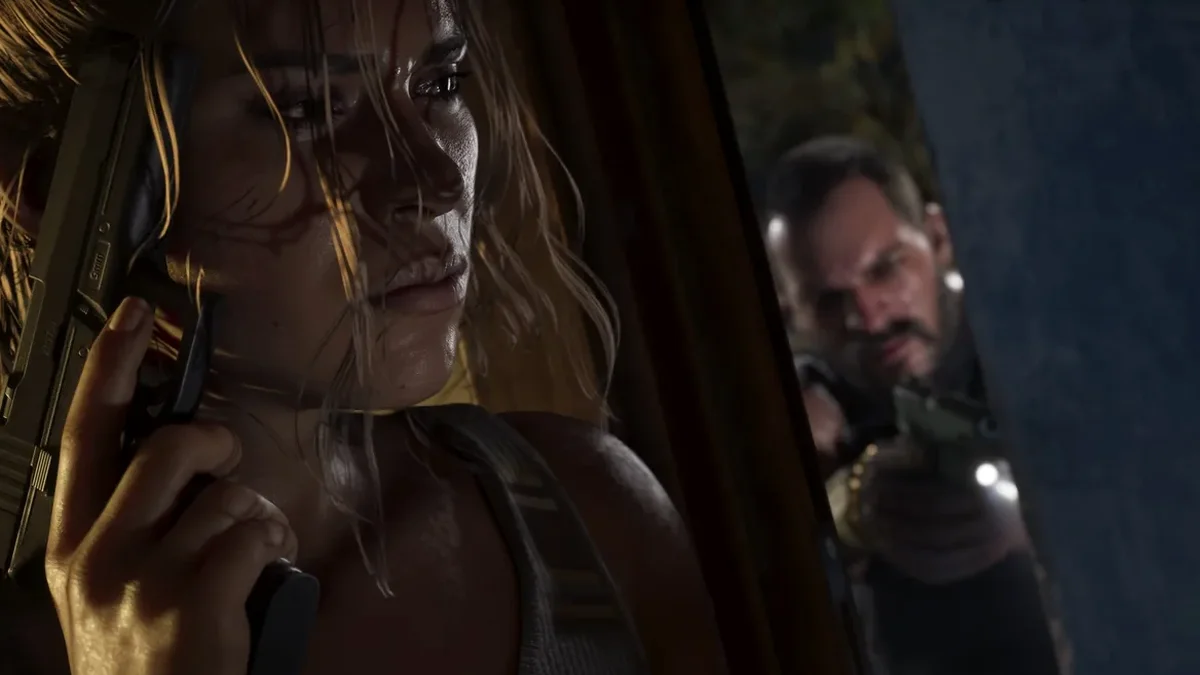
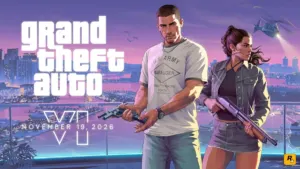
A single press of the Share button on your Xbox wireless controller can currently cost you forty-eight hours of access to your console's online communication features. Since the launch of Grand Theft Auto VI, a growing number of Xbox Series X|S players have reported receiving automatic two-day suspensions on their Xbox Network accounts after recording standard gameplay clips or screenshots across Vice City and the state of Leonida.
The issue stems from a direct clash between the console's default cloud backup feature and Microsoft's automated content moderation systems, which scan every file uploaded to Xbox servers regardless of whether the player intended to share it publicly.
Why GTA 6 Gameplay Clips Are Triggering 2-Day Xbox Network Suspensions
Although Rockstar Games' open-world blockbuster carries an official ESRB Mature 17+ and PEGI 18 rating, the Xbox Community Standards enforce far stricter rules on media files uploaded to the Xbox Network infrastructure. By default, Xbox Series X and Series S consoles are configured to automatically upload every newly recorded screenshot and video clip to Microsoft's cloud servers. As soon as a capture finishes uploading in the background, automated safety filters scan the visual content.
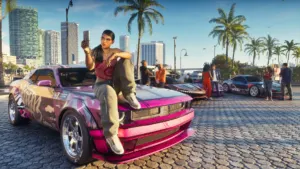
In a densely populated world like Leonida, these automated moderation bots frequently flag ordinary gameplay moments: driving or walking near Vice Beach where background NPCs appear in swimwear, completing story missions inside Vice City nightlife venues, or recording mature-rated cutscenes. Because the automated filter treats these background elements as violations of the network's adult content sharing policies, affected accounts immediately receive a 2-day (48-hour) enforcement suspension.
Veteran Xbox players will recognize this exact pattern from late 2023 during the Xbox Series X|S launch of Baldur's Gate 3, when automated cloud uploads of camp cutscenes triggered a wave of identical account suspensions and prompted official warnings to turn off automatic cloud backups. If you broadcast your gameplay live, make sure to also check our recommended system settings for streaming GTA 6 on Xbox Series X and Series S to keep your broadcasts running smoothly.
How to Turn Off Automatic Capture Uploads on Xbox Series X|S Step by Step
To keep using your controller's Share button freely without exposing your account to automated cloud moderation, you need to disable automatic Xbox Network uploads. Your console will still save all screenshots and video clips locally to its internal SSD or an external USB drive. Follow these exact steps in your console dashboard:
- Press the Xbox button on your controller to open the side guide menu.
- Navigate to the Profile & system tab and select Settings.
- Scroll down to Preferences and open the Capture & share menu.
- Select the Automatically upload dropdown menu (typically set by default to Captures by me or Captures by me or games).
- Change this setting to Don't upload.
Once set to Don't upload, your captures stay strictly on your local hardware unless you manually choose to upload a specific clip. That lets you record stunts, mission highlights, or test out our camera trick to play GTA 6 in first-person view on console with zero risk of an automated enforcement strike.
How to Delete Existing Cloud Clips and What a 2-Day Suspension Restricts
If you have already captured several screenshots or video clips in Grand Theft Auto VI prior to changing your settings, those files may already be sitting on Xbox Network servers. Removing them from the cloud takes less than a minute:
- Press the Xbox button, go to Capture & share, select Recent captures, and click Show all to open the Captures app.
- At the top filter menu, switch the view from On this Xbox console to On the Xbox network.
- Select the Manage button, check any captures taken in Vice City or Leonida, and choose Delete to remove them from Microsoft's cloud servers while keeping your local console copies intact.
- You can also delete cloud captures remotely using the Xbox mobile app on iOS or Android under My Library > Captures.
| Xbox Capture Storage Location | Upload to Microsoft Cloud Servers | Automated Moderation Scan | 48-Hour Suspension Risk |
|---|---|---|---|
| Xbox Network (Default Cloud Backup) | Automatic immediately after pressing Share | Mandatory (Xbox Community Standards) | High during Mature 17+ / PEGI 18 scenes |
| Internal Console SSD (Don't upload) | None (100% local storage on console) | No remote cloud scanning | Zero unless manually uploaded later |
| External USB 3.0 Flash Drive / HDD | None (direct offline export to PC) | No remote cloud scanning | Zero (best option for content creators) |
If your account has already been hit with a 2-day suspension via Xbox Enforcement, your console itself is not bricked or locked out of offline play: you can still launch and play the single-player story mode of Grand Theft Auto VI normally. However, all Xbox Network social and online privileges, including Party Chat, direct messaging, cloud clip sharing, and online multiplayer features across all games, remain restricted for the 48-hour duration, and short automated suspensions are generally not eligible for a manual case review appeal.

My Field Notes
Observing the exact same automated moderation trap catch Xbox players three years after the Baldur's Gate 3 launch highlights a glaring blind spot in how console operating systems handle game captures. When a title is sold on the Xbox Store with an official Mature 17+ or PEGI 18 rating, the system firmware should either disable automatic public cloud uploads for that game by default or tag those backups as strictly private vault files. Punishing players with a 48-hour Party Chat ban just because they pressed the Share button near Vice Beach makes zero sense. Until Microsoft updates its capture pipeline for mature-rated releases, switching your console setting to Don't upload takes thirty seconds and saves your weekend sessions from an unnecessary lockout.

Grand Theft Auto 6 (GTA 6)
Explore official trailers, technical specs and all latest coverage for Grand Theft Auto 6 (GTA 6).

Originally from Lyon, France, gaming journalist Bastien "Orion" relocated nearly a decade ago to Quebec City's Saint-Roch district, right in the heart of eastern Canada's development studio hub. Before crossing the Atlantic, he honed his versatile reporting style across classic French gaming web portals and specialist television outlets in the 2000s and 2010s, notably with JeuxVideo.fr and JeuxNews. Equally passionate about AAA blockbusters, North American studio culture, retro preservation, and community modding projects, he anchors Pro-Gamer's transatlantic desk and real-time coverage of US and Japanese industry announcements.