The Xbox Series X|S Dashboard Now Runs on Steam Deck: Game Hubs, Achievements, and HowLongToBeat via Decky Loader
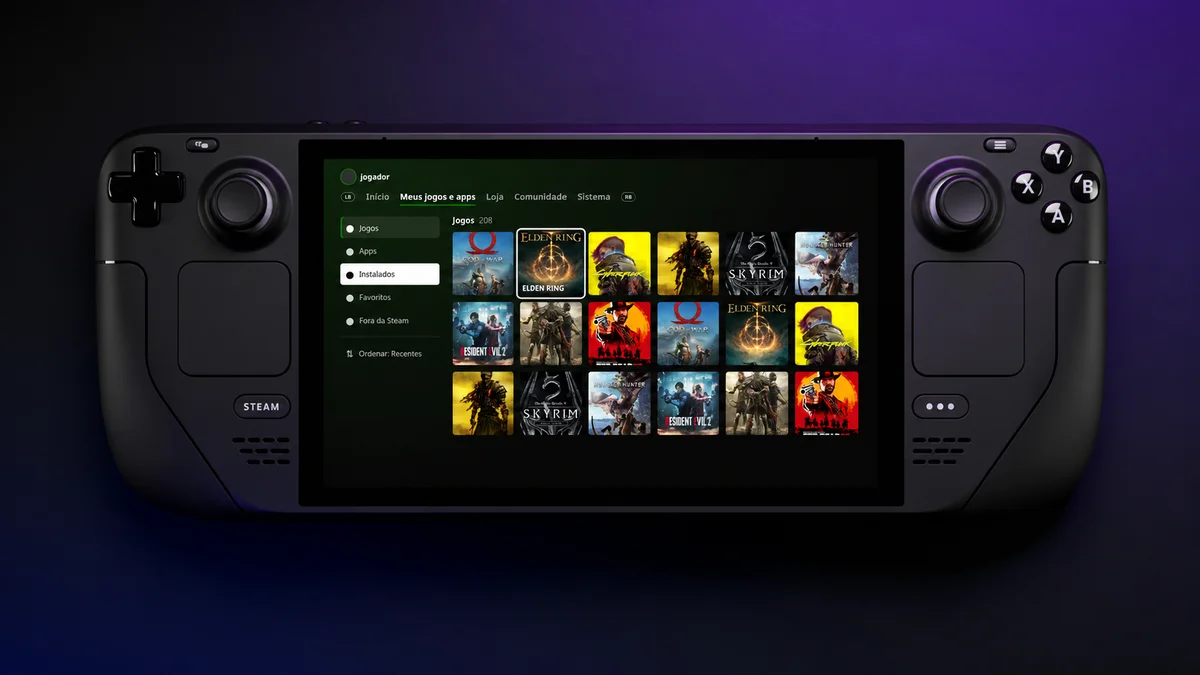
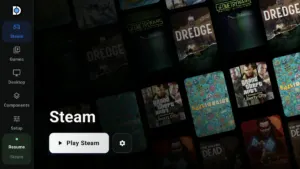
While handheld PC players regularly criticize the Windows 11 Xbox app for feeling clunky on small screens, the open-source SteamOS community has delivered a remarkably polished alternative. Named Decky Xbox Dashboard and released under the MIT license on GitHub by independent developer kromossomom, this plugin built for Decky Loader 3.x transforms the Steam Deck Game Mode into a faithful recreation of the Xbox Series X|S console interface. Updated to version v0.0.9-alpha, the project goes far beyond a surface-level skin by injecting custom TypeScript and React screens complete with dedicated Game Hubs, Achievement tracking, and native HowLongToBeat completion estimates.
More Than a CSS Skin: How Decky Xbox Dashboard Rebuilds the SteamOS Home Screen
Until now, restyling the Steam Deck interface mostly relied on CSS Loader stylesheets, which frequently broke whenever Valve updated SteamOS and regenerated obfuscated CSS class names. To solve this maintenance headache, Decky Xbox Dashboard relies on a much more resilient runtime architecture. Rather than hard-coding class selectors, the plugin dynamically queries Steam's internal modules at launch (locating keys such as RecentGamesContainer and BasicGameCarouselItem via findClassModule) and constructs its styling rules on the fly.
Even better, the plugin intercepts Steam's internal /library/home route using routerHook.addPatch to render its own custom React views at the handheld's native 1280x800 resolution, backed by a smart fail-safe: if the custom view ever encounters a script error, SteamOS immediately falls back to Valve's stock home screen without freezing the system. For handheld enthusiasts who already use community tools to run PC Game Pass games locally on Steam Deck via Xodus Nexus, this dashboard completes the illusion of holding a native portable Xbox console.
Y-Button Game Hubs, Achievements, HowLongToBeat, and the Xbox Guide Menu
Right from boot, the main screen mirrors the visual hierarchy of the Xbox Series X|S dashboard: the currently highlighted title fills the entire backdrop with its official hero artwork, game logo, and total playtime counter, while the first tile in the recent row expands into a full vertical cover followed by quick tiles for My games & apps and the Store. Pressing the LB and RB shoulder bumpers switches cleanly across the five top navigation tabs (Home, My games & apps, Store, Community, and System), and scrolling downward smoothly dims the background artwork to highlight your Pinned favorites (toggled with X), installed library, and custom collections.
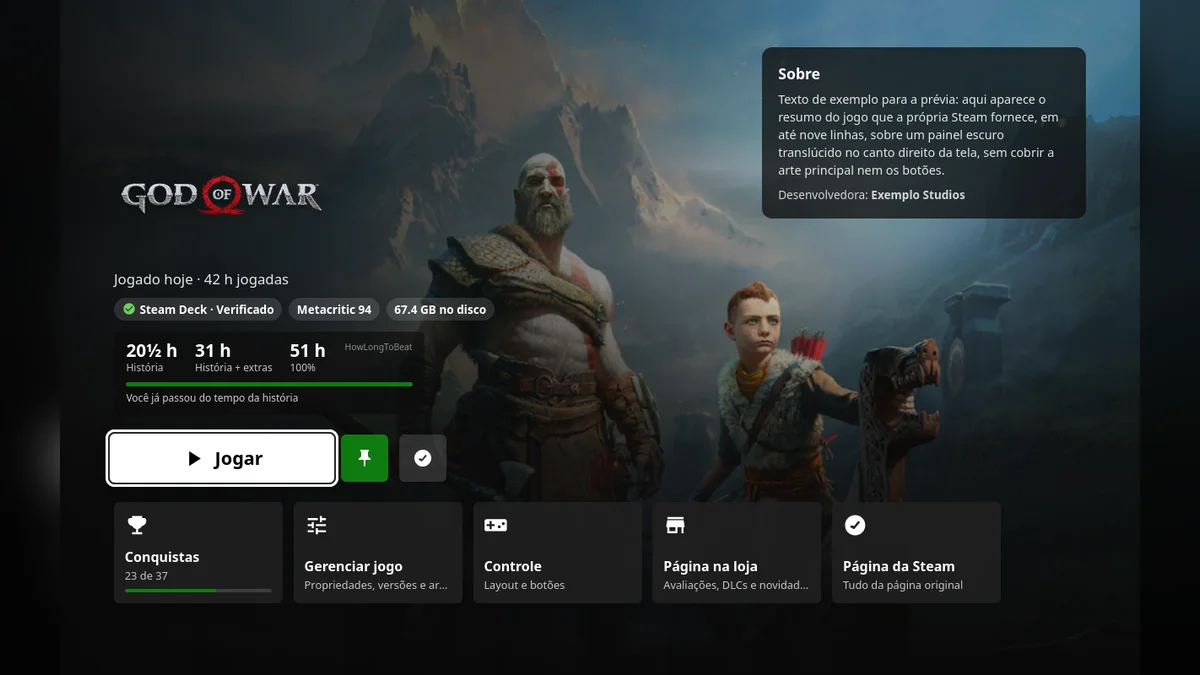
- Dedicated Game Hub (Y Button): Pressing Y on any tile launches an Xbox-inspired hub featuring a prominent Play / Install / Resume button, Steam Deck Verified compatibility badges, Metacritic scores, disk footprint in gigabytes, an About summary panel, and quick action cards for Achievements (complete with a completion bar), controller layouts, and file management.
- Built-In HowLongToBeat Integration: Directly inside the Game Hub and next to the focused title on the Home screen, the plugin displays average completion times for Main Story, Main + Extras, and 100% Completionist runs, mapping your current Steam playtime onto a green progress bar. Queries are only sent when viewing a game and are cached locally for seven days to preserve battery life and privacy.
- Xbox Guide Menus and Dynamic Palette Repaint: Following the v0.0.8-alpha update, both the main Steam menu and the Quick Access panel (
...) adopt the dark Xbox Guide aesthetic with a white focus ring, accent header underline, and lightweight animations restricted strictly totransformandopacityproperties. Users can pick from nine accent colors (including classic#107C10Xbox green and Series X|S green), adjust tile corner rounding from 0 to 32 px, and enable Segoe UI or Selawik typography. - SELECT Context Menu and SteamGridDB Hook: Pressing the View button (SELECT) on any tile opens a quick dropdown to pin or hide games, trigger Steam's native drive-selection install dialog (fixed in v0.0.9-alpha), or jump straight into the SteamGridDB plugin editor to swap capsules, hero banners, and logos on the spot.
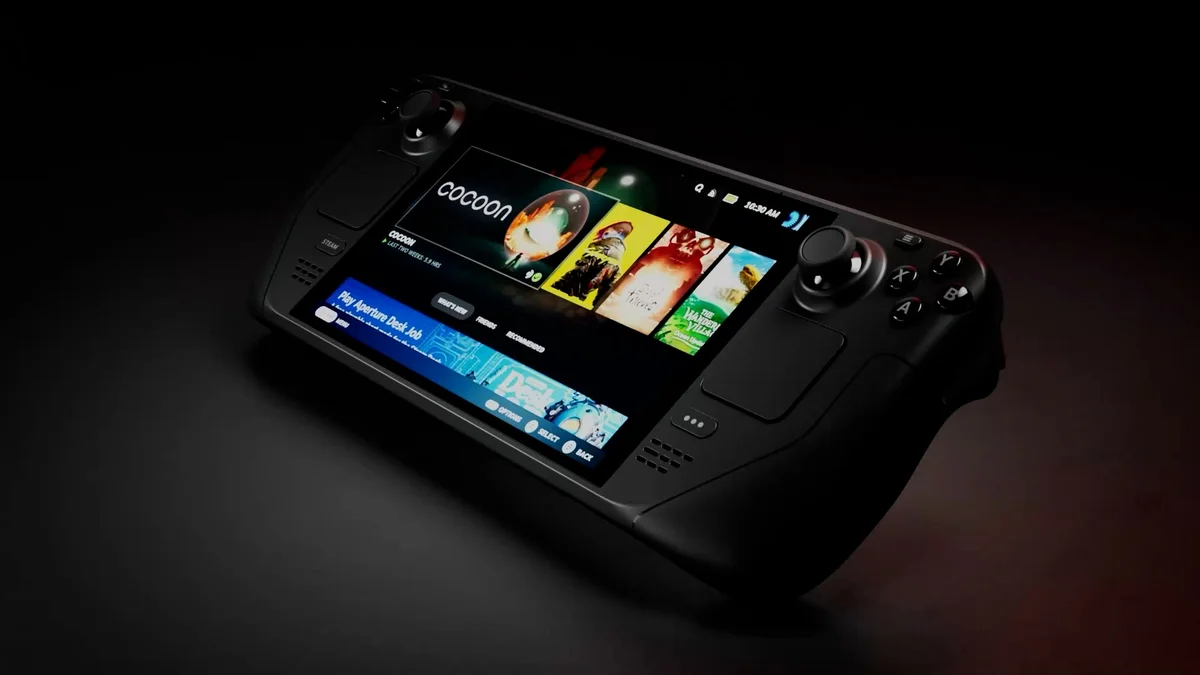
Valve Steam Deck Handheld Gaming Console (256GB LCD / 512GB & 1TB OLED)
How to Install Decky Xbox Dashboard on Your Steam Deck
All user preferences are saved cleanly inside ~/homebrew/settings/xbox-dashboard/settings.json without touching the read-only SteamOS system partition. Toggling off the Xbox home screen or color repaint in the Quick Access menu restores Valve's stock interface immediately without requiring a reboot. That level of modular flexibility highlights why SteamOS remains the gold standard for handheld gaming PCs even as hardware leaks already point toward the next-generation AMD Zen 6 Gainsborough APU spotted on Linux for Steam Deck 2.
- Make sure Decky Loader (version 3.x) is installed and running on your Steam Deck.
- Download the latest
xbox-dashboard.zippackage (v0.0.9-alpha) from the official kromossomom-debug GitHub repository releases page. - In SteamOS Game Mode, press the Quick Access button (
...), navigate to the Decky plug icon, and tap the gear icon to open Settings. - Under the General tab, toggle Developer mode on.
- Open the newly visible Developer tab, choose Install Plugin from ZIP, and select the downloaded archive from your Downloads folder.
Check Availability for M.2 2230 NVMe Steam Deck SSDs on Amazon→
My Take on the Spec Sheet
Looking through the source code of Decky Xbox Dashboard, what stands out most to me isn't just how closely it nails the Xbox Series X visual identity, but how smartly it handles SteamOS under the hood. Where 90% of community themes bog down the embedded Chromium renderer with heavy CSS overrides, swapping the home route for native React views and rendering library grids in lazy-loaded batches keeps navigation buttery-smooth even across massive 500-game Steam libraries. Ironically, an independent Linux developer has given the Steam Deck OLED the exact console-first handheld experience that Microsoft still struggles to deliver natively on Windows 11. We have not yet had a physical unit on our desk,if the manufacturer's team would like to send over a review sample so we can put it through our full real-world testing protocol, our lab doors are wide open.

PC hardware enthusiast and competitive gamer, Arthur 'Heimdall' splits his time between France and the UK working in enterprise B2B software solutions. A business school graduate passionate about component benchmarking, he has been building, modding, and tuning PCs since childhood, optimizing every thermal degree and millisecond of display latency. An avid gamer across Assassin's Creed and sandbox titles, he forged his alliance with Grimtag and Chaya during late-night World of Warcraft raids before joining Pro-Gamer.