Nintendo Switch 2 Wi-Fi Guide: How to Fix Connection Issues and 2110 Error Codes
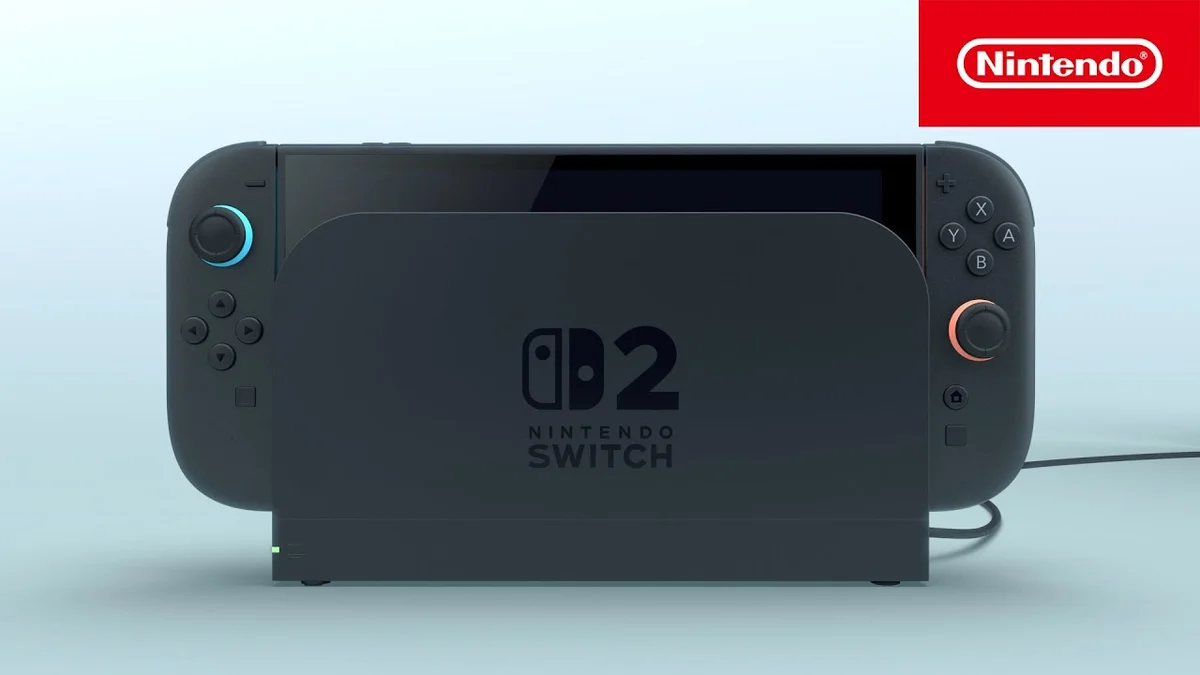
A game download stalling at 99%, the eShop failing to load, or a 2110-series error code interrupting your connection test: even though the Nintendo Switch 2 upgrades its internal wireless module to Wi-Fi 6 (IEEE 802.11ax), router configuration clashes can still prevent the console from getting online. Whether you are trying to download the Minecraft Nintendo Switch 2 Edition update or jump into an online lobby, most wireless drops trace back to band steering, DFS radar channels, or DNS timeouts.
Based on official Nintendo Support technical documentation, here is the complete step-by-step troubleshooting guide to diagnose the bottleneck and restore a rock-solid wireless or wired connection on your Nintendo Switch 2.
Understanding Nintendo Switch 2 Error Codes 2110-1100, 2110-2003, and 2110-3127
When the Nintendo Switch 2 runs its three-stage connection check (Network Device, IP Address, and Internet), any failure generates a four-digit prefix starting with 2110. The second half of the code pinpoints exactly where the handshake broke down:
- Error Codes 2110-1100 to 2110-1199: The console cannot detect a wireless access point within range, or the physical link to the dock's wired LAN port was lost.
- Error Codes 2110-2003, 2110-2016, and 2110-2202: The console detects your Wi-Fi network name (SSID), but the authentication handshake or local DHCP IP address assignment failed. This typically happens when 2.4 GHz and 5 GHz bands share a single combined SSID or when WPA2/WPA3 mixed security modes fail to negotiate.
- Error Code 2110-3127: Your console successfully connected to the router and obtained a local IP address, but Domain Name System (DNS) resolution timed out while trying to reach Nintendo's online servers.
Before changing your router settings, make sure Nintendo's online infrastructure is not undergoing scheduled downtime by checking the October 2026 Nintendo Switch 2 network maintenance schedule.
1. Perform a Full Hardware Power Cycle and Re-Register the Network
Tapping the power button once only puts the Nintendo Switch 2 into Sleep Mode, which does not flush the console's internal networking cache. If the Wi-Fi 6 controller gets stuck in an authentication loop after waking up, a full hardware reboot is required:
- Press and hold the physical POWER button on the top edge of the console for at least 3 seconds.
- Select Power Options from the on-screen menu, then choose Restart (or select Turn Off, wait 30 seconds, and power the system back on).
- At the same time, unplug your modem and Wi-Fi router from power for 30 to 60 seconds before plugging them back in to clear stale DHCP leases.
- On your console, navigate to System Settings > Internet > Internet Settings, select your saved Wi-Fi network, choose Delete Settings (Forget Network), and run a fresh search to re-enter your Wi-Fi password.
2. Split 2.4 GHz / 5 GHz Bands and Lock a Non-DFS Channel (36 to 48)
The single most common culprit behind intermittent Wi-Fi drops on modern gateways is automatic band steering (often labeled Smart Connect). When your router merges the 2.4 GHz and 5 GHz frequencies under one shared SSID, the Nintendo Switch 2 can drop its handshake whenever the router attempts to push the console from one band to the other, triggering error 2110-2003.
Log into your router's administration panel and apply these three official Nintendo Support adjustments:
- Split your 2.4 GHz and 5 GHz SSIDs: Give your 2.4 GHz band (better range through thick walls) and your 5 GHz band (much higher speed close to the router) distinct network names, then connect the Switch 2 exclusively to one band.
- Force a lower non-DFS 5 GHz channel (36, 40, 44, or 48): Left on "Auto", many Wi-Fi 6 routers assign DFS channels (channels 52 through 140), which are subject to mandatory radar-scanning disconnections and can cause handheld consoles to lose sight of the 5 GHz network entirely. Manually locking your 5 GHz control channel to 36, 40, 44, or 48 immediately stabilizes the signal.
- Check WPA2/WPA3 security and IPv6: While the Nintendo Switch 2 supports both WPA2-PSK (AES) and WPA3-Personal, certain ISP routers struggle with transitional WPA2/WPA3 Mixed modes. Switching your router security to pure WPA2-PSK (AES) and toggling off IPv6 in the console's network settings resolves persistent IP handshake loops.
3. Configure Manual DNS Servers (8.8.8.8 or 1.1.1.1) and MTU Settings
If your console connects to the router but fails the final Internet step with error code 2110-3127, your ISP's default DNS resolver is failing to answer requests in time. Overriding it directly on the Switch 2 takes less than a minute:
- Open System Settings > Internet > Internet Settings.
- Select your active Wi-Fi network and tap Change Settings.
- Scroll down to DNS Settings and switch it from Automatic to Manual.
- Enter Cloudflare's public DNS (Primary DNS:
1.1.1.1/ Secondary DNS:1.0.0.1) or Google's public DNS (Primary DNS:8.8.8.8/ Secondary DNS:8.8.4.4). - Check the MTU value right below: Nintendo defaults to 1400 bytes to prevent wireless packet fragmentation. On a clean fiber connection, you can test setting the MTU to 1500 to maximize eShop download throughput, or keep it at 1400 for maximum stability during online multiplayer matches.
- Select Save and run the connection test again.
Nintendo Switch 2 Wi-Fi Settings and 2110 Error Code Reference Table
| Error Code / Setting | Root Cause | Recommended Fix (Nintendo Support) |
|---|---|---|
| Error 2110-1100 | No wireless access point found or LAN link lost | Full console restart (hold Power 3s) and move closer to router |
| Error 2110-2003 / 2016 | DHCP IP handshake failure or 2.4 / 5 GHz band conflict | Split 2.4 GHz and 5 GHz SSIDs, set security to WPA2-PSK (AES) |
| 5 GHz Wi-Fi Channel | Signal drops on DFS radar channels (52 to 140) | Manually lock router 5 GHz channel to 36, 40, 44, or 48 |
| Error 2110-3127 (DNS) | ISP DNS server timeout during Internet check | Manual DNS: 1.1.1.1 / 1.0.0.1 or 8.8.8.8 / 8.8.4.4 |
| MTU Value | Packet fragmentation or slow eShop downloads | 1400 (default stability) or 1500 (high-speed fiber) |
4. Use the Dock's Built-In Gigabit Ethernet Port or Test a Mobile Hotspot
Unlike the original 2017 Switch dock that required a separate USB LAN adapter, the official Nintendo Switch 2 Dock features a built-in Gigabit Ethernet (10/100/1000 Mbps) port on the rear panel alongside its HDMI output and two side USB 2.0 ports. When playing in TV Mode, plugging a Cat 6 Ethernet cable directly into the dock bypasses wireless interference from concrete walls, Bluetooth devices, and crowded apartment spectrums.
Check Availability Nintendo Switch 2 on Amazon→
Finally, if your Nintendo Switch 2 still refuses to connect after trying every step above, turn on the mobile hotspot on your smartphone and try connecting the console from a few feet away. If the Switch 2 connects to your phone's hotspot right away, the console's internal Wi-Fi 6 hardware is working properly and the issue is isolated to your router's firewall or MAC filtering. If it fails to detect even a nearby mobile hotspot, contact official Nintendo Support for a hardware inspection.

Based on the outskirts of New York City, Chaya 'Chayane' spent five years studying software engineering in Montreal before returning to her home state. A Full-Stack developer and Deep Learning AI architecture researcher, she explores neural networks and algorithmic optimization while engineering data pipelines for Retrocharting and Gamescharting alongside Grimtag. A gamer for over 20 years and an avid collector of Nintendo history and The Legend of Zelda, she explored World of Warcraft's Azeroth before bringing her deep technical background to video game analysis.