How to Stream GTA 6 on Xbox Series X and Series S (Twitch, YouTube & OBS): The 3 System Settings That Fix Blurry Gameplay
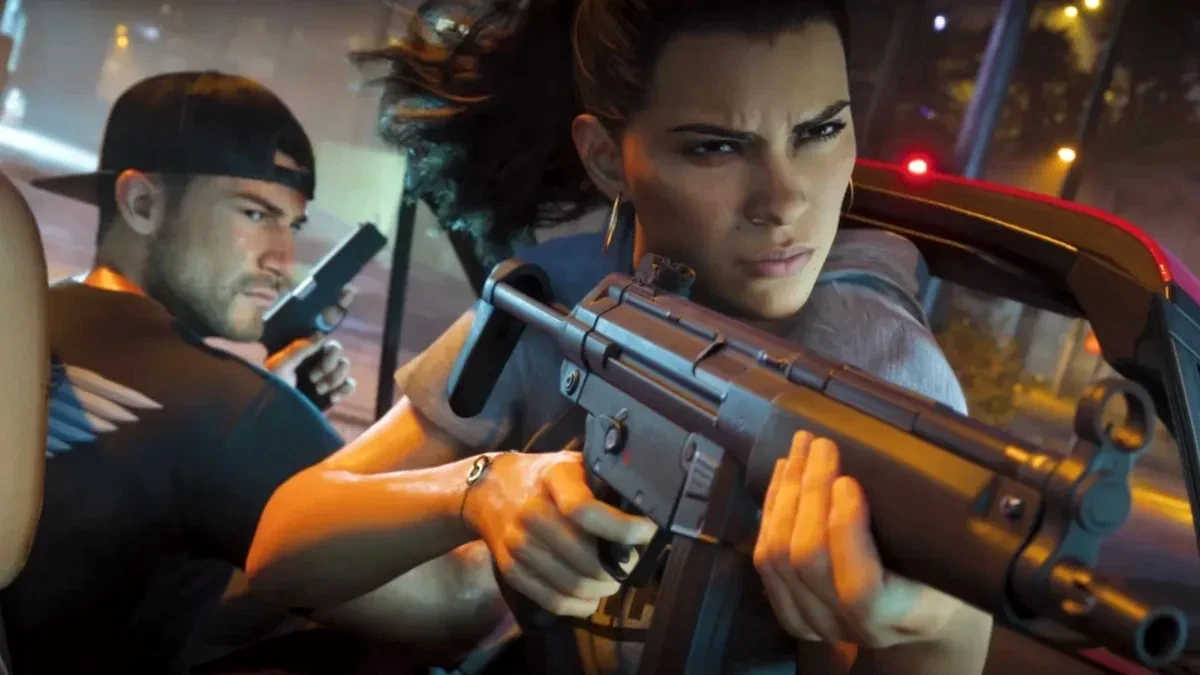
Going live with Grand Theft Auto VI on Xbox Series X or Xbox Series S immediately confronts content creators with a real hardware hurdle. Without a dedicated machine-learning upscaler equivalent to the PS5 Pro PSSR on Series X, and with a lower internal rendering resolution paired with tighter memory bandwidth on Series S, leaving your console on factory display settings can quickly turn Leonida's dense foliage and Vice City's neon streets into a pixelated smear on Twitch or YouTube.
Can You Stream GTA 6 Cleanly on Xbox Series X and Series S Against the PS5 Pro?
In practice, Microsoft's consoles require a much stricter configuration than Sony's upgraded hardware to deliver a crisp broadcast. When you are tearing down Ocean Beach at top speed, the sheer geometric density of the RAGE engine pushes real-time H.264 video encoding to its limits. If the video signal feeding your built-in Twitch broadcaster or external capture card already suffers from mismatched color ranges or double scaling artifacts, platform compression will destroy image clarity.
Fortunately, the Xbox Series video pipeline hides three default system settings (Dolby Vision for Gaming, mismatched PC RGB color space, and forced 1080p native Twitch output on Series S) that actively sabotage stream quality. By manually correcting these parameters before hitting the Go Live button, you can unlock razor-sharp motion clarity and accurate colors.

The 3 Xbox Series X|S Display Settings You Must Change Before Going Live
Before you even open the Xbox Guide broadcast tab or launch OBS Studio on your streaming PC, head into Settings > General > TV & display options on your console and lock in these three foundational tweaks.
1. Turn Off Dolby Vision for Gaming (Video modes > Dolby Vision for Gaming: Unchecked)
This is the number one trap for Xbox Series X and Series S streamers. Dolby Vision for Gaming relies on proprietary dynamic frame-by-frame metadata. Neither the native Xbox Twitch encoder nor the vast majority of HDMI 2.1 capture cards can accurately tone-map that dynamic container down to standard SDR in real time. Leaving it enabled causes purple or greenish color shifts, blown-out highlights, or a completely black preview screen in OBS.
If you are broadcasting directly from the console without an external capture card equipped with dedicated hardware tone mapping, you should also uncheck Allow HDR10 and Auto HDR for the duration of your stream. Feeding a pure SDR Rec. 709 signal ensures that the sunset you see on your gaming display matches what your viewers watch in chat.
2. Color Space (Video fidelity & overscan): Keep It on Standard (Recommended)
Inside Video fidelity & overscan > Color space, many players gaming on desktop monitors switch their Xbox to PC RGB (Full 0-255 range). For live streaming, that setting is disastrous. Both the internal Xbox broadcast encoder and default capture card presets expect a Limited RGB signal (16-235), which corresponds to Standard (Recommended).
When a PC RGB signal is interpreted as Limited RGB during encoding, every dark shadow detail between levels 0 and 15 gets crushed into pure black. The moment night falls over Vice City or you drive through the murky bayous of Grassrivers, your audience will stare at an unreadable black void.
3. Keep the 120Hz VRR Container Smooth on Xbox Series X Without Stuttering Your Stream
Because exploring Leonida runs at 30 frames per second on consoles, keeping 120Hz + VRR (Variable Refresh Rate) active in your Xbox Series X display menu provides a massive responsiveness boost for the player. Thanks to Low Framerate Compensation (LFC), each 30 FPS frame is cleanly multiplied inside the 120Hz container, eliminating uneven frame pacing on your screen. You can also check our GTA 6 30 FPS OLED TV settings guide for PS5 and Xbox to dial in your panel response.
If you capture gameplay through an HDMI 2.1 card such as the Elgato HD60 X or 4K X, enable VRR Passthrough to your gaming monitor while locking your OBS Studio video canvas to a fixed 30 FPS (or 60 FPS with a strict 2-second keyframe interval). Locking the OBS canvas prevents fluctuating VRR refresh pulses from introducing screen tearing into your outgoing stream.
Optimal Settings Table: Native Twitch Broadcast & OBS on Xbox Series X vs. Series S
To start a native console stream, press the Xbox button > Capture & share > Live streaming > More options. Use the comparison table below to apply the exact encoding profile tailored to your Xbox model:
| System / Stream Setting | Xbox Series X (Native Twitch & OBS) | Xbox Series S (Bits-Per-Pixel Sweet Spot) |
|---|---|---|
| Dolby Vision for Gaming | Disabled (Mandatory for live capture) | Disabled (Mandatory for live capture) |
| HDR10 / Auto HDR | Disabled (Unless using hardware tone map) | Disabled (Pure SDR Rec. 709) |
| Xbox Color Space | Standard (Recommended: Limited 16-235) | Standard (Recommended: Limited 16-235) |
| Console Output & VRR | 4K 120Hz + VRR (LFC Active) | 1080p or 1440p 60/120Hz + VRR |
| Twitch Stream Resolution | 1080p (1920 x 1080) | 720p (1280 x 720) (No Double-Scaling) |
| Target Bitrate | 6,000 kbps (Stable CBR) | 4,500 to 6,000 kbps |
| USB Webcam Resolution | 720p Max | 720p Max (or Off to save encoder headroom) |
| Party Audio / Game Mix | 70% Microphone / 30% Game | 70% Microphone / 30% Game |
The Crucial Xbox Series S Trick: The 720p Bits-Per-Pixel Secret
On Xbox Series X, you can confidently select 1080p at 6,000 kbps after verifying your upload speed with the built-in bandwidth tester, while capping your USB webcam at 720p so it never steals hardware cycles from the video encoder.
On Xbox Series S, however, forcing a native 1080p broadcast on a game that already upscales from a lower internal resolution creates a harsh double-scaling artifact. Because the encoder tries to stretch and re-compress soft upscaled edges across two million pixels, fast police chases through palm-lined avenues immediately dissolve into blocky compression artifacts (macroblocking).
The pro-level fix on Series S is setting your Twitch broadcast output to 720p (1280 x 720) at 4,500 to 6,000 kbps. A 720p frame contains 921,600 pixels, which is 2.25 times fewer pixels to encode than a 1080p frame (2,073,600 pixels). Feeding that same 6,000 kbps bitrate into 720p more than doubles your bits-per-pixel (BPP) ratio. The image becomes dramatically cleaner during high-speed action, eliminates macroblocking in Leonida's vegetation, and looks razor-sharp on mobile devices, where over 65% of Twitch and YouTube viewers watch live streams.
In-Game GTA 6 Graphics Tweaks, DMCA Radio Protection & Xbox Party Audio
Once your Xbox OS parameters are locked in, three quick adjustments inside the GTA 6 pause menu and Xbox Guide audio mixer will finalize a broadcast-ready setup:
- Relieve the H.264 encoder in GTA 6 graphics menus: open the in-game display tab and set Film Grain to 0 and Chromatic Aberration to Off. Artificial film grain injects random high-frequency noise across every frame, wasting up to 20% of your video bitrate budget. Set Motion Blur to Low so fast camera pans across Vice City stay crisp. For more gameplay optimizations during your opening hours, explore our GTA 6 beginner's guide with 25 essential spoiler-free tips.
- DMCA protection for Leonida radio stations: Vice City's radio dial is packed with copyrighted commercial tracks. To prevent muted VOD segments or copyright strikes on Twitch and YouTube, drop the Music / Radio Volume slider to 0% in the in-game audio menu while keeping Jason and Lucia's dialogue and sound effects at 100%.
- Xbox Party Chat audio balance: if you stream with friends, check the Party audio toggle in the live streaming panel only after your teammates opt in to share their voice inside their Xbox Guide. Set your audio balance sliders to 70% Microphone and 30% Game Audio so your commentary stays clear above V8 engine roars and downtown gunfights.
My Bench Test
After spending several hours running side-by-side capture tests on both my Xbox Series X and Xbox Series S through an Elgato HD60 X as well as the native Xbox Guide Twitch app, the visual difference from these three adjustments was night and day. When I left Dolby Vision enabled and forced 1080p output on the Series S, driving through the Grassrivers wetlands turned the foliage into a muddy mosaic of compression blocks. The moment I disabled Dolby Vision, switched the color space back to Standard (16-235), turned off in-game Film Grain, and dropped the Series S Twitch stream to 720p at 6,000 kbps, the broadcast feed snapped into focus. You do not need a PS5 Pro to deliver a clean, professional GTA 6 stream, provided you stop default Xbox video settings from fighting your encoder.
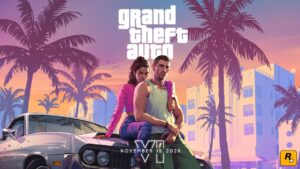
Grand Theft Auto 6 (GTA 6)
Explore official trailers, technical specs and all latest coverage for Grand Theft Auto 6 (GTA 6).
PC hardware enthusiast and competitive gamer, Arthur 'Heimdall' splits his time between France and the UK working in enterprise B2B software solutions. A business school graduate passionate about component benchmarking, he has been building, modding, and tuning PCs since childhood, optimizing every thermal degree and millisecond of display latency. An avid gamer across Assassin's Creed and sandbox titles, he forged his alliance with Grimtag and Chaya during late-night World of Warcraft raids before joining Pro-Gamer.