GTA 6 First-Person Mode Guide: How to Play in First Person on PS5 and Xbox Series X|S
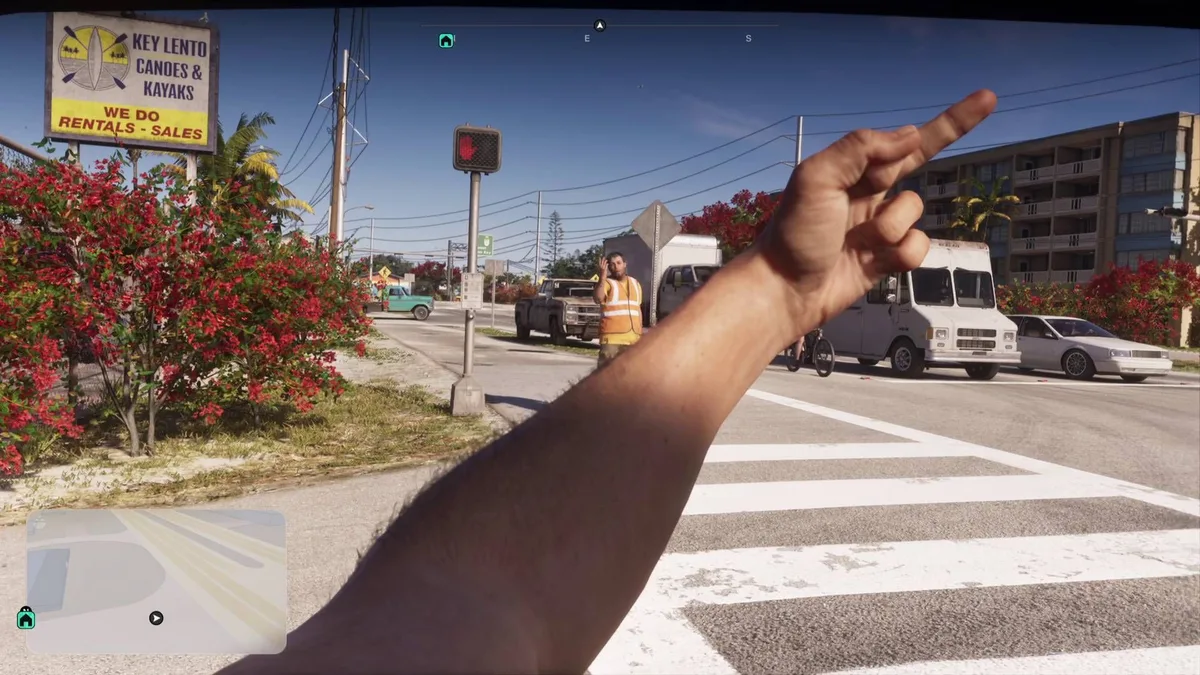
When diving into Leonida at the launch of Grand Theft Auto VI on PlayStation 5 and Xbox Series X|S, many veterans of GTA V and Red Dead Redemption 2 immediately tried pressing the camera button expecting to switch into a full eye-level perspective. By default, Rockstar Games designed the core campaign strictly around a third-person camera to showcase its RAGE 9 full-body animations, restricting official first-person viewpoints to a handful of contextual mechanics.
However, players have already uncovered a repeatable controller glitch on both PS5 and Xbox Series X|S that forces the engine into a fully playable, persistent first-person mode for walking, sprinting, driving, and even shooting. Below is the complete step-by-step guide to triggering the playable first-person camera trick, alongside every official built-in first-person control available without glitching.
How to Unlock Playable First-Person Mode for Walking and Driving (PS5 & Xbox Glitch)
This workaround exploits a brief animation transition between putting away your in-game smartphone inside a vehicle and cycling the camera view. Before getting behind the wheel, you need to adjust one controller mapping option in the pause menu.
- Step 1 (Rebind Your Shortcut Button to Camera): Open the Pause Menu, navigate to Settings > Controller, and scroll down to Touch Pad Button (on PS5) or View Button (on Xbox Series X|S). Change the assignment from the default Map setting to Camera (Camera 2/2). As a bonus, assigning this button to Camera is also the exact setup required to trigger GTA 6's Auto-Drive autopilot and cinematic camera mode when holding the button down on the highway.
- Step 2 (Enter Any Vehicle): Sit in the driver's seat of any car with the engine running while parked.
- Step 3 (Pull Out Your Phone): Press D-Pad Up to bring up Jason or Lucia's smartphone. Pulling out the phone while seated at the wheel automatically shifts the camera into a close-up interior cockpit angle.
- Step 4 (The Put-Away & Camera Spam Timing): Press Circle (PS5) or B (Xbox) to exit and put the phone away, then immediately spam the Touch Pad (PS5) or View Button (Xbox) rapidly during the split-second animation where your character lowers their hand.
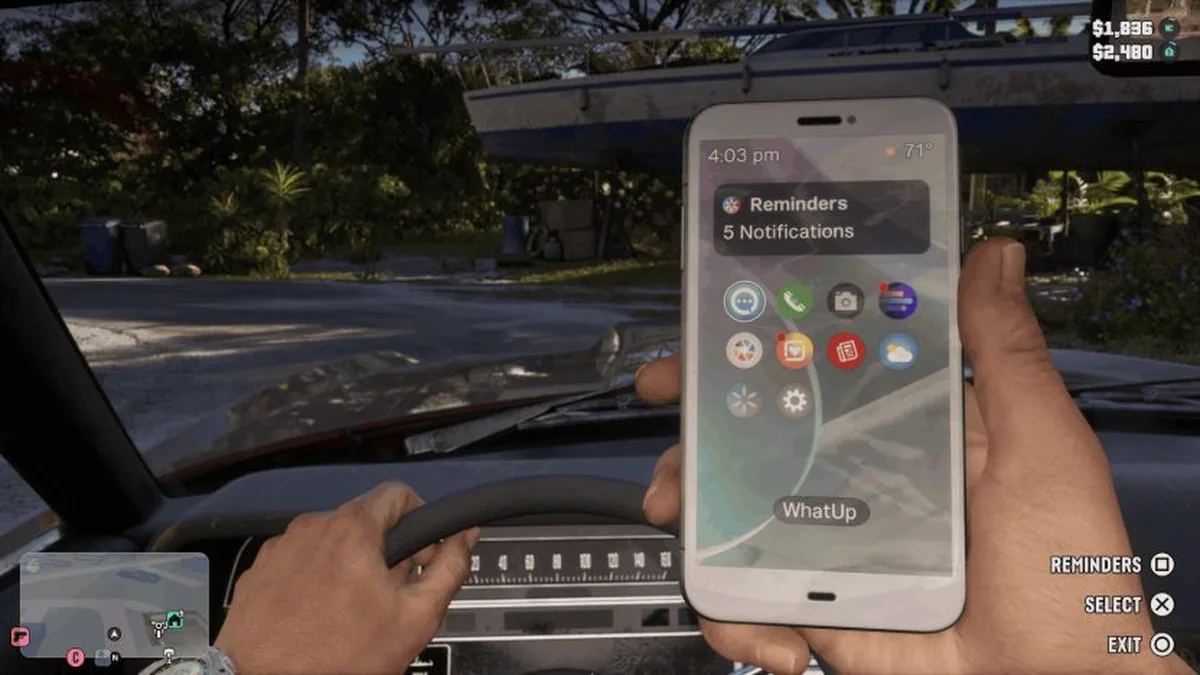
Because the timing window is tight, it may take two or three attempts to catch the transition frame. Once it clicks, the smartphone disappears while locking your perspective into a genuine first-person view for the remainder of your session. You can exit the car, roam Vice City on foot, sprint, rob convenience stores, swim, and drive any vehicle from an eye-level viewpoint.
Even more fascinating is what happens during combat: drawing a firearm while in this state reveals hidden first-person weapon handling, aiming, and reload animations already present in Rockstar North's game files. Because this perspective is an unfinished work-in-progress rather than an officially supported launch toggle, you will occasionally notice minor model clipping near walls or slightly rough iron-sight alignments. Being wasted will not reset the camera; to exit the glitch and return to standard third-person, simply reload your save file from the Pause Menu (or trigger a scripted camera reset such as sitting in a hair salon chair or getting busted by the police).
All 4 Official Ways to Use First-Person View Without Glitching
If you just want to take in Leonida's world details through Jason or Lucia's eyes using native mechanics, Grand Theft Auto VI includes four built-in first-person features:
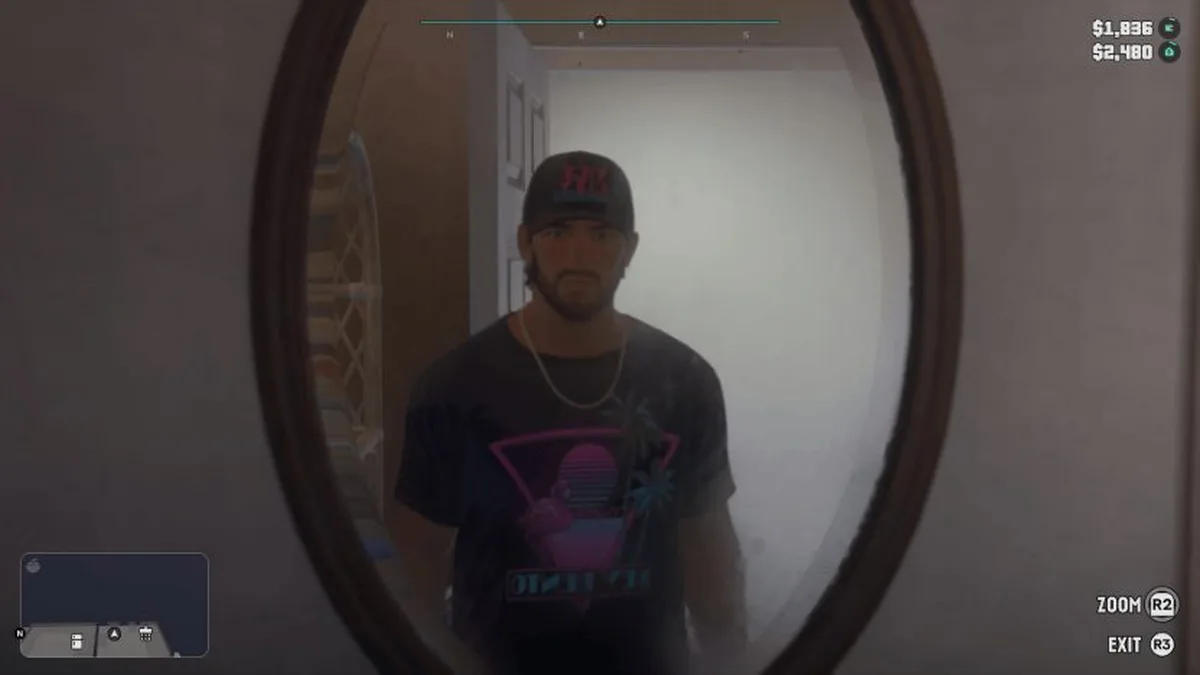
- Inspect Surroundings Mode on Foot: Come to a complete stop on foot and make sure your weapons are holstered (unarmed). Hold L2 (PS5) or LT (Xbox), then click the right thumbstick R3 (PS5) or RS (Xbox). Your camera immediately snaps into a free-look first-person view. While your character cannot walk during inspection, you can look around 360 degrees and hold R2 (PS5) or RT (Xbox) to zoom in on interiors, mirrors, or patrol routes before using our GTA 6 stealth guide to whistle and distract guards with thrown items. Clicking R3 / RS again exits back to third-person.
- First-Person NPC Conversations: Whenever you hold L2 / LT to bring up interaction prompts with a civilian or shopkeeper, clicking R3 / RS shifts the dialogue camera into first-person for as long as you keep the left trigger held.
- Driving With the Phone Out: Pressing D-Pad Up while driving switches you into an interior dashboard view for as long as the phone remains on screen. You can customize this behavior under Settings > Camera > Phone Display by ensuring it is set to First Person.
- Weapon Scopes (ADS) & Binoculars: Attaching an optic or scope to a rifle at Ammu-Nation lets you click R3 / RS while aiming with L2 / LT to look directly down the first-person sight, just like equipping the binoculars for wildlife scouting.
GTA 6 First-Person Controls Quick Reference (PS5 & Xbox Series X|S)
| First-Person Action / Feature | PS5 Command (DualSense) | Xbox Series X|S Command |
|---|---|---|
| Inspect Surroundings (on foot, standing still, unarmed) | Hold L2 + Click R3 | Hold LT + Click RS |
| Zoom In / Exit Inspect Mode | Hold R2 / Click R3 | Hold RT / Click RS |
| Playable First-Person Glitch (Controller Setup) | Settings > Controller > Touch Pad Button: Camera | Settings > Controller > View Button: Camera |
| Trigger First-Person Glitch in a Car | D-Pad Up (Phone), then Circle + spam Touch Pad | D-Pad Up (Phone), then B + spam View Button |
| Aim Down Weapon Scopes (ADS) | Hold L2 + Click R3 | Hold LT + Click RS |
| Exit First-Person Glitch Back to Third-Person | Pause Menu > Reload Save | Pause Menu > Reload Save |

My Perspective
Trying out this phone-in-car camera glitch completely reframes why a dedicated first-person toggle was missing on launch day. Seeing that Jason and Lucia already have functional first-person weapon animations, working vehicle gauges, and full eye-level movement baked into the game files proves that Rockstar North never abandoned the perspective. Instead, they kept it behind the curtain while polishing how those 600,000 full-body animations interact with tight interior spaces. Until an official post-launch update brings a proper FOV slider and independent camera settings, combining this vehicle trick for cruising around Vice City with the built-in L2 + R3 inspection mode is easily the most immersive way to appreciate Leonida's ridiculous level of detail.

Grand Theft Auto 6 (GTA 6)
Explore official trailers, technical specs and all latest coverage for Grand Theft Auto 6 (GTA 6).

Based on the outskirts of New York City, Chaya 'Chayane' spent five years studying software engineering in Montreal before returning to her home state. A Full-Stack developer and Deep Learning AI architecture researcher, she explores neural networks and algorithmic optimization while engineering data pipelines for Retrocharting and Gamescharting alongside Grimtag. A gamer for over 20 years and an avid collector of Nintendo history and The Legend of Zelda, she explored World of Warcraft's Azeroth before bringing her deep technical background to video game analysis.